MCP server · Developer tools
Langfuse MCP server
by avivsinai
Ask your AI to find errors, slow spots and sessions in your Langfuse traces, and to manage prompts.
Langfuse is a tool that records what your AI app did: every request, every step, every error. This MCP server connects your AI assistant to your Langfuse data, so you can just ask questions in plain words instead of clicking around dashboards. It is handy if you build or test AI features and need to figure out why something failed or got slow.
What is an MCP server? The 30-second version
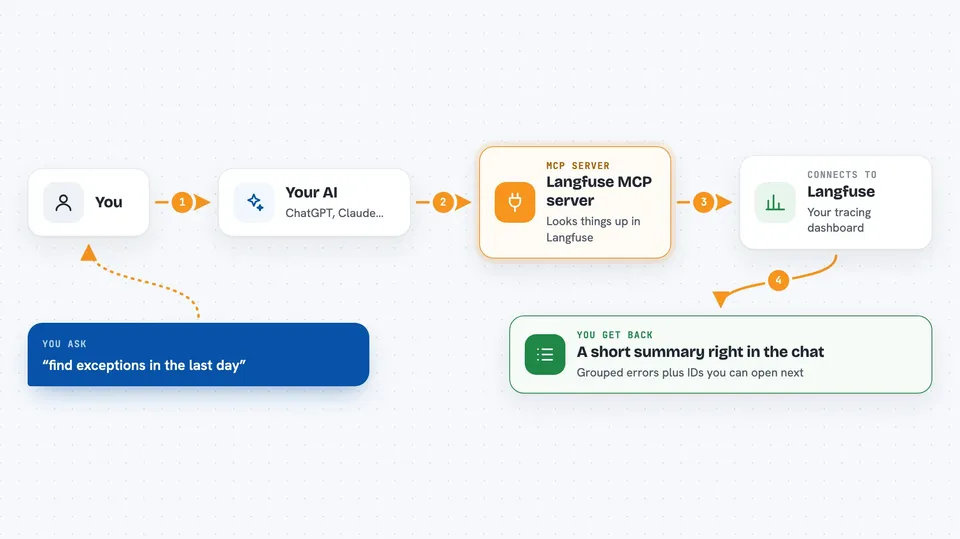
On its own, your AI can only chat with you. An MCP server is a small helper program that gives your AI a new skill or a connection to another service. This one connects your AI to Langfuse, your project where traces and errors are stored. Once it is set up, your AI can look things up in Langfuse and bring answers back to your chat.
What this MCP server does
You ask your AI something like find exceptions in the last day. Your AI uses this helper to talk to Langfuse through its API, which is the official way programs read data from a service. Langfuse returns the matching traces, sessions or error records, and the helper passes them back to your AI. Your AI then explains them to you in the chat, often as a short grouped list with IDs you can dig into further.
 Click to zoom
What you can do with it
- Find exceptions and errors from the last day or week
- Open a single trace and see all its steps
- Look up a user's sessions and see why one was slow
- List and read your prompts, and create or relabel them
- List datasets and dataset runs used for testing
- Query metrics like cost, latency and token counts
- Read annotation queues and their items
Try asking your AI
- “find exceptions in the last day”
- “why was this user's session slow?”
- “show me the trace for trace id abc123 with all its observations”
- “what did inference cost in the last 24 hours, grouped by model?”
What it gives back to you
You get answers in the chat: grouped error lists with trace and observation IDs, summaries of a session, details of one trace step by step, prompt contents, dataset items, or numbers like total cost and p95 latency. Some tools can also write results to a file when you pick that output mode. Longer results are often trimmed to keep the chat readable, and you can ask for more detail on a specific ID.
Before you start
What you need
- A Langfuse account (cloud or your own self-hosted instance)
- A public key and a secret key from Langfuse, found under Settings then API Keys
- The uv tool installed, which provides the uvx command
- Python 3.10 or newer
Good to know
Some tools can create, update or delete prompts, dataset items and annotation queue entries, so use read-only mode if you only want to look and not change anything.
Install it with your AI
Add Langfuse MCP server to your AI, no technical skills needed
You don't install anything by hand. You copy one prompt, paste it into an AI that can work on your computer, and it checks, installs and connects the server for you, asking you when it needs something.
Sign in to get the install prompt
Members get a ready-made prompt that lets the Claude desktop app check Langfuse MCP server, install it and connect it for them, step by step. You don't need any technical skills: you copy, paste and answer a few questions. Your connected AI can also find and install any of the 4,361 MCP servers here for you.
Who it's for
Developers and testers who build or run AI features and want to debug Langfuse traces, sessions and errors from their chat instead of the dashboard.