MCP server · Developer tools
Langfuse MCP server
by Log-LogN
Lets your AI look up Langfuse traces, errors, sessions, prompts, and scores for you in plain chat.

This is a helper that connects your AI assistant to Langfuse, the tool teams use to watch how their AI apps behave. Once it is running, you can ask your AI questions about your Langfuse data in normal words instead of clicking around the dashboard. It is handy for anyone who checks AI app activity, errors, or costs.
What is an MCP server? The 30-second version
On its own, your AI can only chat with you. An MCP server is a small helper program that gives your AI a new skill or a connection to another service. This one connects your AI to Langfuse, so when you ask about a trace, an error, or a cost, the AI can go look it up there and bring the answer back. You do not need to understand how it works inside, you just talk to your AI like usual.
What this MCP server does
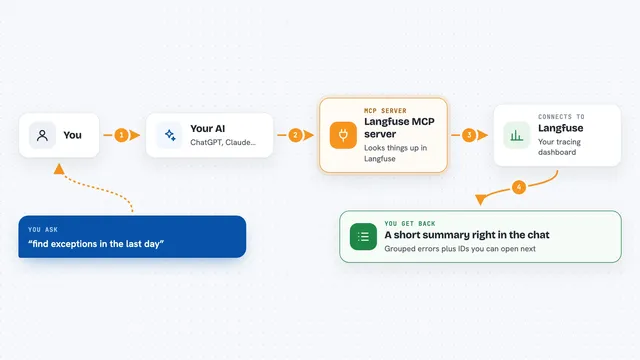
You ask your AI something about your Langfuse data, like which traces failed today or what a session looked like. Your AI sends that request to this helper program, which is running on your machine or a server. The helper then talks to Langfuse using your account keys and fetches the matching traces, sessions, prompts, scores, or numbers. It hands the result back to your AI, which explains it to you in the chat. Some actions also let the AI change things in Langfuse, like creating a prompt or adding a comment.
 Click to zoom
What you can do with it
- List and search traces by user, name, session, tag, or time range
- Find error-level traces and get the full details of what went wrong
- Inspect a session and see every trace inside it
- Read, create, and relabel prompts in your project
- Look at datasets, dataset runs, and their items
- Check scores, score configs, and annotation queues
- Query cost, token, and latency numbers over a time range
Try asking your AI
- “Show me the traces from the last hour that ended in an error.”
- “What did session abc123 look like, step by step?”
- “How much did we spend on tokens yesterday, broken down by model?”
- “List the prompts in my project and show me the production version of the support-reply prompt.”
What it gives back to you
You get answers in the chat, usually as a short summary plus a list of items like traces, sessions, prompts, or scores. Each item comes with the key details, such as IDs, timestamps, input and output, latency, and token usage. For cost questions you get numbers, often grouped by day or by model. When you ask it to create or change something, it tells you what it did.
Before you start
What you need
- A Langfuse account with an API key pair (a public key and a secret key, found in Langfuse under Settings then API Keys)
- Java 21 or newer, or Docker if you prefer not to install Java
- Maven 3.9 or newer if you build it yourself (not needed with the Docker build)
- An MCP-compatible app such as Cursor, Claude Desktop, or VS Code with GitHub Copilot
Good to know
Some tools can permanently delete traces, prompts, dataset items, runs, models, and queue items, and they cannot be undone, so be careful when you ask it to delete anything.
Install it with your AI
Add Langfuse MCP server to your AI, no technical skills needed
You don't install anything by hand. You copy one prompt, paste it into an AI that can work on your computer, and it checks, installs and connects the server for you, asking you when it needs something.
Sign in to get the install prompt
Members get a ready-made prompt that lets the Claude desktop app check Langfuse MCP server, install it and connect it for them, step by step. You don't need any technical skills: you copy, paste and answer a few questions. Your connected AI can also find and install any of the 4,361 MCP servers here for you.
Who it's for
People who work with AI apps and check their Langfuse activity, like developers, QA testers, and support or ops folks who watch errors and costs.