
MCP server · Browser automation
SnapStack MCP server
by bgaze
Lets your AI see screenshots you take of browser tabs, so it can read and work with what's on screen.
SnapStack is a small helper that runs on your own computer. It collects screenshots you take of your browser tabs and lets your AI assistant look at them when you ask. It is handy if you often want your AI to read something on a web page without copying and pasting the text.
What is an MCP server? The 30-second version
On its own, your AI can only chat with you. It cannot see your screen or open your browser. An MCP server is a small helper program that gives your AI a new skill. SnapStack is that helper here: it holds your browser screenshots and hands them to your AI when you ask, so your AI can look at the pages you captured.
What this MCP server does
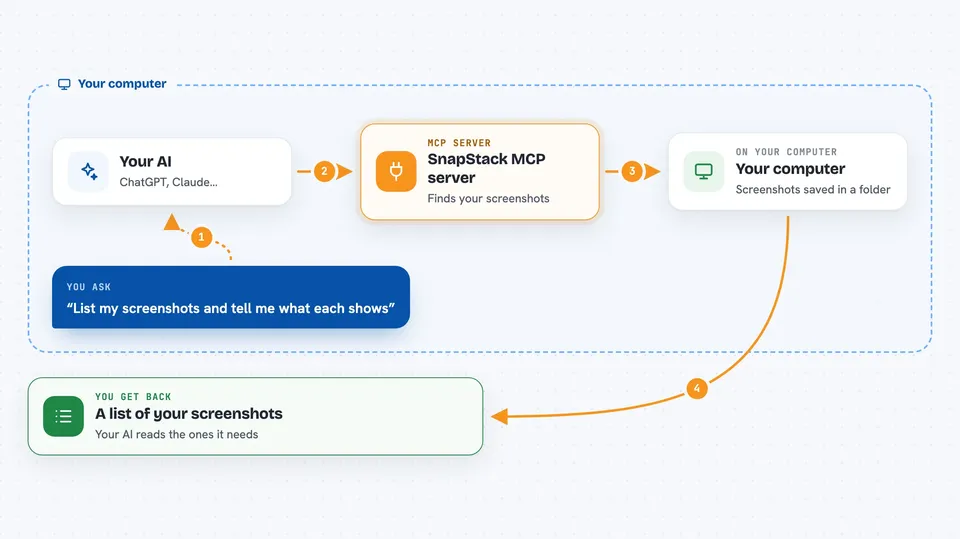
You take a screenshot of a browser tab using a companion browser extension. The extension sends the picture to SnapStack, which runs quietly on your computer and saves it in a folder. When you ask your AI about your screenshots, your AI asks SnapStack for the list. SnapStack gives back a list of what is available, with the file locations, and your AI reads only the ones it needs. Nothing is sent to the internet; everything stays on your machine.
 Click to zoom
What you can do with it
- Ask your AI to list the screenshots you have waiting
- Have your AI read what is on a captured page
- Ask your AI to summarize a page you screenshotted
- Check how many screenshots are waiting without opening the folder
- Delete specific screenshots when you are done with them
- Clear the whole stack of screenshots in one go
Try asking your AI
- “List my pending screenshots and tell me what each one shows.”
- “Read screenshot number 2 and summarize the article.”
- “How many screenshots do I have waiting?”
- “Delete screenshots 1 and 3, then clear the rest.”
What it gives back to you
It gives back a list of your screenshots with a number, the file location, the size, and some details like the page address and title. It does not send the actual image inside the chat; your AI opens the files it needs from your computer. When you ask it to delete, it tells you what was removed. It also answers simple questions like how many screenshots are waiting.
Before you start
What you need
- Node.js version 18 or newer on your computer
- The SnapStack browser extension loaded in your browser
- An AI app that can talk to MCP servers
Good to know
The clear_screenshots tool deletes your screenshots for good, so be sure before you ask your AI to clear the stack.
Install it with your AI
Add SnapStack MCP server to your AI, no technical skills needed
You don't install anything by hand. You copy one prompt, paste it into an AI that can work on your computer, and it checks, installs and connects the server for you, asking you when it needs something.
Sign in to get the install prompt
Members get a ready-made prompt that lets the Claude desktop app check SnapStack MCP server, install it and connect it for them, step by step. You don't need any technical skills: you copy, paste and answer a few questions. Your connected AI can also find and install any of the 4,361 MCP servers here for you.
Who it's for
Anyone who wants their AI to read web pages they screenshot, like researchers, writers, support staff, or anyone who copies text from pages into chat.


