MCP server · Productivity
BoldSign MCP server
by boldsign
Let your AI look up, send and manage your BoldSign e-signature documents and templates for you.
This is a small helper that connects your AI assistant to BoldSign, the service people use to send documents out for electronic signing. Once it is set up, you can ask your AI things like which contracts are still waiting on a signature, and it will go and check for you. It is handy for anyone who sends or tracks signing requests at work, like office managers, HR folks, sales teams and small business owners.
What is an MCP server? The 30-second version
On its own, your AI can only chat. It cannot see your BoldSign account or do anything inside it. An MCP server is a small helper program that gives your AI a new skill, in this case a connection to BoldSign, so it can look things up or take actions there when you ask. You set it up once, and after that your AI can reach BoldSign the same way it answers a question.
What this MCP server does
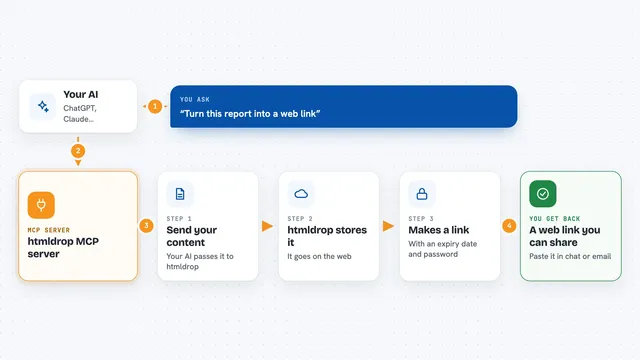
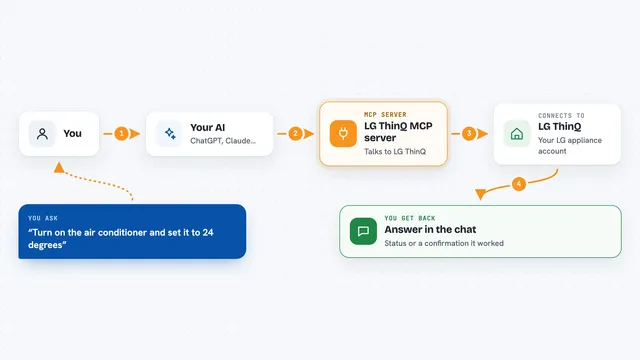
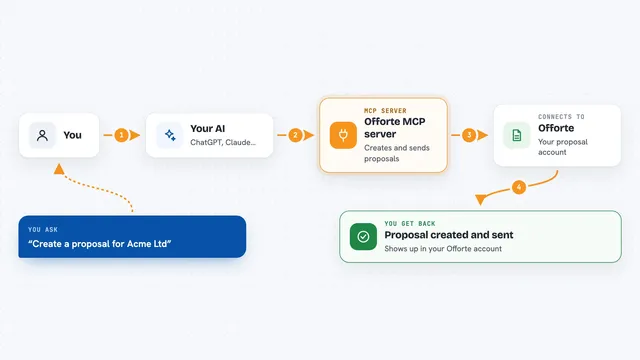
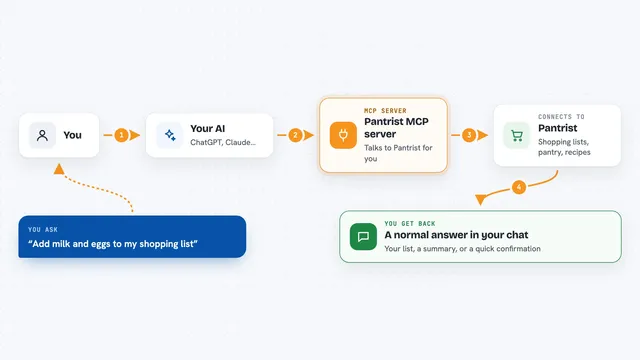
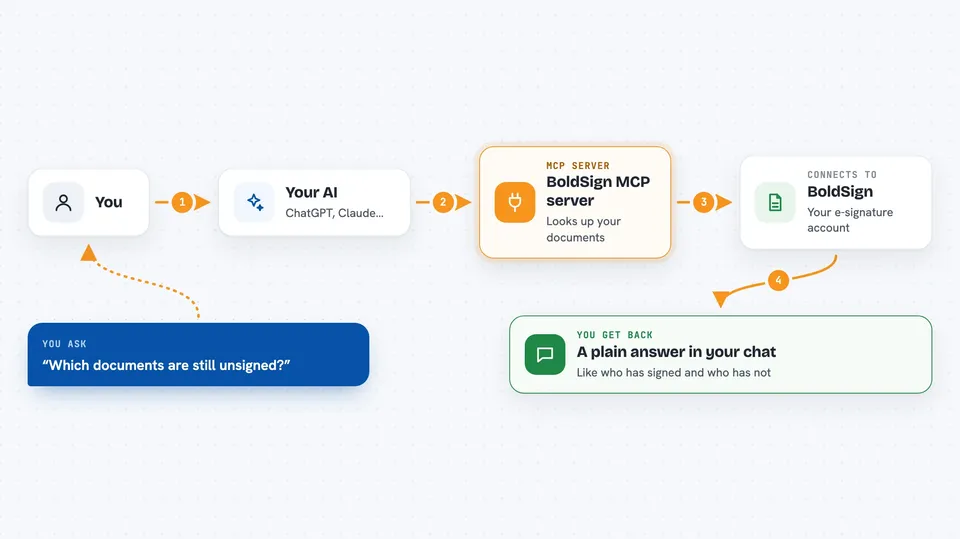
You ask your AI a question about your BoldSign account, like which documents are still unsigned. Your AI passes that request to this helper, and the helper talks to BoldSign using your account details. BoldSign sends back the answer, and the helper hands it to your AI. Your AI then explains it to you in plain words, right in the chat. Some actions, like sending a reminder or cancelling a document, actually change things in your account.
 Click to zoom
What you can do with it
- List your documents and see which ones are still waiting on signatures
- Check the status and details of one specific document
- Send a reminder to signers who have not signed yet
- Cancel a document that is in progress
- List your templates and see what is available to send
- Send a document for signing from one of your templates
- Look up your contacts, users and teams
What it gives back to you
You get answers in plain language in the chat, like a list of documents with their status, or the details of one document such as who has signed and who has not. When you ask it to send a reminder or cancel a document, it tells you that the action was done. It can also show your templates, contacts, users and teams as lists. Everything comes back as text you can read, not as files.
Before you start
What you need
- A BoldSign account (a free trial works)
- Your BoldSign API key (a kind of password for apps; BoldSign gives you one in your account settings)
- Node.js version 18 or newer installed on your computer
- An AI app that supports MCP servers, like Claude Desktop, Cursor, VS Code, Windsurf or Cline
Good to know
It can change things in your BoldSign account, like cancelling a document or sending a signing request, so check with your AI before letting it take those actions.
Install it with your AI
Add BoldSign MCP server to your AI, no technical skills needed
You don't install anything by hand. You copy one prompt, paste it into an AI that can work on your computer, and it checks, installs and connects the server for you, asking you when it needs something.
Sign in to get the install prompt
Members get a ready-made prompt that lets the Claude desktop app check BoldSign MCP server, install it and connect it for them, step by step. You don't need any technical skills: you copy, paste and answer a few questions. Your connected AI can also find and install any of the 4,361 MCP servers here for you.
Who it's for
Office workers, HR and admin staff, sales teams and small business owners who send and track e-signature documents in BoldSign.