MCP server · Design tools
Image to SVG MCP server
by botmonster
Turn a picture into a scalable SVG drawing right from your chat, using a link or pasted image data.
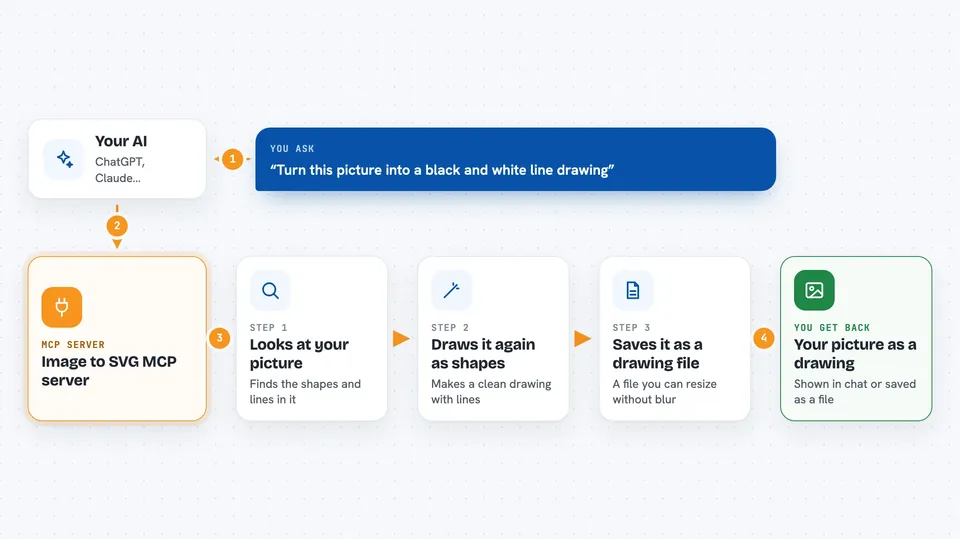
This is a small helper that lets your AI turn a normal picture, like a PNG or JPG, into an SVG file. SVG is a type of image made of shapes and lines instead of pixels, so it stays sharp when you make it bigger. It is handy if you work with logos, icons, or simple illustrations and want a cleaner, resizable version.
What is an MCP server? The 30-second version
On its own, your AI can only chat with you. An MCP server is a small helper program that gives your AI a new skill or a connection to another tool. This one connects your AI to an image tracing service, so when you ask, the AI can send a picture over and get a vector version back. You do not need to understand how it works inside. You just ask in plain words.
What this MCP server does
You give your AI a picture, either as a web link or as a long block of pasted image text. The AI passes that picture to this helper. The helper traces the picture and turns it into an SVG drawing made of shapes and lines. Then it sends the result back, and your AI shows it to you or saves it. You can also ask for adjustments, like fewer colors or a black and white look.
 Click to zoom
What you can do with it
- Convert a picture from a web link into an SVG
- Convert a pasted image into an SVG
- Make a black and white line art version of a picture
- Simplify colors for a poster-like look
- Remove small specks and noise from the traced result
- Choose between smooth curves or straight edges in the tracing
- Convert a picture stored on your own computer (when local file access is turned on)
Try asking your AI
- “Convert this image to SVG: https://example.com/logo.png”
- “Turn this picture into a black and white line art SVG”
- “Make a simplified SVG with fewer colors for a minimalist poster look”
- “Convert this local file to SVG: file://logo.png”
What it gives back to you
You get back an SVG image, which is a text file describing shapes and lines. In the chat, your AI usually shows it as a picture or gives you the SVG text to save. If something goes wrong, like the link not working, you get a short message explaining the problem.
Before you start
What you need
- The Claude desktop app or Claude Code
- The uvx tool installed on your computer (a small program runner that comes with the uv package)
Good to know
If you turn on local file access, it can read image files inside the folder you allow, so only point it at a folder you are comfortable sharing.
Install it with your AI
Add Image to SVG MCP server to your AI, no technical skills needed
You don't install anything by hand. You copy one prompt, paste it into an AI that can work on your computer, and it checks, installs and connects the server for you, asking you when it needs something.
Sign in to get the install prompt
Members get a ready-made prompt that lets the Claude desktop app check Image to SVG MCP server, install it and connect it for them, step by step. You don't need any technical skills: you copy, paste and answer a few questions. Your connected AI can also find and install any of the 4,361 MCP servers here for you.
Who it's for
People who work with logos, icons, or simple graphics and want a quick way to turn pictures into resizable SVG files without learning design software.