MCP server · Design tools
atx-mcp image editor
by gridhra
Lets your AI crop, straighten, brighten, and clean up images without ever changing the original file.
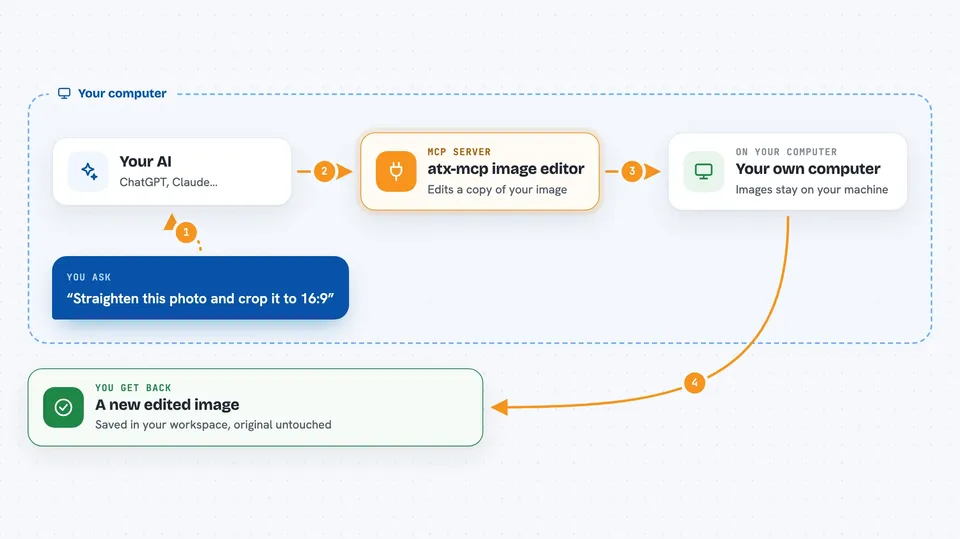
atx-mcp is a helper program that lets your AI edit images for you: straighten a tilted photo, crop it to a shape, brighten it, remove location data, and save the result as a new file. It is handy for anyone who prepares pictures for articles, websites, or social media and wants the same edit to come out the same way every time. The original image is never touched, so you can always go back.
What is an MCP server? The 30-second version
On its own, your AI can only chat. It cannot open a photo on your computer or change it. An MCP server is a small helper program that gives your AI a new skill. This one connects your AI to a folder of images on your machine, so when you ask it to fix a picture, it can actually do the work and hand you back a new file.
What this MCP server does
You tell your AI what you want in plain words, like straighten this photo and crop it to 16:9. The AI turns that into a short list of steps, called a recipe, and sends it to atx-mcp. atx-mcp runs those steps on a copy of your image and saves the result as a new version. The original stays exactly as it was. If you run the same recipe again, you get the same result, byte for byte.
 Click to zoom
What you can do with it
- Straighten a tilted photo and crop it to a shape like 16:9
- Resize one image into several sizes for a website or social media
- Remove location and camera data (EXIF and GPS) before publishing
- Adjust colors, brightness, and contrast, or apply a look from a LUT file
- Blur or darken just part of an image using a mask
- Add a logo or watermark in a corner
- Compare two versions side by side or as a difference map
Try asking your AI
- “Straighten this photo and crop it to a 16:9 eye-catch at 1600px wide, save as WebP.”
- “Make the OGP, Instagram square, and thumbnail versions of this photo.”
- “Strip the location data from this image but leave the colors alone.”
- “Show me this image before and after the edits, side by side.”
What it gives back to you
You get back a new image file saved in your workspace, plus a short summary of what was done. For previews, the image appears right in the chat. For comparisons, you get a side-by-side picture or a difference heatmap with simple numbers. You can also ask for a list of all the versions you have made so far.
Before you start
What you need
- A folder on your computer to use as the workspace for images
- One of: a Rust toolchain, Node.js 18 or newer, or Docker, depending on how you install it
- The Claude desktop app or another AI tool that supports MCP servers
Good to know
It can overwrite a file when you export with overwrite turned on, so check the destination path before you confirm.
Install it with your AI
Add atx-mcp image editor to your AI, no technical skills needed
You don't install anything by hand. You copy one prompt, paste it into an AI that can work on your computer, and it checks, installs and connects the server for you, asking you when it needs something.
Sign in to get the install prompt
Members get a ready-made prompt that lets the Claude desktop app check atx-mcp image editor, install it and connect it for them, step by step. You don't need any technical skills: you copy, paste and answer a few questions. Your connected AI can also find and install any of the 4,361 MCP servers here for you.
Who it's for
Anyone who prepares images for articles, websites, or social media and wants edits to be repeatable and safe.