MCP server · Design tools
Topaz Labs MCP server
by TopazLabs
Let your AI improve your photos with Topaz Labs: upscale, sharpen, and clean up images for you.
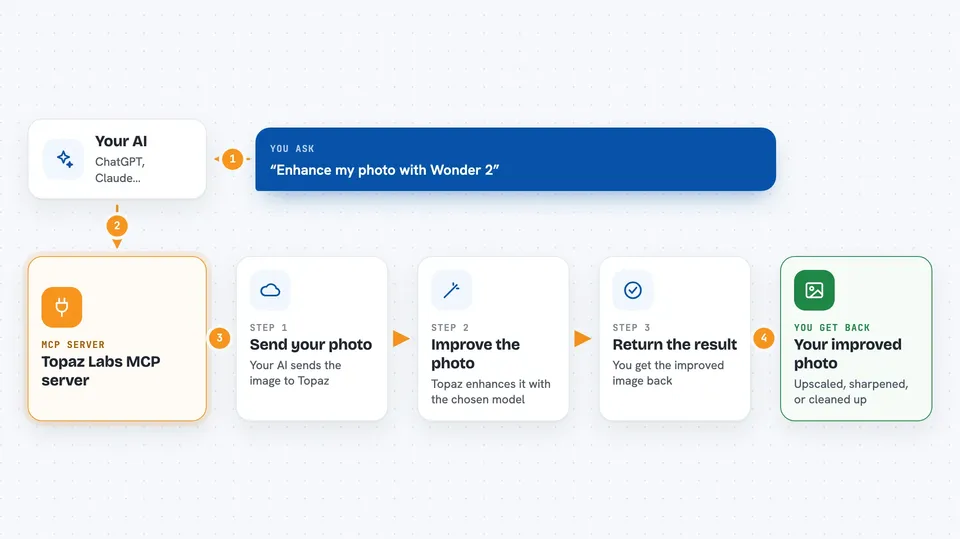
This is a small helper that connects your AI assistant to Topaz Labs, a service that makes photos look better using AI. You point your AI at a picture, say how you want it improved, and it sends the image off to be enhanced. It is handy for anyone who works with photos and wants better results without learning photo editing software.
What is an MCP server? The 30-second version
On its own, your AI can only chat with you. An MCP server is a small helper program that gives your AI a new skill or a connection to another service. This one connects your AI to Topaz Labs, so when you ask it to improve a photo, it can actually send the image there and bring back the enhanced version. You do not need to understand how it works under the hood; you just ask in plain words.
What this MCP server does
You tell your AI which image you want to improve, either by giving a file path on your computer or a web link, and which Topaz model to use. Your AI passes that request to this helper. The helper sends the image to the Topaz Labs service, which enhances it using the model you picked. When it finishes, you get the improved image back and can save or use it.
 Click to zoom
What you can do with it
- Upscale a small or low-resolution photo to a larger size
- Sharpen a slightly blurry picture
- Clean up noise and grain in an old or dim photo
- Enhance a portrait or nature shot with the Wonder 2 model
- Rescue a tiny thumbnail with the Low Resolution V2 model
- Improve digital art or renders with the CGI model
Try asking your AI
- “Enhance ~/Desktop/photo.jpg with Wonder 2”
- “Upscale this image to 2x its size using Standard V2”
- “Clean up the noise in ~/Pictures/old-family-photo.png with Recover 3”
- “Sharpen and upscale https://example.com/myimage.jpg”
What it gives back to you
You get back an enhanced version of your image, upscaled or cleaned up depending on the model you chose. In the chat, your AI will tell you it finished and point you to the result, which you can then open or save. It does not give you a written report or numbers, just the improved picture.
Before you start
What you need
- A Topaz Labs API key (a kind of password for apps; you sign up at developer.topazlabs.com and they give you one)
- A paid Topaz Labs account, since the API key is not free
- An MCP client that can access your files, like Claude Cowork, Cursor, or VS Code with Copilot
- Node.js installed on your computer so the npx command can run
Good to know
The Topaz Labs API is paid, so each enhancement may cost you money, and your images are sent to their cloud service for processing.
Install it with your AI
Add Topaz Labs MCP server to your AI, no technical skills needed
You don't install anything by hand. You copy one prompt, paste it into an AI that can work on your computer, and it checks, installs and connects the server for you, asking you when it needs something.
Sign in to get the install prompt
Members get a ready-made prompt that lets the Claude desktop app check Topaz Labs MCP server, install it and connect it for them, step by step. You don't need any technical skills: you copy, paste and answer a few questions. Your connected AI can also find and install any of the 4,361 MCP servers here for you.
Who it's for
Photographers, designers, and anyone who works with images and wants quick AI improvements without opening editing software.