MCP server · Design tools
prompt-to-asset MCP server
Turn a short description into app icons, favicons, logos and image bundles, checked before you use them.
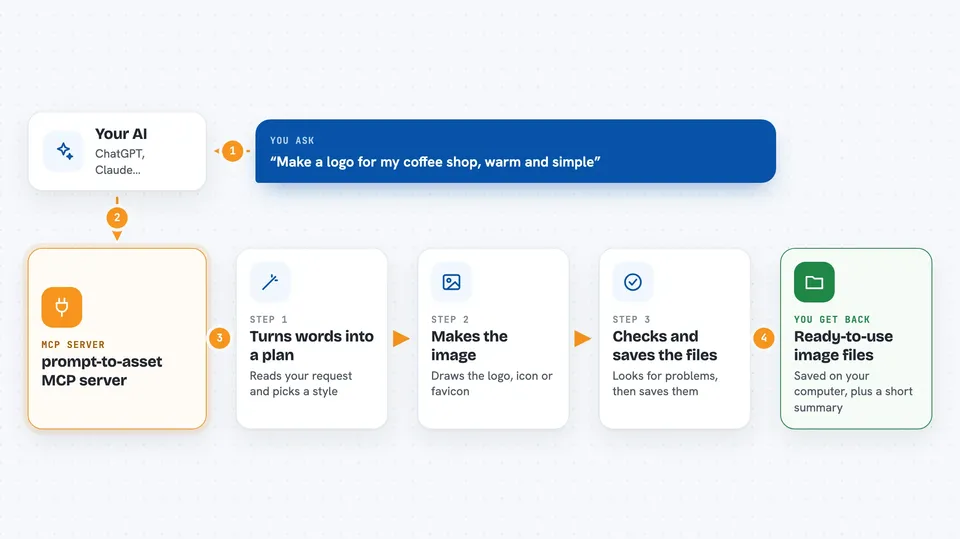
This is a helper that lets your AI assistant create image files for you: app icons, favicons, logos, social share images and more. You describe what you want in a sentence, and it works out how to make it, then saves the files. It is handy for anyone who needs a logo or icon set but does not want to open a design app.
What is an MCP server? The 30-second version
On its own, your AI can only chat. An MCP server is a small helper program that gives your AI a new skill or a connection to another tool. This one gives your AI the skill of making image assets, so it can plan the picture, produce it, and save the files for you. You just ask in normal words, and the helper does the technical part behind the scenes.
What this MCP server does
You tell your AI what you need, for example a logo or a favicon. The AI uses this helper to turn your words into a clear image description and picks a sensible way to make it. The helper then produces the image, checks it for problems like wrong colours or unreadable text, and saves the finished files. It can also take one image and make all the sizes you need for iPhone, Android, websites and browser tabs. At the end you get files on your computer, not just a picture in the chat.
 Click to zoom
What you can do with it
- Create a logo or app icon from a short description
- Make a favicon that works in light and dark mode
- Turn one master image into iOS, Android, PWA and favicon sets
- Check that text in a logo is spelled correctly and readable
- Check colours and contrast before you ship an asset
- Make SVG logos and simple vector marks
- Pack image frames into a sprite sheet for games
Try asking your AI
- “Make a transparent logo for Forge, a dev-tools brand. Flat vector, warm orange.”
- “Make a favicon for my app, dark-mode aware.”
- “Fan this master.png out to iOS, Android and PWA.”
- “Ingest this screenshot as a mark, vectorize it, and export everything.”
What it gives back to you
You get files saved to your computer, such as a master image, a favicon, an Apple touch icon, and folders of platform-ready sizes. The helper also reports what it checked, like whether the image has real transparency and whether the text matches. In the chat you see a short summary of what was made and where it was saved. If something failed a check, it tells you instead of quietly handing you a broken file.
Before you start
What you need
- Node.js version 20.11 or newer (24 is recommended)
- An AI assistant that supports MCP servers, like Cursor, Claude Code, VS Code or Windsurf
- Optional: free accounts or tokens from services like Cloudflare Workers AI, NVIDIA NIM or Hugging Face for better results
Good to know
It writes image files to your computer and can overwrite files with the same name, so check the output folder before running it on an existing project.
Install it with your AI
Add prompt-to-asset MCP server to your AI, no technical skills needed
You don't install anything by hand. You copy one prompt, paste it into an AI that can work on your computer, and it checks, installs and connects the server for you, asking you when it needs something.
Sign in to get the install prompt
Members get a ready-made prompt that lets the Claude desktop app check prompt-to-asset MCP server, install it and connect it for them, step by step. You don't need any technical skills: you copy, paste and answer a few questions. Your connected AI can also find and install any of the 4,361 MCP servers here for you.
Who it's for
Developers, indie makers and designers who need logos, icons and app assets without opening a design tool.