MCP server · Generative art
Local GPU Imagegen MCP server
Lets your AI run your own ComfyUI image workflows on your local graphics card, with your approval at each step.
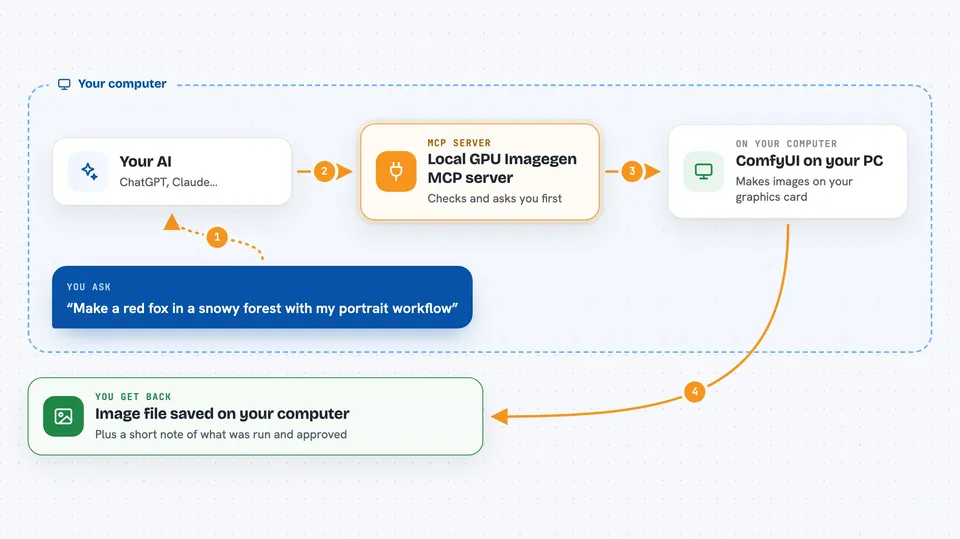
This is a helper that connects your AI assistant to ComfyUI, the free image-making program you already run on your own computer. It lets the AI start an image run using your existing model and settings, but only after you say yes. It is handy for people who make images locally and want a clear record of what was run and what was approved.
What is an MCP server? The 30-second version
On its own, your AI can only chat. An MCP server is a small helper program that gives your AI a new skill or a connection to another program. This helper connects your AI to your local ComfyUI setup, so the AI can look at your installed models and start an image run when you ask. You stay in charge: the AI has to show you what it plans to do and wait for your confirmation.
What this MCP server does
You ask your AI to make an image using a workflow file you already have. The AI uses this helper to check which models are installed on your machine and to recommend one exact route. It shows you the model, the workflow, the size, and the budget, and waits for your clear yes. Then it sends the job to your running ComfyUI, which makes the picture on your own graphics card. When it is done, the helper gives you the image file plus a record of what was run.
 Click to zoom
What you can do with it
- List the image models already installed on your computer
- Run one of your existing ComfyUI workflows with a prompt you give
- Show the exact model and settings before anything is generated
- Keep a written record of each run, including the image file fingerprint
- Ask you to review the full-size image and mark it as accepted
- Make a revised version of an image while keeping a clear record of what changed
- Clean up old run records when you no longer need them
Try asking your AI
- “Run this supported ComfyUI workflow from my computer: C:\workflows\portrait.json. Use this prompt: a red fox in a snowy forest. Keep every other setting the same.”
- “Show me which image models are installed locally and recommend one for a 16:9 illustration.”
- “Start an image run with my usual workflow, up to two rounds, and ask me before changing the seed.”
- “Show me the record for my last run, including the image fingerprint.”
What it gives back to you
You get back a picture file saved on your computer, plus a short summary in the chat. The summary lists the model used, the workflow, the size, the number of rounds, and a fingerprint of the image file. It also shows the run record so you can look back later at what was done and what you approved.
Before you start
What you need
- Python 3.11 or 3.12 installed
- A Codex or Claude Code client that supports MCP servers
- ComfyUI already running on your computer with a model already installed
- A supported ComfyUI workflow file in the API format
Good to know
It can start image jobs on your local graphics card and write files to your computer, and it can delete old run records when you ask, so check the plan it shows you before you confirm.
Install it with your AI
Add Local GPU Imagegen MCP server to your AI, no technical skills needed
You don't install anything by hand. You copy one prompt, paste it into an AI that can work on your computer, and it checks, installs and connects the server for you, asking you when it needs something.
Sign in to get the install prompt
Members get a ready-made prompt that lets the Claude desktop app check Local GPU Imagegen MCP server, install it and connect it for them, step by step. You don't need any technical skills: you copy, paste and answer a few questions. Your connected AI can also find and install any of the 4,609 MCP servers here for you.
Who it's for
People who already make images with ComfyUI on their own Windows PC and want their AI assistant to help run and track those jobs.