MCP server · Developer tools · official
Opik MCP server
by comet-ml · official
Ask your AI about your Opik traces, scores and prompts, and let it log results for you.
This is the official helper that connects your AI assistant to Opik, the tool Comet makes for watching how your AI apps behave. Once it is set up, you can ask questions about your traces and scores in plain English instead of clicking around dashboards. It is made for people who already use Opik and want to work with it from the same chat window where they do everything else.
What is an MCP server? The 30-second version
On its own, your AI can only chat with you. It cannot see your Opik workspace or do anything inside it. An MCP server is a small helper program that gives your AI one new skill, and here that skill is talking to Opik. You install it once, your AI calls on it when you ask something about your traces or scores, and the helper fetches or changes things in Opik for you.
What this MCP server does
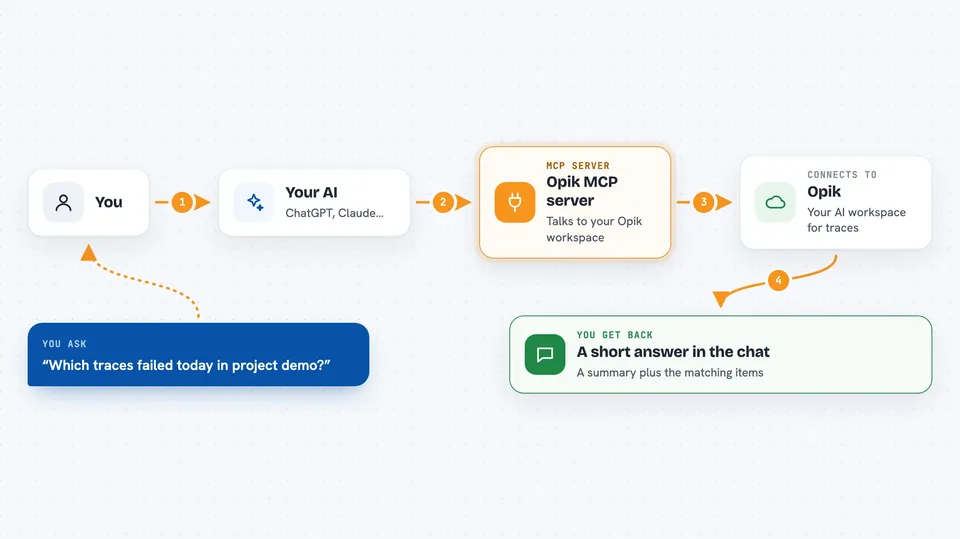
You ask your AI a question in normal words, like which traces failed today. The AI passes that request to this helper, which talks to your Opik workspace and pulls back the matching records. The helper hands the results to the AI, and the AI writes you a short answer in the chat. It also works the other way: you can ask the AI to save a score, leave a comment, or store a new prompt version, and the helper sends that change to Opik. Everything happens in the same conversation, no dashboard needed.
 Click to zoom
What you can do with it
- List the projects in your Opik workspace
- Find traces that failed or ran slowly in a project
- Read one trace or span in full, including its scores
- Log a score on a trace with a reason
- Save a new version of a prompt
- Browse datasets and experiments
- Look at open Diagnostics issues for a project
Try asking your AI
- “List my Opik projects”
- “Which traces in project demo failed today?”
- “Score trace 7f2e3c8a 0.9 on helpfulness with reason great recovery”
- “Show me the latest traces in project demo with errors”
What it gives back to you
You get answers written in the chat, usually as a short summary plus a list of the matching items, such as traces with their names, durations and scores. When you ask it to change something, like saving a score or a prompt version, it tells you it is done. Longer records come back trimmed, and the answer says so and points you to the call that fetches the full version. Numbers like error rate or average duration come back as plain figures, or as null when there is no data for that period.
Before you start
What you need
- An Opik account (Comet Cloud or your own self-hosted Opik)
- An Opik API key, which you can copy from your Comet settings page
- Your workspace name (the lowercase word in your Opik web address)
- The uv tool installed on your computer, which the setup command uses
Good to know
It can change things in your Opik workspace, like adding scores, comments and new prompt versions, so check what it did before you rely on it.
Install it with your AI
Add Opik MCP server to your AI, no technical skills needed
You don't install anything by hand. You copy one prompt, paste it into an AI that can work on your computer, and it checks, installs and connects the server for you, asking you when it needs something.
Sign in to get the install prompt
Members get a ready-made prompt that lets the Claude desktop app check Opik MCP server, install it and connect it for them, step by step. You don't need any technical skills: you copy, paste and answer a few questions. Your connected AI can also find and install any of the 4,361 MCP servers here for you.
Who it's for
LLM engineers and developers who already run Opik and want to check traces, scores and prompts without leaving their AI coding assistant.