MCP server · Analytics · official
PostHog MCP server
by PostHog · official
Ask your AI about your PostHog data and let it manage flags, experiments and errors for you.
This is the official helper from PostHog, the tool many teams use to see how people use their product. Once it is connected, your AI can look at your PostHog numbers and settings for you, and even make changes when you ask. It is handy if you work with product data, feature flags or error reports and want answers without clicking around the PostHog website.
What is an MCP server? The 30-second version
On its own, your AI can only chat with you. An MCP server is a small helper program that gives your AI a new skill or a connection to another app. This one connects your AI to PostHog, so it can look things up in your PostHog account and do things there when you ask. You stay in the chat; the helper does the running around.
What this MCP server does
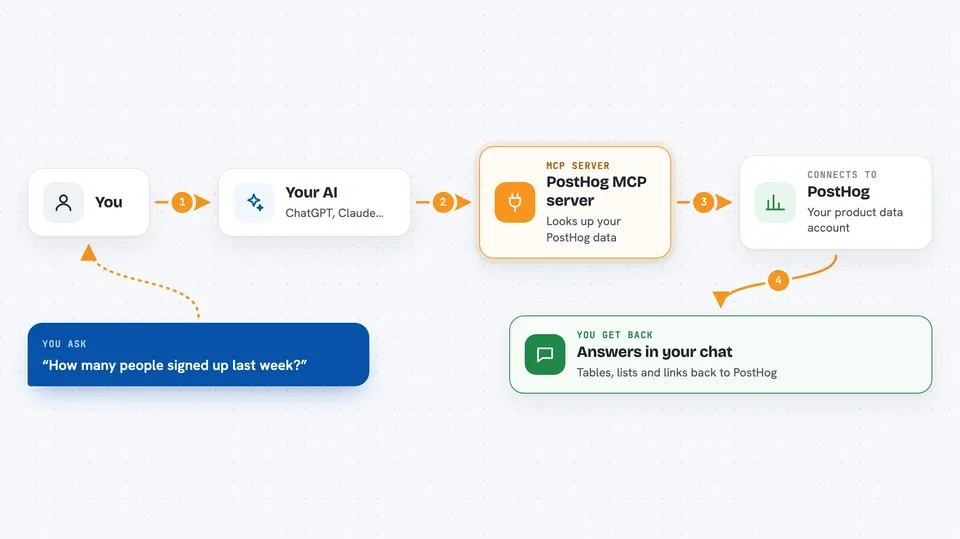
You ask your AI a question in normal words, like how many people signed up last week. The AI passes that request to this helper, which talks to your PostHog account. PostHog sends back the numbers or the settings, and the helper hands them to your AI. Your AI then explains the answer to you in the chat, as a table, a list or a short summary.
 Click to zoom
What you can do with it
- Check how many people signed up or used a feature, broken down by day
- List your dashboards and show what is on them
- Create and change feature flags, including how many users see them
- Set up A/B tests and see how they are doing
- Look up your top errors and how many users they affect
- Browse session replays and survey results
- Run SQL queries against your PostHog data
Try asking your AI
- “How many unique users signed up in the last 7 days, broken down by day?”
- “Create a feature flag called new-checkout-flow that is on for 20% of users”
- “What are the top 5 errors in my project this week and how many users are affected?”
- “List my dashboards and tell me what is on the busiest one”
What it gives back to you
You get answers in the chat: tables of numbers, lists of flags or dashboards, short summaries of what changed, and links back to the right page in PostHog. When you ask it to create or change something, it tells you what it did, like the flag key and the rollout percentage. It also gives you a link so you can check the result yourself.
Before you start
What you need
- A PostHog account (free plan works)
- A personal API key from PostHog, created with the MCP Server preset
- An AI app that supports MCP, like Claude Desktop, Cursor, VS Code or Zed
Good to know
It can create and change things in your PostHog account, like feature flags and experiments, so check what it did before you rely on it.
Install it with your AI
Add PostHog MCP server to your AI, no technical skills needed
You don't install anything by hand. You copy one prompt, paste it into an AI that can work on your computer, and it checks, installs and connects the server for you, asking you when it needs something.
Sign in to get the install prompt
Members get a ready-made prompt that lets the Claude desktop app check PostHog MCP server, install it and connect it for them, step by step. You don't need any technical skills: you copy, paste and answer a few questions. Your connected AI can also find and install any of the 4,361 MCP servers here for you.
Who it's for
Product managers, marketers, designers and analysts who use PostHog and want quick answers or changes without digging through the PostHog website.