MCP server · Generative art
Comfy Pilot MCP server
Let your AI see, edit, and run your ComfyUI image workflows just by describing what you want.
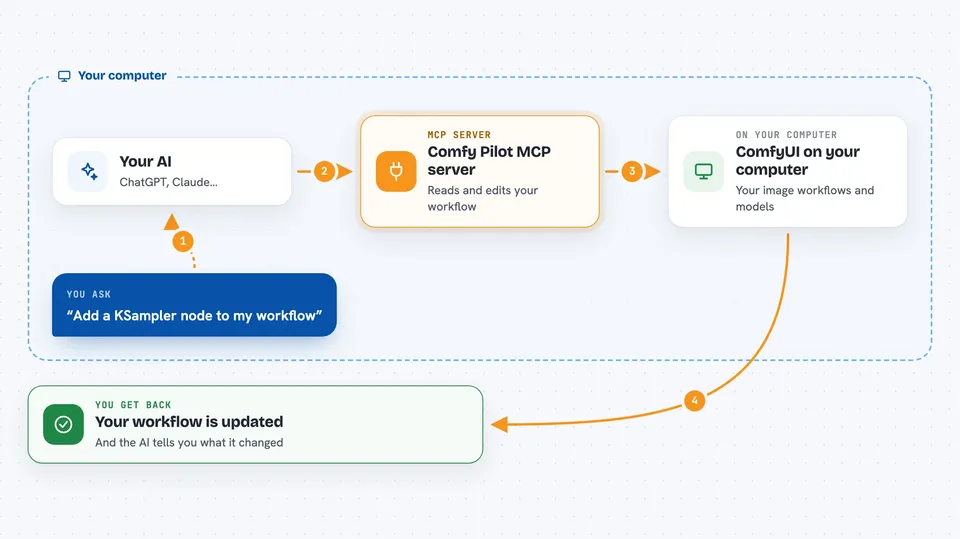
Comfy Pilot connects your AI assistant to ComfyUI, the program where people build image generation workflows by connecting little boxes called nodes. Instead of dragging nodes around and typing values by hand, you describe what you want and the AI builds or changes the workflow for you. It is handy for anyone who uses ComfyUI and would rather talk than click.
What is an MCP server? The 30-second version
On its own, your AI can only chat with you. An MCP server is a small helper program that gives your AI a new skill or a connection to another app. This one connects your AI to your ComfyUI setup, so it can look at your workflow, change it, run it, and even see the images it produces. You stay in charge: the AI only does something when you ask.
What this MCP server does
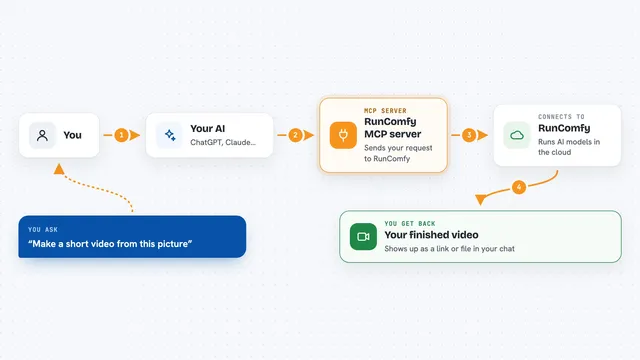
You ask your AI something like build me a workflow with this model, or look at my preview image. The AI uses this helper to talk to ComfyUI running on your computer. The helper reads your current workflow, adds or connects nodes, sets values, and can start a run. It can also fetch images from your Preview Image or Save Image nodes so the AI can describe them, and it can download models for you. Then it tells you what it changed or what it saw, right in the chat.
 Click to zoom
What you can do with it
- Describe a workflow and have the AI create the nodes and connections
- Ask what nodes are in your current workflow and get a plain summary
- Add, move, connect, or delete nodes without dragging anything
- Run your workflow, or run it only up to a certain node
- Have the AI look at a preview image and describe or adjust it
- Search for and install, update, or remove custom nodes
- Download models from Hugging Face, CivitAI, or a direct link
Try asking your AI
- “What nodes are in my current workflow?”
- “Add a KSampler node connected to my checkpoint loader”
- “Look at the preview image and tell me what you see”
- “Download the FLUX.1 schnell model and set up a workflow for it”
What it gives back to you
You get answers in plain chat: a summary of your workflow, a list of node types, or a note about what the AI changed. When you ask it to look at an image, it describes what it sees. When you run a workflow, it reports the queue status and what happened. It can also make real changes to your workflow, like new nodes and connections.
Before you start
What you need
- ComfyUI installed and running on your computer
- Python 3.8 or newer
- Claude Code CLI (the installer adds it automatically if it is missing)
- A Hugging Face token only if you download gated models
Good to know
The AI can change your workflow, install or remove custom nodes, and download large model files, so check what it did before you rely on it.
Install it with your AI
Add Comfy Pilot MCP server to your AI, no technical skills needed
You don't install anything by hand. You copy one prompt, paste it into an AI that can work on your computer, and it checks, installs and connects the server for you, asking you when it needs something.
Sign in to get the install prompt
Members get a ready-made prompt that lets the Claude desktop app check Comfy Pilot MCP server, install it and connect it for them, step by step. You don't need any technical skills: you copy, paste and answer a few questions. Your connected AI can also find and install any of the 4,361 MCP servers here for you.
Who it's for
ComfyUI users who want to build and tweak image generation workflows by talking instead of clicking.