MCP server · Developer tools
Bitbucket MCP server
by daniloneto
Let your AI read Bitbucket pull requests, diffs and comments, and post review comments or approvals for you.
This is a small helper that connects your AI assistant to Bitbucket Cloud, the place where your team keeps code and reviews pull requests. Once it is set up, you can ask your AI to look at a pull request, explain the changes, and even leave a comment or approve it. It is handy for developers and anyone who reviews code on Bitbucket and wants a first pass done quickly.
What is an MCP server? The 30-second version
On its own, your AI can only chat with you. An MCP server is a small helper program that gives your AI a new skill or a connection to an app or service. This one connects your AI to Bitbucket Cloud, so it can look up pull requests, read the changes, and post comments there when you ask. You stay in the chat; the helper does the talking to Bitbucket.
What this MCP server does
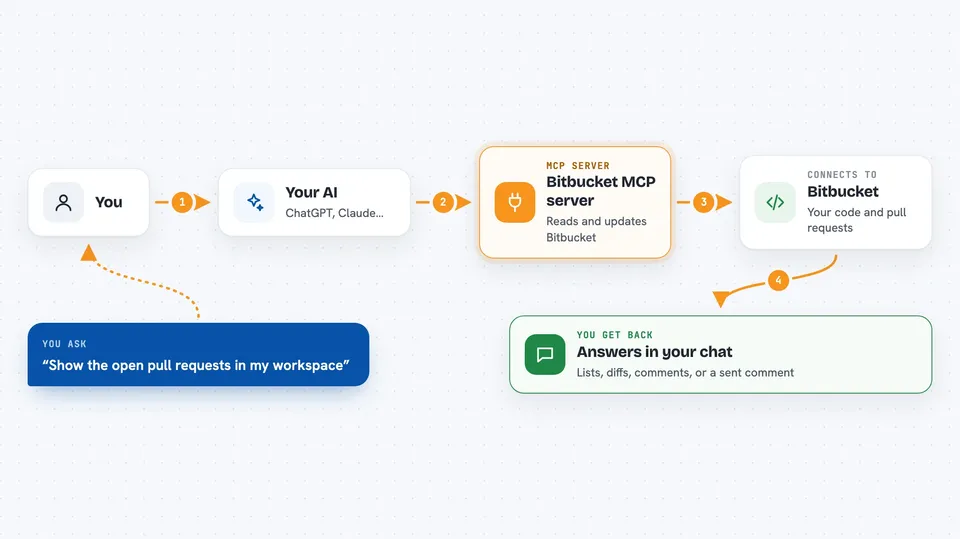
You ask your AI something like "show me the open pull requests in my workspace". The AI passes that request to this helper. The helper talks to Bitbucket Cloud using your account details and a token. Bitbucket sends back the list, the diff, the comments, or whatever you asked for. If you ask it to comment or approve, the helper sends that change to Bitbucket and tells you it is done.
 Click to zoom
What you can do with it
- List repositories in your Bitbucket workspace
- List pull requests by state (open, merged, declined, superseded)
- Read a pull request's description, branches, reviewers and approvals
- Fetch the diff of a pull request so your AI can review it
- Read existing comments on a pull request, general and inline
- Browse the file tree and read file contents at a branch or commit
- Post a comment, approve, or request changes on a pull request
Try asking your AI
- “List the open pull requests in my Bitbucket workspace”
- “Show me the diff for pull request 42 and summarize what changed”
- “Read the comments on pull request 42 and tell me what reviewers are asking for”
- “Post a comment on pull request 42 saying the tests need updating”
What it gives back to you
You get answers in the chat: lists of repositories or pull requests, the diff text, existing comments, commit history, or file contents. When you ask it to comment or approve, it tells you the action was sent to Bitbucket. Everything shows up as normal chat text you can read and copy.
Before you start
What you need
- A Bitbucket Cloud account with access to the workspace you want to review
- An API token from Bitbucket with the right scopes (read repositories, read pull requests, write pull requests)
- Your Atlassian account email (the one tied to Bitbucket)
- Node.js installed on your computer, plus the Claude desktop app or Claude Code
Good to know
The token can read and change pull requests in your workspace, so keep it secret and consider a read-only token if you only want suggestions, not comments or approvals.
Install it with your AI
Add Bitbucket MCP server to your AI, no technical skills needed
You don't install anything by hand. You copy one prompt, paste it into an AI that can work on your computer, and it checks, installs and connects the server for you, asking you when it needs something.
Sign in to get the install prompt
Members get a ready-made prompt that lets the Claude desktop app check Bitbucket MCP server, install it and connect it for them, step by step. You don't need any technical skills: you copy, paste and answer a few questions. Your connected AI can also find and install any of the 4,609 MCP servers here for you.
Who it's for
Developers, tech leads and anyone who reviews pull requests on Bitbucket Cloud and wants a quick first pass without leaving their chat.