MCP server · Productivity
Yandex Wiki MCP server
by dlbolshov
Lets your AI search, read, and edit Yandex Wiki pages, comments, files, and tables for you.

This is a small helper that connects your AI assistant to Yandex Wiki, the place where your company keeps its pages and documents. Once it is set up, you can ask your AI to find a page, read it, or even write and update pages for you. It is handy for anyone who spends time digging through wiki pages at work.
What is an MCP server? The 30-second version
On its own, your AI can only chat with you. It cannot open your company wiki or look anything up there. An MCP server is a small helper program that gives your AI a new skill, in this case a connection to Yandex Wiki. So when you ask your AI to find or change something in the wiki, it uses this helper to talk to Yandex Wiki and bring the answer back to you.
What this MCP server does
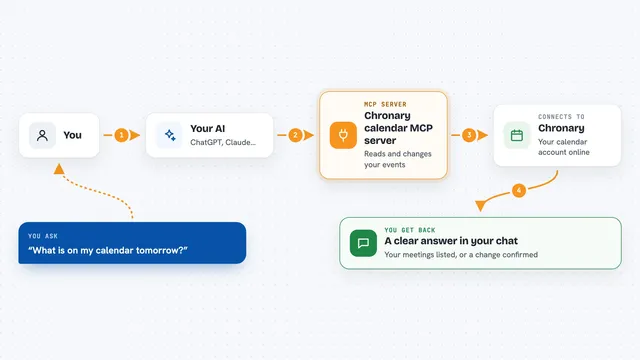
You ask your AI something about your wiki, like finding a page or adding a note. Your AI passes that request to this helper. The helper talks to Yandex Wiki using a special access token you set up. It gets the result, such as a list of matching pages or the page text, and hands it back to your AI. Your AI then shows it to you in the chat, or makes the change you asked for.
 Click to zoom
What you can do with it
- Search the whole wiki for pages and files by keyword
- Open a page and read its content
- Create a new page or update an existing one
- Add comments to a page
- Upload or download files attached to a page
- Read and edit dynamic tables (grids) on a page
- Delete a page and get a recovery token in case you change your mind
Try asking your AI
- “Find our onboarding docs and summarize the key steps.”
- “What do we have on incident response? Open the most relevant page.”
- “Create a page team/weekly-notes and append today's standup summary.”
- “Add a row to the on-call rotation grid: alice, next week.”
What it gives back to you
You get answers in your chat: lists of matching pages with short text snippets, full page content, or confirmation that a change was made. For example, a search returns page titles, links, and a short excerpt. If you ask it to create or update a page, it tells you it succeeded and may give you the page link.
Before you start
What you need
- A Yandex OAuth token with Wiki access (a kind of password for apps; Yandex explains how to get one)
- Your organization ID in Yandex Wiki
- The uv tool installed if you use the uvx method
- Docker if you prefer the Docker method
Good to know
If you turn off read-only mode, the AI can create, change, or delete pages and files in your wiki, so start with WIKI_READ_ONLY=true until you are comfortable.
Install it with your AI
Add Yandex Wiki MCP server to your AI, no technical skills needed
You don't install anything by hand. You copy one prompt, paste it into an AI that can work on your computer, and it checks, installs and connects the server for you, asking you when it needs something.
Sign in to get the install prompt
Members get a ready-made prompt that lets the Claude desktop app check Yandex Wiki MCP server, install it and connect it for them, step by step. You don't need any technical skills: you copy, paste and answer a few questions. Your connected AI can also find and install any of the 4,609 MCP servers here for you.
Who it's for
Anyone who works with Yandex Wiki at their job, like team leads, project managers, technical writers, or support staff.