MCP server · Productivity · official
EveryPage MCP server
by EveryPageApp · official
Turn a PDF into a tracked share link and see who read it, how far, and for how long.

EveryPage is a service that lets you share a PDF as a link and then see what happens after you send it. This MCP server connects that service to your AI assistant, so you can upload a document and ask about readers without opening a dashboard. It is handy if you send proposals, reports, or contracts and want to know whether anyone actually looked at them.
What is an MCP server? The 30-second version
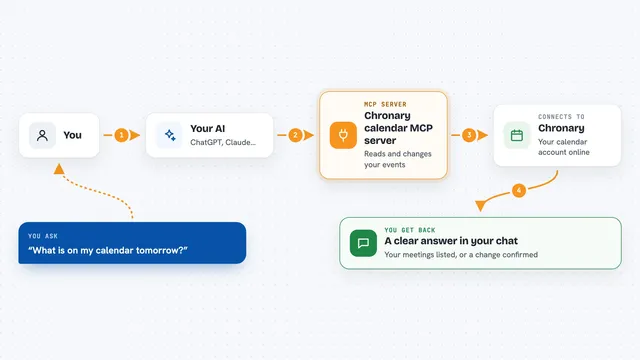
On its own, your AI can only chat with you. An MCP server is a small helper program that gives your AI a new skill or a connection to an app. This one connects your AI to EveryPage, so it can upload your PDFs, create share links, and pull readership numbers for you. You just ask in plain words, and the helper does the clicking behind the scenes.
What this MCP server does
You tell your AI something like "share this proposal with Jane and Bob and tell me if they read past the pricing page." The AI passes that request to this helper, which talks to EveryPage using your account. EveryPage uploads the PDF, makes a tracked link, and starts recording who opens it and how far they scroll. When you ask again later, the helper fetches the readership summary and your AI explains it back to you in the chat.
 Click to zoom
What you can do with it
- Upload a PDF from your computer or a web link and get a tracked share link
- See who opened a document, how far they got, and where they stopped
- List your documents and check their links, protection, and status
- Change settings on a document, like a passcode, expiry date, or download permission
- Create one separate tracked link per recipient so reads are attributed by name
- Get a digest of what happened over the last few days
- Set up a webhook so another tool is notified when someone reads or downloads
Try asking your AI
- “Share the file proposal.pdf with jane@example.com and bob@example.com and give me one link each”
- “Who read the Q3 report this week and how far did they get?”
- “Show me a digest of readership for the last 7 days”
- “Turn off downloads on the contract I sent yesterday and set it to expire in two weeks”
What it gives back to you
You get answers in plain language, like who read a document, how far they got, and where they dropped off. The tool also computes the most useful finding for you, such as the steepest drop in the reading funnel or the most re-read page. When you create a link, you get the link itself, an embed code, and a QR code address. The raw numbers are kept alongside the summary in case you want to chart them.
Before you start
What you need
- An EveryPage account (free plan works, but some features need Basic or Pro)
- An EveryPage API key from everypage.co/account, which looks like ep_live_...
- Node.js 20 or newer installed on your computer
- An AI client that supports MCP, like Claude Desktop, Claude Code, Cursor, or VS Code
Good to know
It can delete documents and links, so check before confirming anything that cannot be undone.
Install it with your AI
Add EveryPage MCP server to your AI, no technical skills needed
You don't install anything by hand. You copy one prompt, paste it into an AI that can work on your computer, and it checks, installs and connects the server for you, asking you when it needs something.
Sign in to get the install prompt
Members get a ready-made prompt that lets the Claude desktop app check EveryPage MCP server, install it and connect it for them, step by step. You don't need any technical skills: you copy, paste and answer a few questions. Your connected AI can also find and install any of the 4,361 MCP servers here for you.
Who it's for
Anyone who sends PDFs to other people and wants to know if they were read, like salespeople, consultants, recruiters, and account managers.