MCP server · Productivity · official
Chronary calendar MCP server
by Chronary · official
Lets your AI manage Chronary calendars, events, and meeting times for you in plain chat.
This is a small add-on that connects your AI assistant to Chronary, a calendar service. Once it is set up, you can ask your AI things like what is on your calendar tomorrow or when you and a colleague are both free, and it will go and find out. It is handy for anyone who spends part of their day moving meetings around.
What is an MCP server? The 30-second version
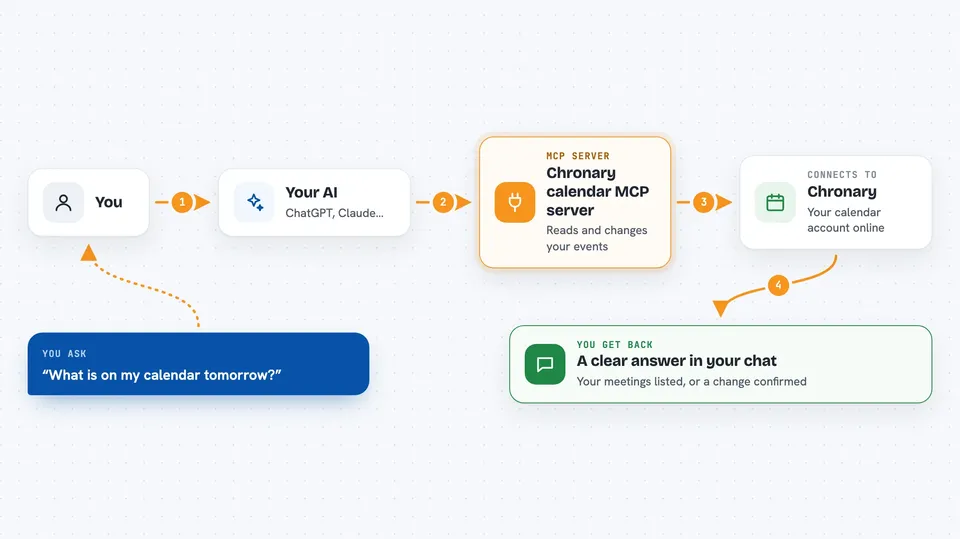
On its own, your AI can only chat with you. An MCP server is a small helper program that gives your AI one new skill or one new connection. This helper connects your AI to Chronary, your calendar service, so it can look up events, check who is free, and make changes there when you ask. You stay in the chat; the helper does the running around.
What this MCP server does
You type a request in plain words, like what meetings do I have on Thursday. Your AI passes that request to this helper, which talks to your Chronary account over the internet. Chronary sends back the answer, and the helper hands it to your AI, which explains it to you in the chat. If you ask for a change, like moving a meeting or adding an event, the helper makes that change in Chronary and tells you it is done. You never have to open the Chronary website yourself.
 Click to zoom
What you can do with it
- List your calendars and the events inside them
- Create, update, confirm, or cancel events
- Find a meeting time that works for several people
- Check someone's availability on a given day
- Send a scheduling proposal and record the replies
- Set your availability rules, like working hours
- Subscribe to an outside iCal feed and sync it
Try asking your AI
- “What is on my calendar tomorrow?”
- “Find a 30 minute slot next week when Ana, Tom and I are all free”
- “Create a meeting called Project kickoff on Tuesday at 10am and invite the team”
- “Move my 3pm call to Friday morning and let everyone know”
What it gives back to you
You get answers written in normal sentences in the chat, like a list of your meetings with times and titles, or a suggested slot when everyone is free. When it makes a change, it tells you what it changed and where. For bigger things, like a scheduling proposal, it shows you the proposal and the replies it collected.
Before you start
What you need
- A Chronary account (sign up at chronary.ai)
- An API key from the Chronary console (a long password that starts with chr_sk_; the console gives you one)
- Node.js version 18 or newer on the computer where your AI app runs
Good to know
It can create, change, and delete calendars, events, and other items in your Chronary account, so check before you say yes to anything that removes or cancels something.
Install it with your AI
Add Chronary calendar MCP server to your AI, no technical skills needed
You don't install anything by hand. You copy one prompt, paste it into an AI that can work on your computer, and it checks, installs and connects the server for you, asking you when it needs something.
Sign in to get the install prompt
Members get a ready-made prompt that lets the Claude desktop app check Chronary calendar MCP server, install it and connect it for them, step by step. You don't need any technical skills: you copy, paste and answer a few questions. Your connected AI can also find and install any of the 4,361 MCP servers here for you.
Who it's for
Anyone who juggles meetings all day, like assistants, team leads, sales people, and project managers who already use Chronary.