MCP server · Analytics
Grafana MCP server
by dockndevai
Let your AI look at your Grafana dashboards, run queries and check alerts, safely and read-only by default.
This is a small helper that connects your AI assistant to Grafana, the tool many teams use to watch their systems on charts and dashboards. Once it is set up, you can ask your AI in plain words what a dashboard shows, what a query returns, or which alerts are firing. It is handy for anyone who checks Grafana regularly but does not want to click through every screen by hand.
What is an MCP server? The 30-second version
On its own, your AI can only chat. It cannot see your Grafana account or the charts inside it. An MCP server is a small helper program that gives your AI one new skill, here a connection to Grafana, so it can look things up there and report back to you. You stay in charge: this helper starts in a safe read-only mode, so your AI can look but not change anything until you decide otherwise.
What this MCP server does
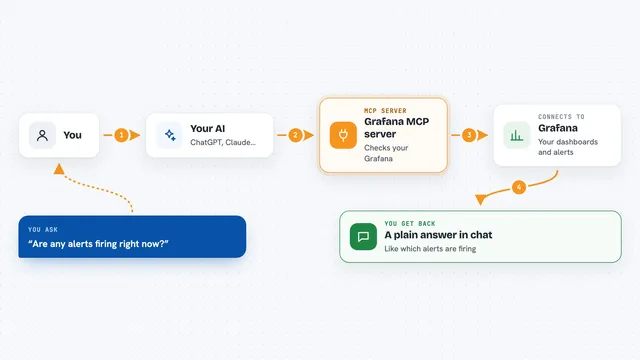
You ask your AI a question about your Grafana setup, like which dashboards mention a certain service. Your AI passes that request to this helper program. The helper talks to your Grafana instance using a token you gave it, and pulls back the matching dashboards, folders, datasources, alert rules or query results. Your AI then explains what it found in the chat. If you raise the mode, it can also create or update dashboards and folders, or add notes to your graphs.
What you can do with it
- Find dashboards and folders by name or tag
- Read the full contents of a dashboard
- List your datasources and what they connect to
- Run Prometheus, Loki or SQL queries and get results back
- Check which alert rules you have and what they watch
- See annotations, the notes shown on your graphs
- Create or update dashboards and folders when you allow it
Try asking your AI
- “Which dashboards do we have for the payments service?”
- “Show me the alert rules that are currently set up in Grafana.”
- “Run a query on my Prometheus datasource for the last hour of CPU usage.”
- “What annotations were added to our graphs in the past week?”
What it gives back to you
You get answers in the chat, not raw files. That might be a list of dashboards with their names and IDs, the details of one dashboard, a table of query results, or a summary of your alert rules. If you allowed changes, it also tells you what it created, updated or deleted.
Before you start
What you need
- A Grafana account you can log into
- A Grafana service account token (Grafana makes one for you under Administration, Service accounts; treat it like a password)
- The web address of your Grafana, for example http://localhost:3000
- Node.js installed on your computer, since the helper runs with npx
Good to know
In higher modes it can change or delete dashboards, folders and annotations, and deletes cannot be undone, so keep it read-only unless you really need edits.
Install it with your AI
Add Grafana MCP server to your AI, no technical skills needed
You don't install anything by hand. You copy one prompt, paste it into an AI that can work on your computer, and it checks, installs and connects the server for you, asking you when it needs something.
Sign in to get the install prompt
Members get a ready-made prompt that lets the Claude desktop app check Grafana MCP server, install it and connect it for them, step by step. You don't need any technical skills: you copy, paste and answer a few questions. Your connected AI can also find and install any of the 4,361 MCP servers here for you.
Who it's for
Anyone who uses Grafana at work, like support engineers, developers, and operations or on-call staff who want quick answers without clicking around.