
MCP server · Developer tools
Imagcon MCP server
by Explorer-64
Your AI can create full app icon sets and splash screens from a simple text description.
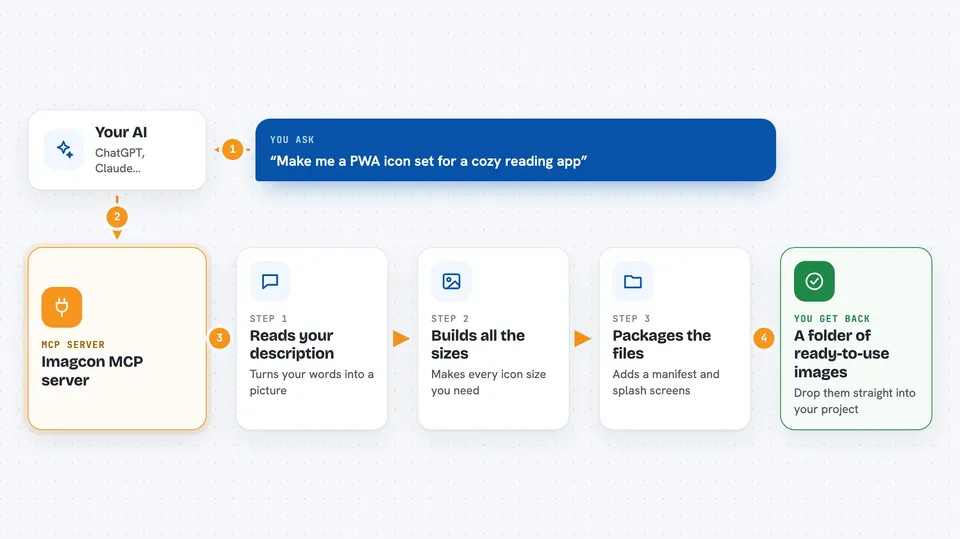
This is a helper that lets your AI make app icons and splash screens for you. You describe the icon you want in plain words, and it builds a ready-to-use set of images for websites and phone apps. It is handy for anyone building a small app or website who does not want to open a design tool.
What is an MCP server? The 30-second version
On its own, your AI can only chat with you. An MCP server is a small helper program that gives your AI a new skill or a connection to another service. This one connects your AI to Imagcon, a site that makes app icons and splash screens. Once it is set up, you can just ask your AI to make icons, and it will talk to Imagcon for you.
What this MCP server does
You tell your AI what kind of icon you want, for example a friendly blue robot. The AI sends that description to Imagcon through this helper. Imagcon creates a source image and then builds all the sizes you need for a website or a phone app, plus a manifest file and splash screens. The helper hands the finished files back to your computer or gives you a download link. You end up with a folder of images you can drop straight into your project.
 Click to zoom
What you can do with it
- Generate an app icon set from a text description
- Create iOS splash screens for your app
- Build a ready-to-use public folder with all icon sizes
- Turn an image you already have into a full icon set
- Download a saved icon set or splash screen set
- Check how many Imagcon credits you have left
- Save a generated image to your gallery for later use
Try asking your AI
- “Make me a PWA icon set for a cozy reading app with a warm orange book symbol”
- “Create iOS splash screens for my fitness app using a green leaf logo”
- “Turn the file logo.png in my project folder into a full icon set”
- “How many Imagcon credits do I have left?”
What it gives back to you
You get back a set of image files, usually saved into a folder on your computer, plus a manifest file for websites. The chat also shows a preview of the main icon so you can check it before you use it. For saved sets, you get a download link you can open in your browser. If you ask about credits, you get a simple number.
Before you start
What you need
- Python 3.11 or 3.12 installed
- uv installed (it gives you the uvx command)
- An Imagcon API key starting with ic_live_ from imagcon.app/api-keys
- An MCP client like Claude Desktop, Cursor, or VS Code
Good to know
Generating images and exporting icon or splash sets uses Imagcon credits, which cost money, so check your balance before making lots of sets.
Install it with your AI
Add Imagcon MCP server to your AI, no technical skills needed
You don't install anything by hand. You copy one prompt, paste it into an AI that can work on your computer, and it checks, installs and connects the server for you, asking you when it needs something.
Sign in to get the install prompt
Members get a ready-made prompt that lets the Claude desktop app check Imagcon MCP server, install it and connect it for them, step by step. You don't need any technical skills: you copy, paste and answer a few questions. Your connected AI can also find and install any of the 4,361 MCP servers here for you.
Who it's for
People building small websites or phone apps who need icons and splash screens but do not want to use a design tool.



