MCP server · Productivity
Glasswarp MCP server
by glasswarp
Let your AI see and control your own Windows PC: click, type, launch apps, and watch a live view.
Glasswarp is a helper that lets your AI assistant see and control a real Windows computer that you own. You install a small program on that Windows machine, then your AI can look at the screen, click buttons, type text, and open apps for you. It is handy if you want your AI to do things on your PC without you sitting there clicking.
What is an MCP server? The 30-second version
On its own, your AI can only chat. An MCP server is a small helper program that gives your AI a new skill or a connection to an app or service. This one connects your AI to a Windows PC that you own, so the AI can look at what is on screen and take actions there when you ask. You stay in charge: you set it up, you give it the key, and you can end the session any time.
What this MCP server does
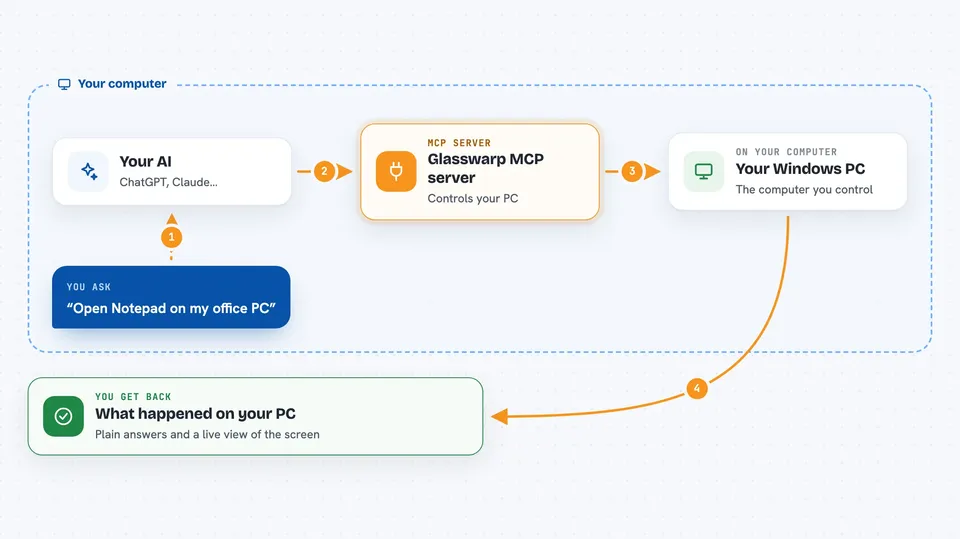
You ask your AI to do something on your Windows PC, like open a program or fill in a form. The AI uses this helper, which talks to a small agent you installed on that Windows machine. The agent looks at the screen, finds buttons and text, and performs clicks, typing, dragging, or scrolling. Then it sends the result back to your AI, which tells you what happened. You can also watch a live view of the screen while it works.
 Click to zoom
What you can do with it
- List the Windows computers you have paired and ready to use
- Start and end a work session on one of those computers
- Look at the screen and get a list of buttons and text it can see
- Click, type, press keys, drag, and scroll on that computer
- Launch an app on the computer by its program name
- Watch a live view of the screen while the AI works
- Check session status and billing signals
Try asking your AI
- “List my rigs and tell me which one is usable.”
- “Start a session on my office PC and open Notepad.”
- “Look at the screen and tell me what buttons are visible.”
- “Type hello world into the text box and click Save.”
- “End the session when you are done.”
What it gives back to you
You get back plain answers in the chat, like a list of your paired computers, a summary of what is on screen, or a note that an action was done. When you ask for a picture, it can send back a JPEG image of the screen. It also reports session status and billing signals so you know what is running.
Before you start
What you need
- A Glasswarp API key from the Glasswarp console (a kind of password for the service; you create it for free on their site)
- A Windows PC you own with the Glasswarp host installed and paired
- API access turned on for that Windows PC in the Glasswarp settings
- An MCP client that supports this server, like Cursor or Claude Desktop
Good to know
This helper can click, type, and launch apps on your real Windows PC, so only point it at a computer you are comfortable letting an AI act on, and end the session when you are done.
Install it with your AI
Add Glasswarp MCP server to your AI, no technical skills needed
You don't install anything by hand. You copy one prompt, paste it into an AI that can work on your computer, and it checks, installs and connects the server for you, asking you when it needs something.
Sign in to get the install prompt
Members get a ready-made prompt that lets the Claude desktop app check Glasswarp MCP server, install it and connect it for them, step by step. You don't need any technical skills: you copy, paste and answer a few questions. Your connected AI can also find and install any of the 4,361 MCP servers here for you.
Who it's for
People who want their AI to handle everyday tasks on their own Windows PC, like office workers, testers, and anyone who repeats the same clicks and typing.