MCP server · Productivity
Kasm Workspaces MCP server
by rchurro
Let your AI open a Kasm desktop, look at the screen, and click and type on it for you.
This is a small helper that lets your AI actually use a Kasm Workspaces desktop, not just talk about it. It can start a session, take a look at the screen, click, type, and close it again when done. It is handy if you already run Kasm on your own server and want an AI to do simple things inside those desktops.
What is an MCP server? The 30-second version
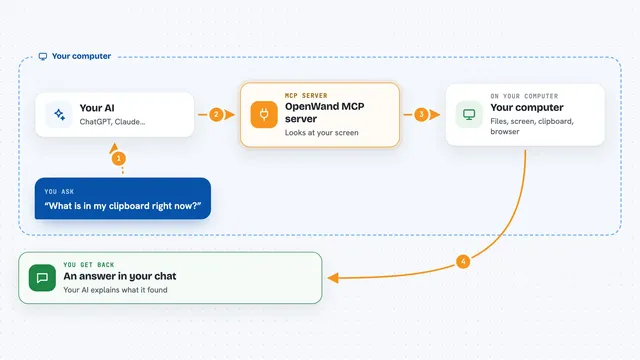
On its own, your AI can only chat with you. An MCP server is a small helper program that gives your AI a new skill or a connection to an app. This one connects your AI to your own Kasm Workspaces, so it can start a desktop session and operate it for you. You ask in plain words, and the helper does the clicking and typing behind the scenes.
What this MCP server does
You ask your AI something like "open a Chrome workspace and search for X". The AI uses this helper, which talks to your Kasm server and starts a session. Then it takes a screenshot, looks at it, and sends clicks and keystrokes to that desktop. You get back a running session plus screenshots and answers in the chat. When you are done, the AI can stop the session and it disappears.
What you can do with it
- List the workspaces you can start and the sessions already running
- Start a workspace like Chrome or Terminal
- Take a live screenshot of the session to see what is on screen
- Click, drag, type, press keys, and scroll inside the desktop
- Stop a session when you are finished
- Watch the agent work from your own Kasm dashboard and take over if needed
Try asking your AI
- “Start a Chrome workspace and go to example.com”
- “Open a Terminal workspace and run a simple command”
- “Take a screenshot of the session and tell me what you see”
- “Close the session when you are done”
What it gives back to you
You get short text answers in the chat, like which workspaces are available or that a session started. You also get live screenshots as images so you can see the desktop. Clicks and typing come back as "sent", and the next screenshot shows whether it worked. When you stop a session, you get a confirmation that it is gone.
Before you start
What you need
- A Kasm Workspaces server version 1.19 or newer that you control
- A Kasm API key and secret (created in Kasm under Admin, Settings, Developers, API Keys)
- Your Kasm user ID (found in the URL when you open your user in the admin area)
- An MCP client like Claude Desktop or Claude Code, and uv installed if you run it locally
Good to know
An agent with these tools drives a real desktop on your network, so use throwaway workspaces, keep a human watching for anything important, and treat the Kasm API key like an admin password.
Install it with your AI
Add Kasm Workspaces MCP server to your AI, no technical skills needed
You don't install anything by hand. You copy one prompt, paste it into an AI that can work on your computer, and it checks, installs and connects the server for you, asking you when it needs something.
Sign in to get the install prompt
Members get a ready-made prompt that lets the Claude desktop app check Kasm Workspaces MCP server, install it and connect it for them, step by step. You don't need any technical skills: you copy, paste and answer a few questions. Your connected AI can also find and install any of the 4,609 MCP servers here for you.
Who it's for
People who already run their own Kasm Workspaces server and want an AI to do simple tasks inside those desktops.