MCP server · Productivity
Clawd Cursor MCP server
by AmrDab
Lets your AI click, type and read your desktop apps on Windows, macOS or Linux, safely and locally.
Clawd Cursor is a helper that lets your AI actually use your computer: it can click buttons, type into fields, open apps and read what is on screen. It works on Windows, macOS and Linux, and it runs only on your own machine. It is handy if you want your AI to handle apps that have no other way to connect, like older desktop programs or a website you use by hand.
What is an MCP server? The 30-second version
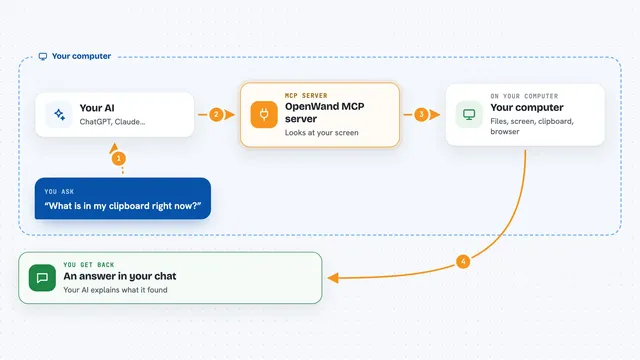
On its own, your AI can only chat with you. An MCP server is a small helper program that gives your AI a new skill or a connection to something else. This one connects your AI to your computer's screen and controls, so it can look at what is open and do things there when you ask. You stay in charge: a banner and a glow on screen show when the AI is working, and you can stop it with a double-click.
What this MCP server does
You ask your AI to do something on your computer, like open an app or fill in a form. Your AI passes the request to Clawd Cursor. Clawd Cursor reads the screen by looking at the names of buttons, fields and menus, and only takes a picture when it really has to. It then clicks or types for you and checks that the action actually worked. If it hits something it cannot do alone, like a sign-in or a code, it pauses and asks you to step in.
What you can do with it
- Click buttons and menu items by their name
- Type into text fields and forms
- Read the text on a window or page
- Open and switch between apps
- Take a screenshot when nothing else works
- Pause and ask you to sign in or enter a code
- Check that its own actions actually worked
Try asking your AI
- “Open the Calculator app and add up the numbers in this list”
- “In my email app, find the message from the bank and read me the amount”
- “Fill in the address form on the page I have open with my details”
- “Open Settings and turn off notifications for the calendar app”
What it gives back to you
You get back plain answers in the chat: what the AI found on screen, what it clicked or typed, and whether the action worked. If something did not go as expected, it tells you instead of pretending it succeeded. When it needs you, it pauses and shows a prompt on screen with a button to continue.
Before you start
What you need
- Node.js 20 or newer (or use the one-click Claude Desktop extension, which needs nothing extra)
- A one-time permission to let it control your computer (a simple command or a settings toggle)
- On macOS: allow Accessibility and Screen Recording in your privacy settings
- On Linux: a few extra system packages for reading the screen and typing
Good to know
This helper can click and type anywhere on your computer, so only turn it on when you are watching, and double-click the on-screen banner to stop it at any time.
Install it with your AI
Add Clawd Cursor MCP server to your AI, no technical skills needed
You don't install anything by hand. You copy one prompt, paste it into an AI that can work on your computer, and it checks, installs and connects the server for you, asking you when it needs something.
Sign in to get the install prompt
Members get a ready-made prompt that lets the Claude desktop app check Clawd Cursor MCP server, install it and connect it for them, step by step. You don't need any technical skills: you copy, paste and answer a few questions. Your connected AI can also find and install any of the 4,609 MCP servers here for you.
Who it's for
Office workers who want their AI to handle everyday desktop apps and websites that have no other way to connect, without any coding.