MCP server · Productivity
GNOME Desktop MCP server
by sbuysse
Let your AI take screenshots, move windows, and click or type on your GNOME Linux desktop.
This is a small helper that lets an AI assistant like Claude Code actually see and control your GNOME Linux desktop. It can take screenshots, move or close windows, switch workspaces, and even move the mouse or type for you. It is handy if you use Linux with GNOME and want your AI to help with repetitive desktop tasks.
What is an MCP server? The 30-second version
On its own, your AI can only chat. It cannot see your screen or touch your windows. An MCP server is a small helper program that gives your AI a new skill, and here that skill is talking to your GNOME desktop. Once it is connected, your AI can look at your screen and do things there when you ask.
What this MCP server does
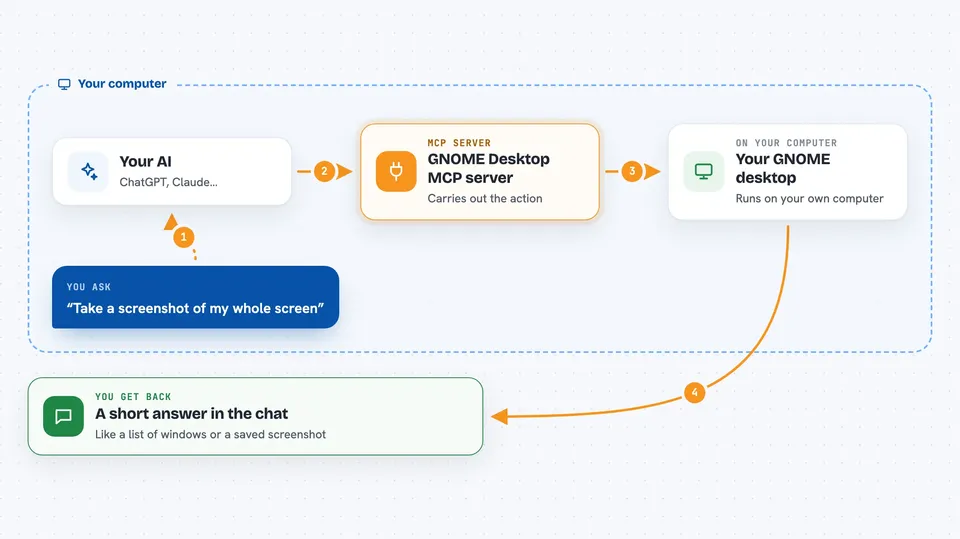
You ask your AI something like take a screenshot or close that window. The AI sends the request to this helper program. The helper talks to a small GNOME add-on that runs inside your desktop, which is allowed to do things normal programs cannot. The desktop does the action, and the result comes back to your AI, which tells you what happened.
 Click to zoom
What you can do with it
- Take a screenshot of the whole screen, one window, or a selected area
- List open windows and focus, move, resize, minimize, maximize, or close them
- Switch between workspaces
- Type text or press keys and key combinations for you
- Move the mouse, click, double-click, drag, and scroll
- Pick the color of a pixel at a chosen spot
- Check which monitors are connected
Try asking your AI
- “Take a screenshot of my whole screen”
- “List all open windows and tell me which one is focused”
- “Type hello world into the active window”
- “Switch to workspace 2 and maximize the browser window”
What it gives back to you
You get back simple answers in the chat, like a list of open windows, a confirmation that a window was closed, or a screenshot file saved on your computer. For color picking, you get the color value at the spot you chose. For most actions you get a short note saying it worked or explaining what went wrong.
Before you start
What you need
- A Linux computer running GNOME Shell version 45 to 49 on Wayland
- Python 3.12 or newer
- The GNOME Shell extension installed and enabled (the install script sets this up)
- An MCP-compatible AI app, such as Claude Code
Good to know
This tool can see your screen and control your mouse and keyboard, so only connect it to an AI you trust, and use the top bar switch to turn automation off when you are not using it.
Install it with your AI
Add GNOME Desktop MCP server to your AI, no technical skills needed
You don't install anything by hand. You copy one prompt, paste it into an AI that can work on your computer, and it checks, installs and connects the server for you, asking you when it needs something.
Sign in to get the install prompt
Members get a ready-made prompt that lets the Claude desktop app check GNOME Desktop MCP server, install it and connect it for them, step by step. You don't need any technical skills: you copy, paste and answer a few questions. Your connected AI can also find and install any of the 4,609 MCP servers here for you.
Who it's for
Linux users on GNOME who want their AI assistant to help with screenshots, window juggling, and simple desktop automation.