MCP server · Productivity
OpenWand MCP server
by SunnyLich
Lets your AI see what is on your screen, clipboard and browser page so it can answer with real context.

OpenWand is a small helper that lets your AI look at what is happening on your computer right now. It can check your current selection, your clipboard, the window you have open, the page in your browser and your screen. It is handy if you want your AI to help with something you are looking at, without copying and pasting everything by hand.
What is an MCP server? The 30-second version
On its own, your AI can only chat with you. An MCP server is a small helper program that gives your AI a new skill or a connection to something else. This one connects your AI to your own desktop through OpenWand, so it can read what is on your screen or in your clipboard when you ask. You stay in control: the AI only looks when you ask it to.
What this MCP server does
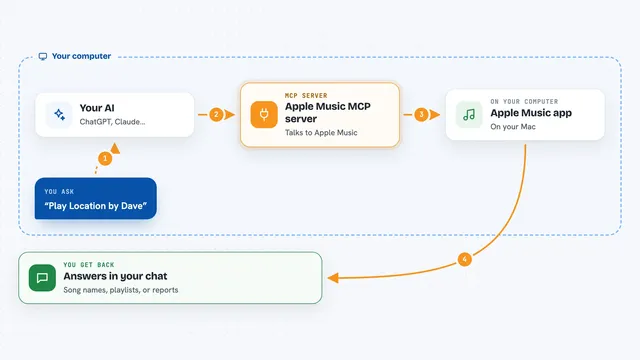
You ask your AI something about what you are doing on your computer. The AI asks this helper for the current context, like your selected text or the page you are on. The helper reads that information from your desktop and sends it back. Your AI then uses it to answer you or help with the next step. It is read-only, so it only looks and does not change anything.
 Click to zoom
What you can do with it
- Read the text you have selected right now
- Check what is in your clipboard
- See which window is active on your screen
- Look at the page open in your browser
- Take a look at your screen to help with what is visible
- Answer questions using your current desktop context
Try asking your AI
- “What is in my clipboard right now?”
- “Summarize the text I have selected.”
- “What page am I looking at in my browser?”
- “Look at my screen and tell me what this error message means.”
What it gives back to you
It gives your AI the text or details it found, like your selected words, clipboard contents, the name of the active window, the browser page, or a view of your screen. Your AI then turns that into a normal chat answer for you. You see the answer in the chat, not the raw data unless you ask for it.
Before you start
What you need
- A computer where you can run local helper programs
- The OpenWand app or setup installed on your machine
- An AI client that supports MCP servers, like the Claude desktop app
Good to know
It can read private things like your clipboard, selected text and screen, so only connect it on a computer you trust and be aware your AI can see that content.
Install it with your AI
Add OpenWand MCP server to your AI, no technical skills needed
You don't install anything by hand. You copy one prompt, paste it into an AI that can work on your computer, and it checks, installs and connects the server for you, asking you when it needs something.
Sign in to get the install prompt
Members get a ready-made prompt that lets the Claude desktop app check OpenWand MCP server, install it and connect it for them, step by step. You don't need any technical skills: you copy, paste and answer a few questions. Your connected AI can also find and install any of the 4,361 MCP servers here for you.
Who it's for
Anyone who wants their AI to help with what is on their screen, like writers, researchers, support staff and people who work with lots of text.