MCP server · Productivity
Diadoc MCP server
by ilyautov
Let your AI look up Diadoc documents, counterparties and docflow status, and sign things when you confirm.
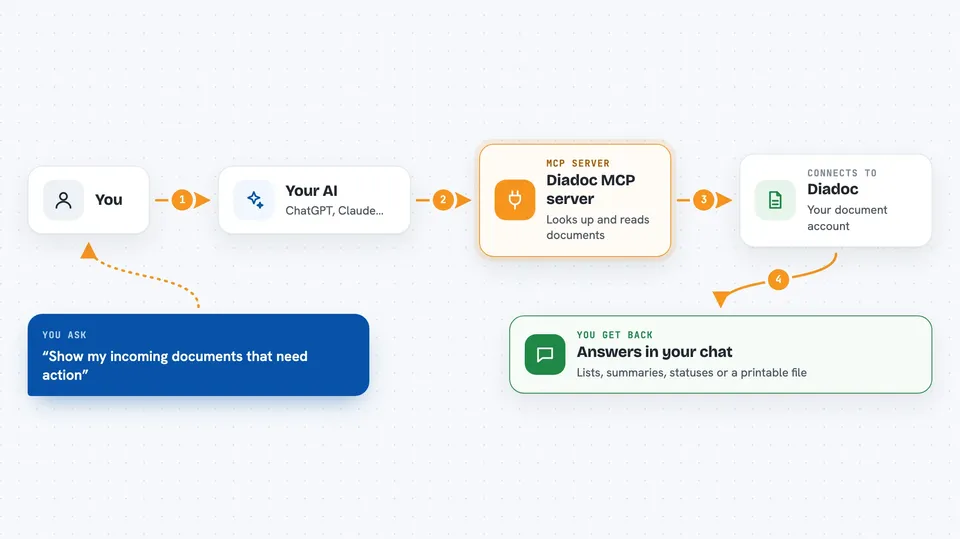
This is a helper that connects your AI assistant to Diadoc, the Kontur service many Russian companies use to exchange documents that count legally. It lets your AI read your incoming and outgoing documents, check who you are exchanging with, and follow the status of a document flow. It is handy if you work with contracts, invoices or powers of attorney and you would rather ask a question in chat than click around the Diadoc website.
What is an MCP server? The 30-second version
On its own, your AI can only chat. An MCP server is a small helper program that gives your AI one new skill or one new connection. This helper connects your AI to your Diadoc account, so when you ask about a document or a counterparty, the AI can go and look it up there for you. It runs on your own computer, and your keys stay with you.
What this MCP server does
You ask your AI something in plain words, like show my incoming documents. The AI uses this helper to find the right Diadoc action, reads a short card about it, and calls it. The helper then talks to the Diadoc service and brings the answer back into your chat. Reading happens right away, but anything that writes or changes something asks you to confirm first. So you stay in control of what actually happens in your account.
 Click to zoom
What you can do with it
- List incoming documents that still need your action
- Summarise the document flow with one counterparty over a period
- Find a counterparty by INN and KPP and check if they are connected to electronic document exchange
- Download a printable form of a document for your accounting team
- Check the status of a document or a signing request
- Look up machine-readable powers of attorney on file
- Sign a document after you confirm it
Try asking your AI
- “Show my incoming documents that need action”
- “Summarise our document flow with this counterparty for last month”
- “Find the counterparty with INN 7707083893 and check if they are on electronic document exchange”
- “Download the printable form of this document”
What it gives back to you
You get answers in the chat: lists of documents, short summaries, statuses, counterparty details, or a downloaded printable file. Numbers and dates come back as you would expect, in plain text. When something is signed or changed, the helper tells you what it did. Nothing is hidden, you see the result of each step.
Before you start
What you need
- A Diadoc account (Kontur). A test environment is available for trying things out.
- A Diadoc application identifier (DIADOC_CLIENT_ID), which Kontur sends you on request
- A Diadoc user token (DIADOC_TOKEN), which you get from the Authenticate method using your login and password or certificate
- Python 3.10 or newer if you install it yourself
Good to know
Some actions write or make irreversible changes in your Diadoc account, so the helper asks you to confirm before doing them, and you should read that confirmation carefully.
Install it with your AI
Add Diadoc MCP server to your AI, no technical skills needed
You don't install anything by hand. You copy one prompt, paste it into an AI that can work on your computer, and it checks, installs and connects the server for you, asking you when it needs something.
Sign in to get the install prompt
Members get a ready-made prompt that lets the Claude desktop app check Diadoc MCP server, install it and connect it for them, step by step. You don't need any technical skills: you copy, paste and answer a few questions. Your connected AI can also find and install any of the 4,361 MCP servers here for you.
Who it's for
People who handle contracts, invoices and official document exchange, like accountants, lawyers, and office staff who already use Diadoc.