MCP server · Developer tools
Inspektor Gadget MCP server
Let your AI peek inside your Kubernetes cluster to find why pods, DNS or network connections are misbehaving.
This is a helper that connects your AI assistant to Inspektor Gadget, a tool that looks deep inside Linux and Kubernetes to see what is really happening. It is handy for people who run or debug Kubernetes clusters and want help figuring out why something is slow, failing or behaving oddly. You ask a question in plain words and the AI collects the technical evidence for you.
What is an MCP server? The 30-second version
On its own, your AI can only chat with you using what it already knows. An MCP server is a small helper program that gives your AI a new skill or a connection to another tool. This one connects your AI to Inspektor Gadget, which watches the insides of your Kubernetes cluster. Once connected, the AI can run those watches for you and read the results when you ask.
What this MCP server does
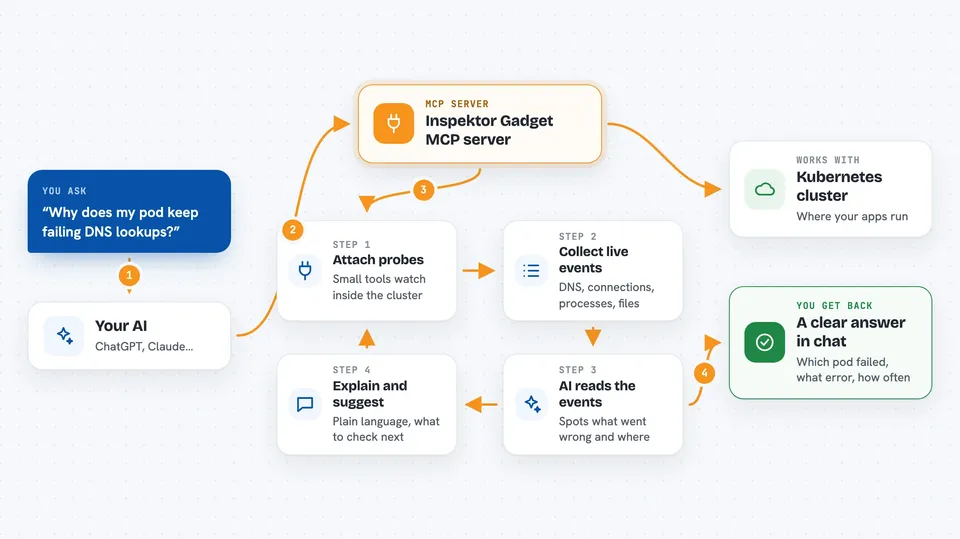
You describe a problem, like DNS failing for a pod, and the AI picks the right Inspektor Gadget tool for the job. The helper then asks Inspektor Gadget to attach small probes inside the cluster and collect live events. Those events come back as structured data, with details like which pod, namespace and container they belong to. The AI reads that data and explains what it found in plain language, along with what to check next.
 Click to zoom
What you can do with it
- Trace DNS queries and spot failed lookups
- Watch TCP connections and see refused or reset ones
- See which processes are starting inside your pods
- Take a snapshot of running processes or open sockets
- Check which files are being opened and by whom
- Look for OOM kills, deadlocks or unusual capability use
- Run a watch in the background and read the results later
What it gives back to you
You get a written answer in the chat, usually a short summary of what was found, with the important events listed out. Under the hood it is structured data, but the AI turns it into something readable, like which pod had the problem, what the error was, and how often it happened. If you ran a background watch, you can ask for the results later and get the same kind of summary.
Before you start
What you need
- Docker installed on your machine
- A kubeconfig file (the small file that lets tools talk to your Kubernetes cluster)
- An MCP-compatible client like VS Code, Claude Code or GitHub Copilot CLI
- Permission to read from your cluster
Good to know
It needs access to your Kubernetes cluster and can install or remove Inspektor Gadget there, so use the read-only mode if you want to be sure nothing is changed.
Install it with your AI
Add Inspektor Gadget MCP server to your AI, no technical skills needed
You don't install anything by hand. You copy one prompt, paste it into an AI that can work on your computer, and it checks, installs and connects the server for you, asking you when it needs something.
Sign in to get the install prompt
Members get a ready-made prompt that lets the Claude desktop app check Inspektor Gadget MCP server, install it and connect it for them, step by step. You don't need any technical skills: you copy, paste and answer a few questions. Your connected AI can also find and install any of the 4,609 MCP servers here for you.
Who it's for
Kubernetes users, SREs, platform engineers and developers who debug cluster problems and want an AI to gather the low-level evidence for them.