MCP server · Developer tools · official
LastPing MCP server
by tp322d · official
Lets your AI set up and check job monitors that alert you when a scheduled task stops checking in.
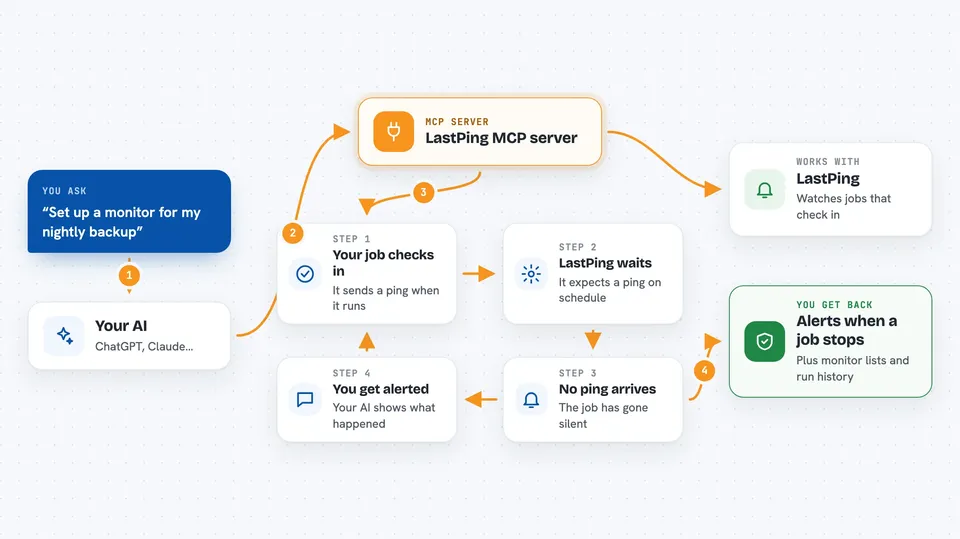
LastPing is a monitoring service that works the other way round from most. Instead of watching a job and telling you when it looks wrong, it waits for the job to check in and tells you when it goes quiet. This MCP server lets your AI create those monitors, look at incidents, and see what happened, all from a chat.
What is an MCP server? The 30-second version
On its own, your AI can only chat with you. An MCP server is a small helper that gives your AI a new skill or a connection to another service. This one connects your AI to LastPing, so it can create monitors, check on runs, and look up incidents for you. You just ask in plain words, and the AI does the clicking.
What this MCP server does
You ask your AI something like "set up a monitor for my nightly backup." The AI uses this helper to create a monitor in your LastPing account and hands you back the ping commands to paste into your job. Later, if that job goes silent, LastPing raises an incident and your AI can pull up the details. You can also ask it to list open incidents, check a run's history, or pause a monitor you no longer need. Everything happens in the chat, no dashboard needed.
 Click to zoom
What you can do with it
- Create a new monitor for a job, cron task, or AI agent
- List your monitors and see which ones are paused or snoozed
- Check open incidents and read what happened
- Look up the history of runs for a monitor
- Get the ping commands to paste into your own job
- Pause, resume, or delete a monitor you no longer need
- See which alert destinations are set up and test them
Try asking your AI
- “Create a monitor called nightly-backup that expects a ping every day at 3am”
- “What incidents are open right now?”
- “Show me the last ten runs for my nightly-etl monitor”
- “Pause the monitor for my old data sync job”
What it gives back to you
You get back plain answers in the chat: lists of monitors with their names and status, incident details with timestamps and any error text, or run histories showing when each run started and how it ended. When it creates or changes something, it tells you what it did. For new monitors, it also gives you the ping commands to paste into your job.
Before you start
What you need
- A LastPing account (free for individuals at lastping.dev)
- A LastPing API key with write access, from the LastPing settings page
- For Claude Desktop: Node.js installed, because it connects through a small bridge program
Good to know
This server can create, change, and delete monitors and API keys in your LastPing account, so check with your AI before letting it delete anything.
Install it with your AI
Add LastPing MCP server to your AI, no technical skills needed
You don't install anything by hand. You copy one prompt, paste it into an AI that can work on your computer, and it checks, installs and connects the server for you, asking you when it needs something.
Sign in to get the install prompt
Members get a ready-made prompt that lets the Claude desktop app check LastPing MCP server, install it and connect it for them, step by step. You don't need any technical skills: you copy, paste and answer a few questions. Your connected AI can also find and install any of the 4,361 MCP servers here for you.
Who it's for
Anyone who runs scheduled jobs, cron tasks, backups, or AI agents and wants to know when one quietly stops working.