MCP server · Developer tools
IONOS Cloud MCP server
by ionos-cloud
Lets your AI look up and, if you allow it, manage your IONOS Cloud servers, storage, DNS and more.
This is a small helper program made by IONOS that connects your AI assistant to your IONOS Cloud account. Once it is set up, you can ask your AI plain questions about your cloud setup and it will go and fetch the answers for you. It is handy for anyone who runs servers, websites or storage on IONOS and does not want to click around the control panel all day.
What is an MCP server? The 30-second version
On its own, your AI can only chat with you. An MCP server is a small helper program that gives your AI a new skill or a connection to an app or service. This one connects your AI to IONOS Cloud, so it can look things up in your account and, if you turn that on, make changes there for you. You just ask in normal words and the helper does the technical part in the background.
What this MCP server does
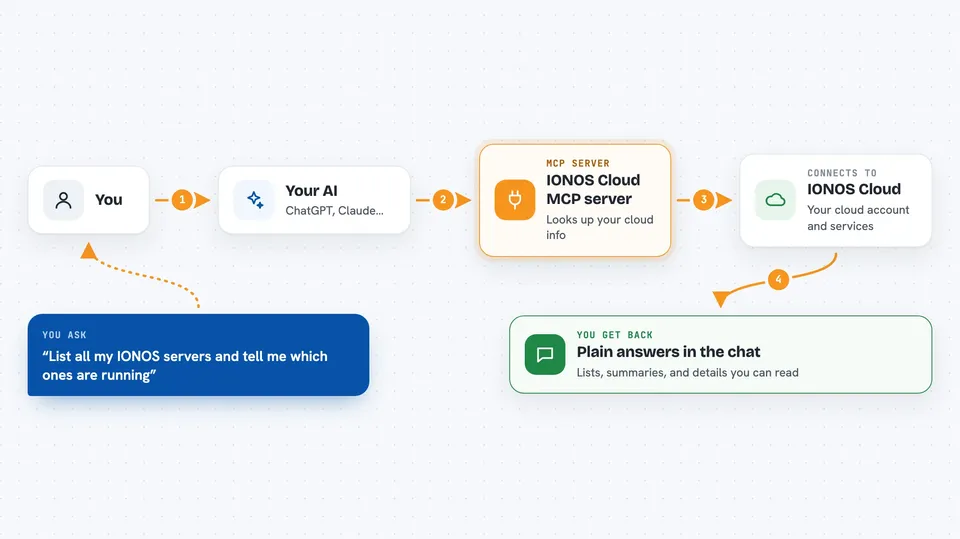
You ask your AI something about your IONOS Cloud account, like which servers you have or what a bill looked like. Your AI passes that request to this helper program running on your computer. The helper talks to IONOS Cloud over a secure connection and gets the information back. Then your AI turns it into a normal answer in the chat. By default it only looks things up, so nothing in your account gets changed unless you deliberately switch that on.
 Click to zoom
What you can do with it
- List your data centers, servers, volumes and network settings
- Check your Kubernetes clusters, node pools and available versions
- Look at your DNS zones, records and DNSSEC settings
- Inspect your Object Storage buckets and their configuration
- Review invoices, usage, traffic and pricing from your billing profile
- See your certificates and certificate providers
- Read your activity log to see what happened in your account
Try asking your AI
- “List all my IONOS servers and tell me which ones are running”
- “What DNS records do I have in my main zone?”
- “Show me my last three invoices and how much they were”
- “Which Kubernetes clusters do I have and how many nodes are in each?”
What it gives back to you
You get back plain answers in the chat: lists of servers, clusters, records or buckets, short summaries of your billing and usage, and details about individual items. If you have turned on write access, it will also tell you what it changed, like a server it started or a record it updated. Everything shows up as normal text you can read, copy or ask follow-up questions about.
Before you start
What you need
- An IONOS Cloud account
- An IONOS API token (a kind of password for apps, which you create in the IONOS control panel under Management, then Token Management)
- Object Storage access key and secret key, only if you want to use the storage tools
- The helper program installed on your computer, for example with Homebrew, Docker or a downloaded file
Good to know
It is read-only by default, but if you turn on write access the AI can create, change or delete real IONOS resources that cost money, so only enable that when you mean it.
Install it with your AI
Add IONOS Cloud MCP server to your AI, no technical skills needed
You don't install anything by hand. You copy one prompt, paste it into an AI that can work on your computer, and it checks, installs and connects the server for you, asking you when it needs something.
Sign in to get the install prompt
Members get a ready-made prompt that lets the Claude desktop app check IONOS Cloud MCP server, install it and connect it for them, step by step. You don't need any technical skills: you copy, paste and answer a few questions. Your connected AI can also find and install any of the 4,609 MCP servers here for you.
Who it's for
Anyone who runs servers, websites or storage on IONOS Cloud and wants quick answers without digging through the control panel, from system administrators to small business owners.