MCP server · Analytics
Snowflake MCP server
Let your AI ask questions of your Snowflake data and get real answers back in the chat.
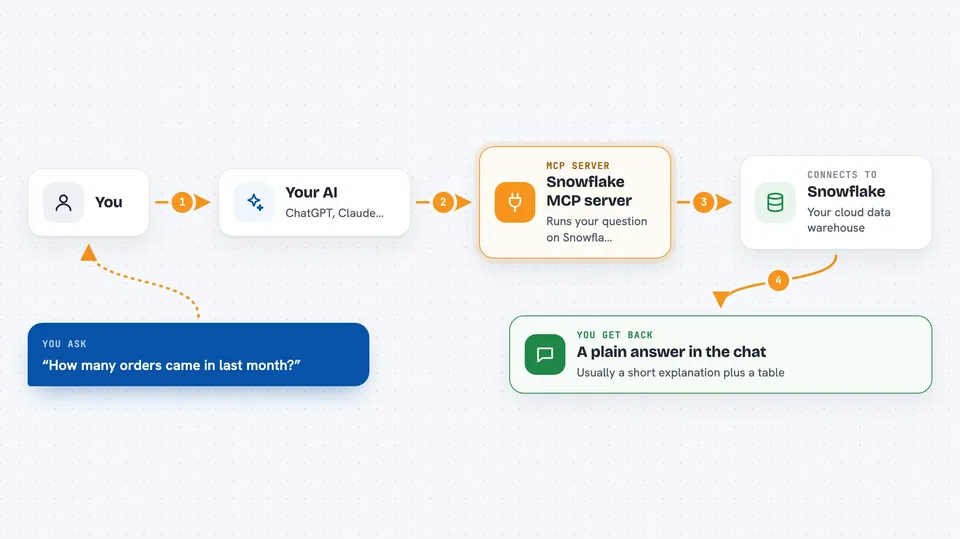
This is a helper that connects your AI assistant to Snowflake, the place where your company keeps its data. Once it is set up, you can just ask your AI questions in plain English and it will look things up in Snowflake for you. It is handy for anyone who works with data but does not want to write SQL by hand.
What is an MCP server? The 30-second version
On its own, your AI can only chat with you. It cannot see your company's data or do anything outside the conversation. An MCP server is a small helper program you connect once, and it gives your AI a new skill. This one gives your AI a direct line to Snowflake, so when you ask a question, the AI can go look at your tables and bring back the answer.
What this MCP server does
You ask your AI something like how many orders came in last month. The AI turns that into a Snowflake query and sends it through this helper. The helper runs the query against your Snowflake account and hands the results back. The AI then explains what it found in plain words. If write access is turned on, it can also add, change, or delete rows and create new tables.
 Click to zoom
What you can do with it
- Ask questions about your Snowflake data in plain English
- List the databases, schemas, and tables you have access to
- Look at the columns and types inside any table
- Run read-only queries and see the results in chat
- Add, update, or delete rows when write access is turned on
- Create new tables when write access is turned on
- Save useful findings to a running notes memo
Try asking your AI
- “What tables are in the SALES database?”
- “Show me the top 10 customers by total order value this year”
- “Describe the columns in analytics.public.orders”
- “How many rows were added to the events table last week?”
What it gives back to you
You get answers in the chat, usually as a short explanation plus a table or list of the rows that came back. For changes, it tells you how many rows were affected or confirms that a table was created. It can also keep a running memo of insights you or the AI add along the way.
Before you start
What you need
- A Snowflake account with a user, password or private key, and a warehouse
- The name of the account, warehouse, role, database, and schema you want to use
- The Claude desktop app (or another app that supports MCP servers)
- The uv tool installed on your computer
Good to know
If you turn on write access, the AI can change or delete data in your Snowflake account, so keep it off unless you really need it.
Install it with your AI
Add Snowflake MCP server to your AI, no technical skills needed
You don't install anything by hand. You copy one prompt, paste it into an AI that can work on your computer, and it checks, installs and connects the server for you, asking you when it needs something.
Sign in to get the install prompt
Members get a ready-made prompt that lets the Claude desktop app check Snowflake MCP server, install it and connect it for them, step by step. You don't need any technical skills: you copy, paste and answer a few questions. Your connected AI can also find and install any of the 4,361 MCP servers here for you.
Who it's for
Analysts, ops people, and anyone who needs to peek at Snowflake data without writing SQL from scratch.