MCP server · Developer tools
vLLM ops health MCP server
by jaimenbell
Ask your AI whether your local vLLM server is really alive, how the GPU is doing, and what launch flags it is running with.
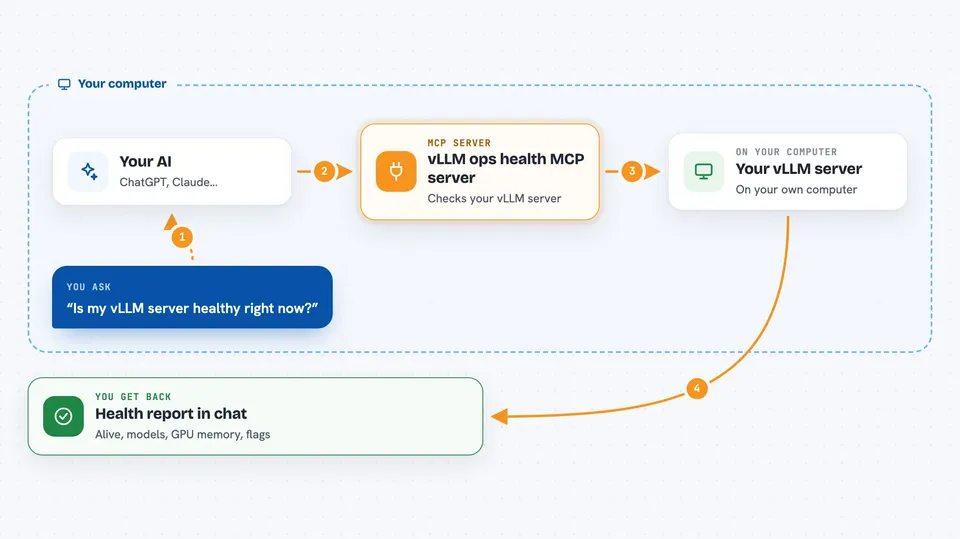
This is a small helper that lets your AI check on a vLLM server running on your own machine. vLLM is a program that serves AI models, and this helper answers health questions about it. It is handy if you run a local model server and want a quick way to see if it is up and working, without typing commands yourself.
What is an MCP server? The 30-second version
On its own, your AI can only chat. An MCP server is a small helper program that gives your AI a new skill or a connection to something else. This helper connects your AI to your local vLLM server, so the AI can ask it questions like whether it is alive, how much GPU memory is in use, and which flags it was started with. You just ask in plain words, and the helper goes and looks.
What this MCP server does
You ask your AI something like whether your vLLM server is healthy. The AI passes that question to this helper. The helper sends a real request to your vLLM server, or runs a small system command, and reads the answer. Then it hands the result back to your AI, which explains it to you in the chat. Everything is read-only, so it only looks, it never changes anything.
 Click to zoom
What you can do with it
- Check whether your vLLM server is responding at all
- Run a real test message to confirm the server actually generates text, not just reports a model loaded
- List the models your vLLM server is currently offering
- See how much GPU memory is used and how busy the GPU is
- Check the systemd service status, including restarts and last active time
- Look up which launch flags the running vLLM process is actually using
- Send a short test prompt of your own to sanity-check the server
Try asking your AI
- “Is my vLLM server healthy right now?”
- “Do a deep health check and confirm it can actually generate a reply”
- “Which models is my vLLM server serving?”
- “How much GPU memory is in use, and what flags is vLLM running with?”
What it gives back to you
You get short, clear answers in the chat: whether the server is alive, whether it really generated a reply, a list of model names, GPU memory and usage numbers, and the service state with its last active time. For launch flags, you get the actual flags the running process was started with, with any sensitive values hidden. If something is wrong, it tells you what it saw, not a guess.
Before you start
What you need
- A vLLM server already running on your machine (this helper does not start it)
- Python and the project set up in a virtual environment, as shown in the README
- On Windows, WSL2 with your vLLM running as a systemd service
- nvidia-smi available if you want GPU status
Good to know
The deep health check and test message send real work to a shared GPU server, so they are rate-limited to avoid slowing down other tools that use the same server.
Install it with your AI
Add vLLM ops health MCP server to your AI, no technical skills needed
You don't install anything by hand. You copy one prompt, paste it into an AI that can work on your computer, and it checks, installs and connects the server for you, asking you when it needs something.
Sign in to get the install prompt
Members get a ready-made prompt that lets the Claude desktop app check vLLM ops health MCP server, install it and connect it for them, step by step. You don't need any technical skills: you copy, paste and answer a few questions. Your connected AI can also find and install any of the 4,609 MCP servers here for you.
Who it's for
People who run a local vLLM model server and want a simple way to check its health, GPU use, and launch settings through their AI assistant.