MCP server · Developer tools
Claude Debugs For You MCP server
by jasonjmcghee
Lets your AI debug your code step by step using breakpoints and expression checks inside VS Code.
This is a helper for VS Code that lets your AI assistant actually debug your code, not just guess what is wrong. It works with Claude Desktop or tools built into VS Code like Continue and Cursor. It is handy if you write code and want your AI to find bugs by pausing the program and looking at values, the way a person would.
What is an MCP server? The 30-second version
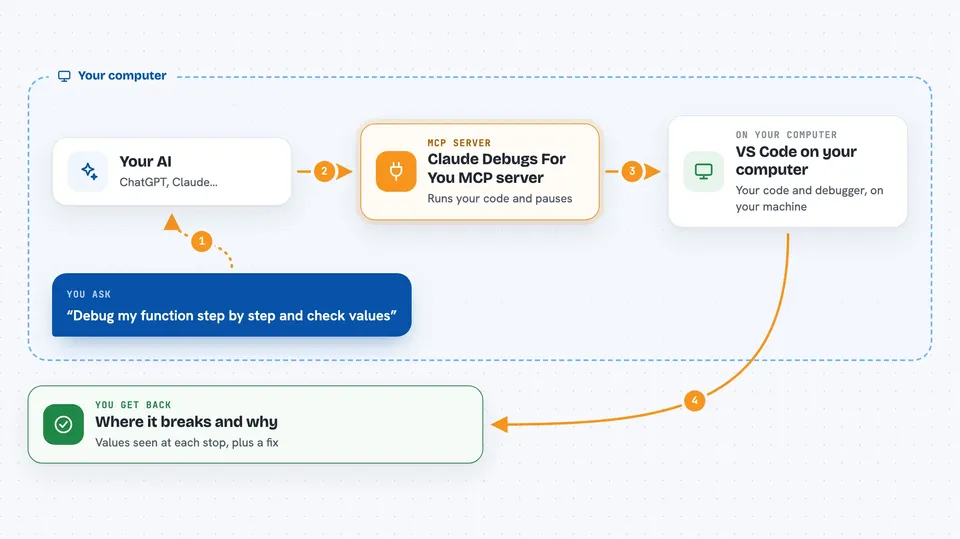
On its own, your AI can only chat with you. An MCP server is a small helper program that gives your AI a new skill or a connection to an app. This one connects your AI to the debugger inside VS Code, so it can set breakpoints, run your code, and check what the variables are at each step. You ask in plain words, and the AI uses this helper to do the actual debugging work.
What this MCP server does
You install a VS Code extension, and it quietly runs a small helper server in the background. When you ask your AI to debug something, the AI talks to that helper. The helper tells VS Code to start your program, pause at breakpoints, and read the values of expressions. The AI looks at those values, figures out where things go wrong, and tells you what it found, often with a suggested fix.
 Click to zoom
What you can do with it
- Run your program under the debugger and pause at breakpoints
- Read the value of variables and expressions while paused
- Step through code line by line to find where it breaks
- Use conditional breakpoints that only stop when a condition is true
- Suggest a fix based on what it saw in the debugger
- Debug code in many languages, as long as VS Code can debug it
Try asking your AI
- “My function longest_substring_with_k_distinct is giving the wrong answer. Can you debug it step by step using breakpoints and check the values as you go?”
- “Please set a breakpoint inside the loop and tell me what the variable count is on each pass.”
- “Run the program under the debugger and find where it crashes. Do not guess, actually debug it.”
- “Debug this file and show me the values of the inputs right before the error happens.”
What it gives back to you
You get back a written explanation of what the AI found while stepping through your code, including the values it saw at each breakpoint. It often points to the exact line where things go wrong and suggests a change you can apply. In some setups, like Continue, you can click to apply the suggested fix. The chat stays in your AI client, and the actual debugging happens in VS Code.
Before you start
What you need
- VS Code installed
- The Claude Debugs For You extension installed from the VS Code Marketplace or a .vsix file
- An MCP client like Claude Desktop, Continue, or Cursor
- A project with a .vscode/launch.json file set up for debugging
Good to know
It can start and pause your program and read your code and variables, so only use it on projects you are comfortable letting your AI inspect.
Install it with your AI
Add Claude Debugs For You MCP server to your AI, no technical skills needed
You don't install anything by hand. You copy one prompt, paste it into an AI that can work on your computer, and it checks, installs and connects the server for you, asking you when it needs something.
Sign in to get the install prompt
Members get a ready-made prompt that lets the Claude desktop app check Claude Debugs For You MCP server, install it and connect it for them, step by step. You don't need any technical skills: you copy, paste and answer a few questions. Your connected AI can also find and install any of the 4,609 MCP servers here for you.
Who it's for
Developers and anyone who writes code in VS Code and wants their AI to help find bugs by actually running and inspecting the program.