MCP server · Productivity
Typst MCP server
Lets your AI convert LaTeX to Typst, check Typst code, and turn Typst snippets into images.
This is a small helper that connects your AI assistant to Typst, a tool for making nicely formatted documents and pages. It is handy if you write in LaTeX or Typst and want your AI to help without you fixing every mistake by hand. You do not need to be a programmer to use it, but you do need to set it up once.
What is an MCP server? The 30-second version
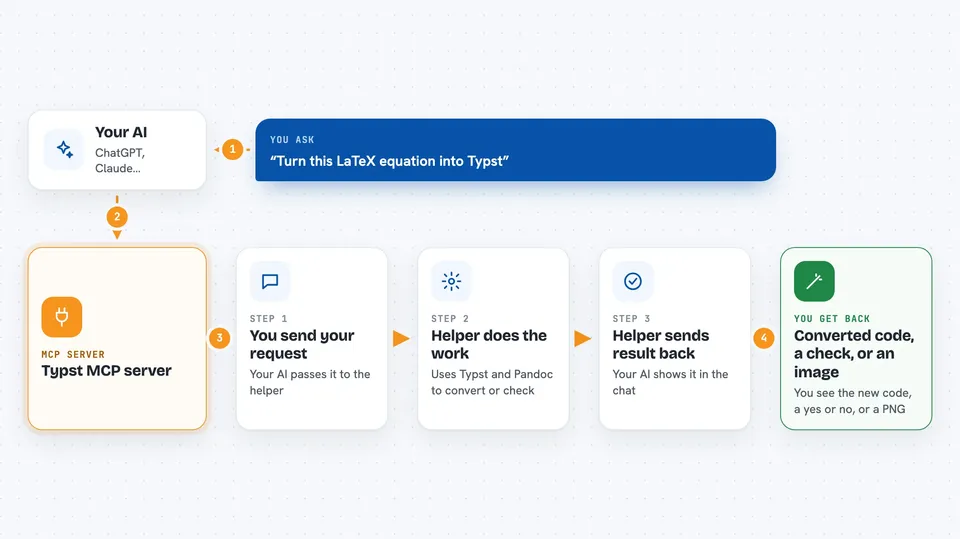
On its own, your AI can only chat with you. An MCP server is a small helper program that gives your AI a new skill or a connection to another tool. This one connects your AI to Typst, so it can convert code, check code, and make pictures from Typst code when you ask. Think of it as giving your assistant a Typst expert sitting next to it.
What this MCP server does
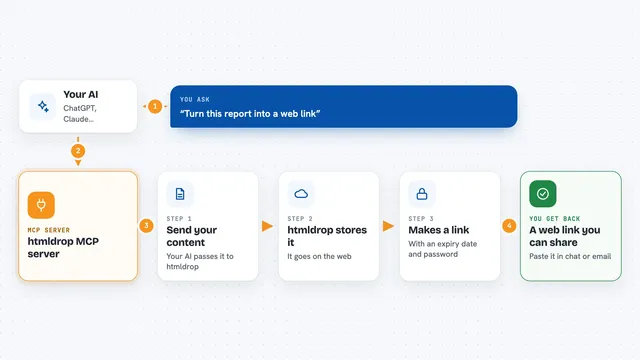
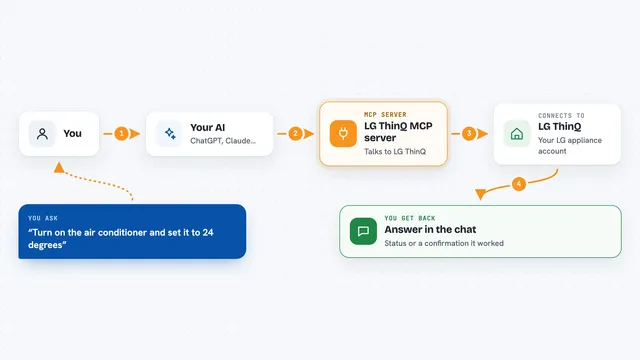
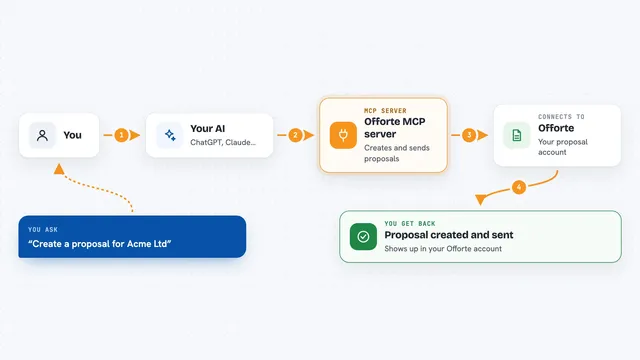
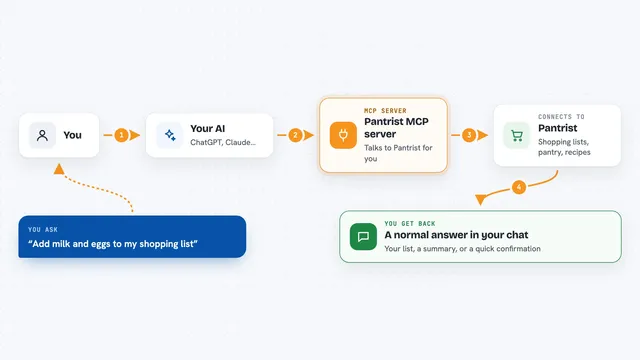
You ask your AI to do something with Typst or LaTeX. The AI sends your request to this helper program. The helper talks to Typst and to Pandoc, a converter tool, to do the actual work. Then it sends the result back to your AI, and your AI shows it to you in the chat. For example, you can paste LaTeX and get Typst back, or check whether a Typst snippet has errors.
 Click to zoom
What you can do with it
- Convert LaTeX code into Typst code
- Check whether a Typst snippet has valid syntax
- Render a Typst snippet into a PNG image
- Look up chapters in the Typst documentation
- Convert several LaTeX snippets at once
- Validate several Typst snippets at once
Try asking your AI
- “Convert this LaTeX equation to Typst: \frac{a}{b} = c”
- “Is this Typst code valid? #set page(width: 10cm) Hello”
- “Turn this Typst snippet into a PNG image so I can see how it looks”
- “Show me the Typst documentation chapter about page setup”
What it gives back to you
You get back text, code, or an image, depending on what you asked. A conversion gives you the new code. A check gives you a yes or no with a short note about problems. An image request gives you a PNG you can look at in the chat.
Before you start
What you need
- Python and the uv tool installed on your computer
- Typst installed on your computer
- A local copy of the Typst repository to generate the documentation files
- Docker if you prefer the Docker setup instead of a local install
Good to know
The documentation part depends on files generated from the Typst source code, and the README warns that this format can change at any time, so that feature may stop working until the project is updated.
Install it with your AI
Add Typst MCP server to your AI, no technical skills needed
You don't install anything by hand. You copy one prompt, paste it into an AI that can work on your computer, and it checks, installs and connects the server for you, asking you when it needs something.
Sign in to get the install prompt
Members get a ready-made prompt that lets the Claude desktop app check Typst MCP server, install it and connect it for them, step by step. You don't need any technical skills: you copy, paste and answer a few questions. Your connected AI can also find and install any of the 4,361 MCP servers here for you.
Who it's for
People who write documents in LaTeX or Typst and want their AI to help convert, check, or preview the code.