MCP server · Coding
VS Code MCP server
by juehang
Lets your AI read, search, edit and check files inside your open VS Code workspace for you.
This is a small add-on for VS Code, the code editor. Once it is switched on, an AI assistant like Claude can look around your project, read files, make edits and check for errors, all inside the workspace you already have open. It is handy if you use an AI to help with coding and want it to work on your real files instead of you copying and pasting back and forth.
What is an MCP server? The 30-second version
On its own, your AI can only chat with you. An MCP server is a small helper program that gives your AI a new skill or a connection to another app. This one connects your AI to your VS Code workspace, so it can look up files, symbols and problems there and make changes when you ask. You install it as a VS Code extension, and it quietly listens on your own computer.
What this MCP server does
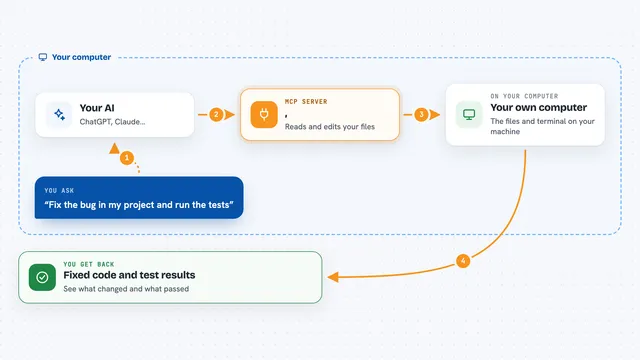
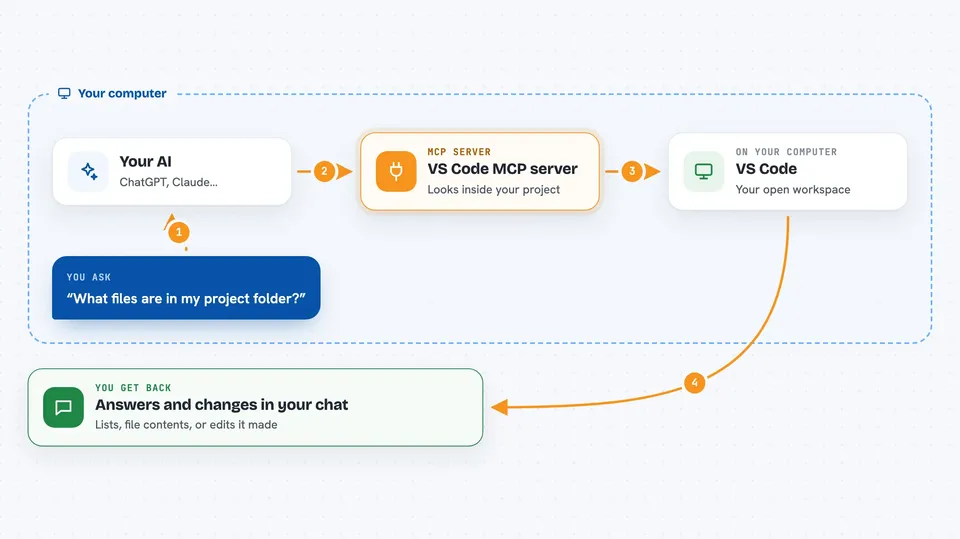
You ask your AI something about your project, like what files are in a folder or where a function is defined. The AI sends that request to this helper, which is running inside VS Code. The helper looks at your open workspace, finds the answer, and hands it back to the AI. The AI then explains it to you or makes the change you asked for, such as editing a file or creating a new one. It can also run shell commands in the VS Code terminal and check for errors and warnings.
 Click to zoom
What you can do with it
- List the files and folders in your workspace
- Read the contents of a code file
- Search for a function, class or variable by name across the project
- Show an outline of everything inside one file, like VS Code's Outline view
- Create a new file or replace specific lines in an existing one
- Move, rename or copy files
- Check your workspace for errors and warnings
- Run a shell command in the VS Code terminal
What it gives back to you
You get answers in the chat: lists of files, file contents, symbol names with their locations, or a summary of errors and warnings. When it makes a change, like creating a file or replacing lines, it tells you what it did. For shell commands, you get the output of the command back. Everything shows up as normal text in your conversation with the AI.
Before you start
What you need
- The VS Code editor with your project open
- The VS Code MCP Server extension installed from the Marketplace
- An MCP client such as Claude Desktop, configured to point at http://localhost:3000/mcp
- The server switched on by clicking the status bar item in VS Code
Good to know
It can run shell commands and change or delete files in your workspace, so only connect it to an AI client you trust and keep the port on your own machine.
Install it with your AI
Add VS Code MCP server to your AI, no technical skills needed
You don't install anything by hand. You copy one prompt, paste it into an AI that can work on your computer, and it checks, installs and connects the server for you, asking you when it needs something.
Sign in to get the install prompt
Members get a ready-made prompt that lets the Claude desktop app check VS Code MCP server, install it and connect it for them, step by step. You don't need any technical skills: you copy, paste and answer a few questions. Your connected AI can also find and install any of the 4,361 MCP servers here for you.
Who it's for
Developers and anyone who uses an AI assistant to help write or explore code in VS Code.