
MCP server · Research
RSS Feeds MCP server
by lionkiii
Let your AI pull the latest posts from your favourite blog RSS feeds and search them for you.
This is a small helper that connects your AI assistant to RSS feeds, which are the little streams of new articles that blogs and news sites publish. Once it is set up, you can just ask your AI for the latest posts from the sites you follow, and it will go and get them. It is handy for anyone who reads a lot of blogs and wants a quick digest without opening a dozen tabs.
What is an MCP server? The 30-second version
On its own, your AI can only chat with you using what it already knows. An MCP server is a small helper program that gives your AI a new skill or a connection to something outside the chat. This one connects your AI to RSS feeds, so it can look up new blog posts for you. You stay in the chat, and the helper does the fetching behind the scenes.
What this MCP server does
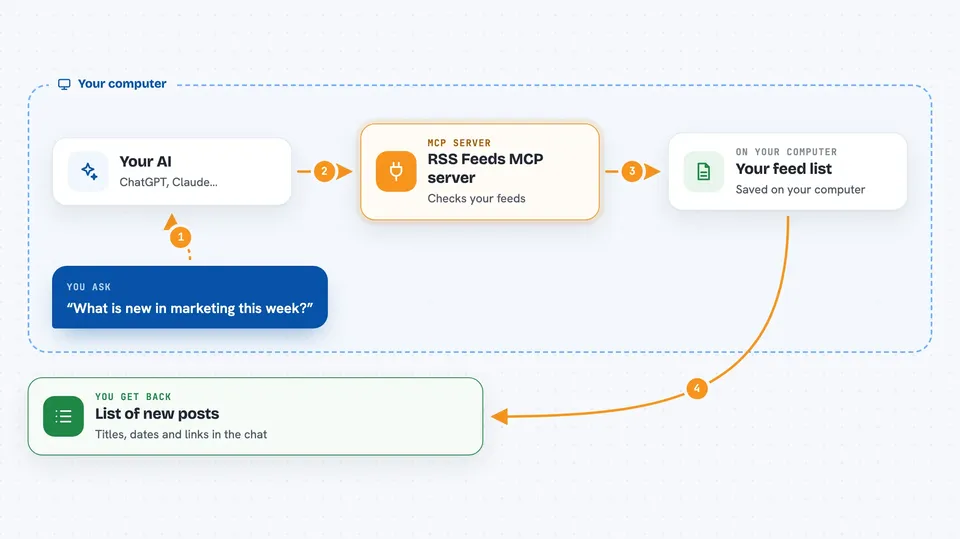
You keep a list of feeds you care about, each with a name and a category, stored in a simple file called feeds.json. When you ask your AI something like "what is new in marketing this week", the AI passes your request to this helper. The helper goes out to each feed on your list, grabs the recent posts, filters them by the date range or category you asked for, and hands the results back. Your AI then shows you a tidy list of headlines, links and dates right in the chat. You can also add or remove feeds by asking, instead of editing the file by hand.
 Click to zoom
What you can do with it
- Fetch the latest posts from all your feeds
- Filter posts by category, like marketing or tech
- Pull posts from one specific source
- Search all your feeds for a keyword
- Add a new feed by name, web address and category
- Remove a feed you no longer want
- List your categories and feeds to see what is set up
Try asking your AI
- “Fetch the latest marketing blogs”
- “Show me posts from this week in the tech category”
- “Search my feeds for anything about AI writing tools”
- “What is new from the HubSpot blog in the last 30 days”
- “Add a feed called Search Engine Journal under marketing”
What it gives back to you
You get back a list of posts, usually with the title, the source, the date and a link you can click. If you asked for a category or a keyword, only the matching posts show up. Adding or removing a feed gives you a short confirmation that it worked. Everything appears as normal text in the chat, so you can read it or ask follow-up questions.
Before you start
What you need
- The Claude desktop app (or another app that supports MCP servers)
- Node.js installed on your computer
- The web addresses of the RSS feeds you want to follow
Good to know
Adding and removing feeds changes your feeds.json file, so check the feed name before asking your AI to remove something.
Install it with your AI
Add RSS Feeds MCP server to your AI, no technical skills needed
You don't install anything by hand. You copy one prompt, paste it into an AI that can work on your computer, and it checks, installs and connects the server for you, asking you when it needs something.
Sign in to get the install prompt
Members get a ready-made prompt that lets the Claude desktop app check RSS Feeds MCP server, install it and connect it for them, step by step. You don't need any technical skills: you copy, paste and answer a few questions. Your connected AI can also find and install any of the 4,361 MCP servers here for you.
Who it's for
Digital marketers, writers, researchers and anyone who follows several blogs and wants a quick daily or weekly roundup.


