MCP server · Privacy
OBSBOT Webcam MCP server
by lxman
Let your AI move, zoom, focus and record your OBSBOT camera by simply asking it.

This is a small helper that connects your AI assistant to an OBSBOT Tiny 2 or Tail 2 camera. Once it is set up, you can tell your AI things like "point the camera at me" or "zoom in on the whiteboard" and it will actually do it. It is handy for anyone who uses an OBSBOT camera for video calls, streaming or recording and wants to control it by typing instead of clicking.
What is an MCP server? The 30-second version
On its own, your AI can only chat. It cannot touch your camera or any other app on your computer. An MCP server is a small helper program that gives your AI a new skill. This one gives it a connection to your OBSBOT camera, so when you ask your AI to move or adjust the camera, it can pass that request along and the camera responds.
What this MCP server does
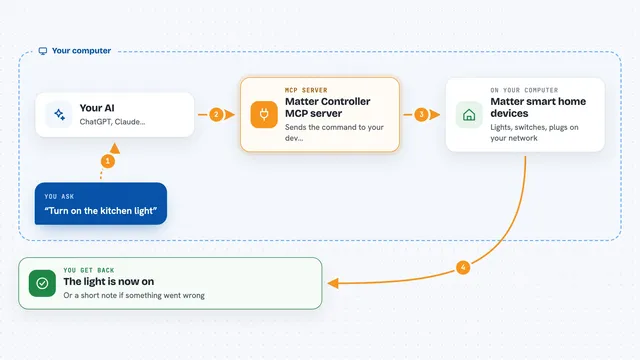
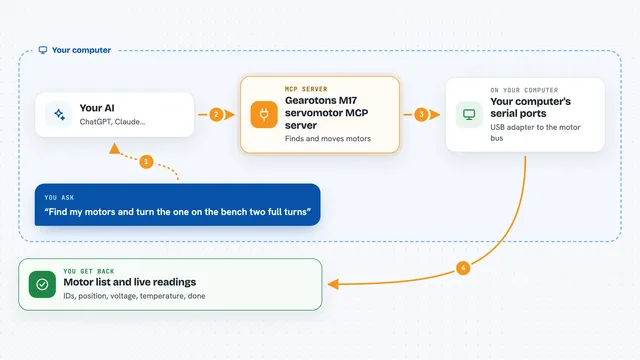
You type a request to your AI, like "pan the camera left" or "take a snapshot". Your AI sends that request to this helper program running on your computer. The helper talks to your OBSBOT camera over its normal USB cable (or over your network for the Tail 2 model). The camera moves, zooms, focuses or takes a picture, and the result comes back to your AI, which tells you what happened.
 Click to zoom
What you can do with it
- Move the camera left, right, up or down to point at something
- Zoom in or out, and frame a specific area of the picture
- Turn on AI subject tracking so the camera follows you
- Take a snapshot of what the camera sees
- Start and stop recording
- Save and recall camera positions as presets
- Adjust focus, exposure and white balance
Try asking your AI
- “Point the camera at me and zoom in a bit”
- “Take a snapshot and tell me what you see”
- “Recenter the camera and turn on subject tracking”
- “Start recording and save the file”
What it gives back to you
You get back short answers in the chat, like "camera moved to yaw 30, pitch 0" or "snapshot saved". Snapshots come back as images you can look at right in the conversation. Status checks give you a small list of numbers, such as zoom level, focus mode and whether the camera is awake. If something could not be done, you get a plain explanation instead of a silent failure.
Before you start
What you need
- An OBSBOT Tiny 2 or Tail 2 camera
- Node.js installed on your computer (version 18 or newer)
- The Claude desktop app or another AI app that supports MCP servers
Good to know
This server can physically move your camera and start or stop recordings, so double-check what you ask it to do before walking away.
Install it with your AI
Add OBSBOT Webcam MCP server to your AI, no technical skills needed
You don't install anything by hand. You copy one prompt, paste it into an AI that can work on your computer, and it checks, installs and connects the server for you, asking you when it needs something.
Sign in to get the install prompt
Members get a ready-made prompt that lets the Claude desktop app check OBSBOT Webcam MCP server, install it and connect it for them, step by step. You don't need any technical skills: you copy, paste and answer a few questions. Your connected AI can also find and install any of the 4,609 MCP servers here for you.
Who it's for
Anyone who uses an OBSBOT camera for video calls, streaming or recording and wants to control it by typing instead of clicking.