MCP server · Analytics
Google Ad Manager MCP server
by MatiousCorp
Let your AI look up and manage Google Ad Manager orders, line items, creatives and advertisers for you.
This is a helper that connects your AI assistant to Google Ad Manager, the tool many teams use to run their online ads. Once it is set up, you can ask your AI in plain words to create campaigns, upload creatives, or check what is delivering. It is handy for ad ops people, marketers, and anyone who spends too much time clicking around the Ad Manager screen.
What is an MCP server? The 30-second version
On its own, your AI can only chat with you. An MCP server is a small helper program that gives your AI a new skill or a connection to another service. This one connects your AI to Google Ad Manager, so it can look things up and make changes there when you ask. You talk to your AI like normal, and it quietly uses this helper in the background.
What this MCP server does
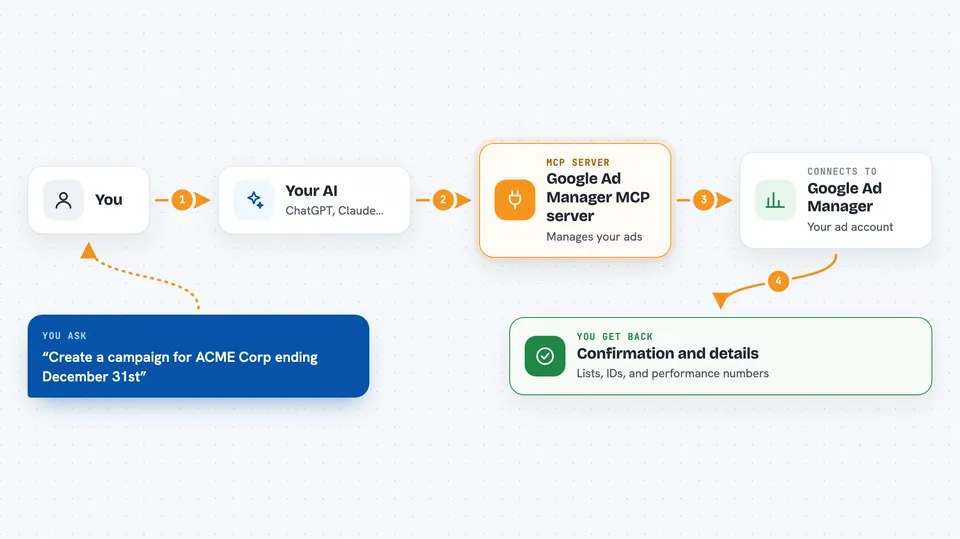
You ask your AI something like create a campaign for a client, or check which orders are delivering. The AI passes your request to this helper. The helper talks to Google Ad Manager using your account details and does the work there. Then it sends the result back, and your AI explains it to you in the chat. You never have to open the Ad Manager website yourself unless you want to.
 Click to zoom
What you can do with it
- List all orders that are currently delivering
- Create a new order, line item, or advertiser
- Upload an image creative and attach it to a line item
- Upload every creative in a folder in one go
- Pause, resume, or archive a line item
- Check how a line item is performing and whether it is set up right
- Run a delivery or inventory report with impressions, clicks, and revenue
Try asking your AI
- “List all delivering orders”
- “Create a new campaign for ACME Corp ending December 31st”
- “Upload all creatives from this folder and associate them with the Display line item”
- “Run a delivery report for last month and show me impressions and clicks”
What it gives back to you
You get answers in plain chat: lists of orders or line items, details about a specific one, confirmation that something was created or changed, and report numbers like impressions, clicks, CTR, and revenue. When it creates something, it tells you the new IDs so you can find them later. When it uploads creatives, it confirms how many were uploaded and attached.
Before you start
What you need
- A Google Ad Manager account with access to the networks you want to manage
- A service account credentials file (a JSON file from Google that acts like a password for the server; your Google admin sets this up)
- Your Ad Manager network code (the number that identifies your account)
- The Claude desktop app or another AI tool that supports MCP servers
Good to know
This server can create and change real things in your live Ad Manager account, including pausing or archiving line items, so it is worth checking what your AI is about to do before you say yes.
Install it with your AI
Add Google Ad Manager MCP server to your AI, no technical skills needed
You don't install anything by hand. You copy one prompt, paste it into an AI that can work on your computer, and it checks, installs and connects the server for you, asking you when it needs something.
Sign in to get the install prompt
Members get a ready-made prompt that lets the Claude desktop app check Google Ad Manager MCP server, install it and connect it for them, step by step. You don't need any technical skills: you copy, paste and answer a few questions. Your connected AI can also find and install any of the 4,361 MCP servers here for you.
Who it's for
Ad operations specialists, digital marketers, and agency teams who manage Google Ad Manager campaigns and want to skip the clicking.