MCP server · Browser automation
OpenTabs MCP server
by opentabs-dev
Lets your AI use the web apps you are already logged into, like Slack, Notion, and GitHub.
OpenTabs is a helper that connects your AI assistant to the websites you already use every day. It works through your normal browser, so if you are logged into Slack or Notion, your AI can act there too. It is handy for anyone who wants their AI to do small tasks in web apps without copying and pasting between windows.
What is an MCP server? The 30-second version
On its own, your AI can only chat with you. An MCP server is a small helper program that gives your AI a new skill or a connection to an app. OpenTabs is that helper, and it connects your AI to web apps through your own browser session. So when you ask your AI to do something in Slack or Notion, it can actually go and do it for you.
What this MCP server does
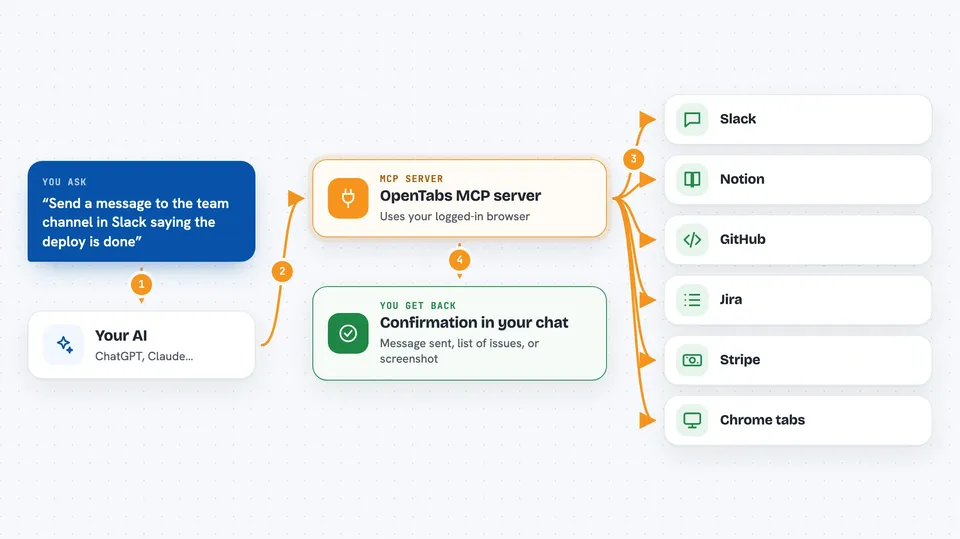
You install a small program on your computer and add a Chrome extension. The extension quietly links your browser to that program. When you ask your AI to do something in a web app, like send a Slack message, the AI asks OpenTabs to do it. OpenTabs uses your logged-in browser session to make the request, and the result comes back to you in the chat.
 Click to zoom
What you can do with it
- Send messages and add reactions in Slack or Discord
- Look up issues and pull requests in GitHub or Jira
- Create or update pages in Notion
- Check data in Stripe or AWS
- Take screenshots or click around in any browser tab
- Install ready-made plugins for over 100 web apps
- Build your own plugin for a site you use
Try asking your AI
- “Send a message to the team channel in Slack saying the deploy is done”
- “Find all open issues assigned to me in Jira”
- “Add a new row to my Notion database with today's meeting notes”
- “Take a screenshot of the page I have open in Chrome”
What it gives back to you
You get back answers, short summaries, or confirmation that something was done. For example, it might say the message was sent, or show you a list of issues. Sometimes it returns a screenshot or a small file. Everything appears right in your chat window.
Before you start
What you need
- Node.js 22 or newer installed on your computer
- The Chrome browser
- The OpenTabs CLI installed (a command you run once)
- The OpenTabs Chrome extension loaded in developer mode
Good to know
It can send messages and make changes in your web apps, so only turn on the tools you trust and check what your AI is about to do.
Install it with your AI
Add OpenTabs MCP server to your AI, no technical skills needed
You don't install anything by hand. You copy one prompt, paste it into an AI that can work on your computer, and it checks, installs and connects the server for you, asking you when it needs something.
Sign in to get the install prompt
Members get a ready-made prompt that lets the Claude desktop app check OpenTabs MCP server, install it and connect it for them, step by step. You don't need any technical skills: you copy, paste and answer a few questions. Your connected AI can also find and install any of the 4,361 MCP servers here for you.
Who it's for
Office workers who use web apps like Slack, Notion, or GitHub and want their AI to help inside those apps.