MCP server · Analytics · official
QuestDB MCP server
by questdb · official
Lets your AI create notebook cells, run SQL queries and build charts in your QuestDB Web Console.
This is a small helper from QuestDB that connects your AI assistant to the QuestDB Web Console you already have open. Once it is set up, you can ask your AI in plain words to write a query, add a notebook cell or draw a chart, and it does that work inside your browser session. It is handy if you use QuestDB to look at live time-series data and would rather describe what you want than click and type it all yourself.
What is an MCP server? The 30-second version
On its own, your AI can only chat. An MCP server is a small helper program that gives your AI a new skill or a connection to an app. This one connects your AI to your running QuestDB Web Console, so the AI can look things up and do things there when you ask. You stay in control: the helper runs on your computer and works through your already-open browser session.
What this MCP server does
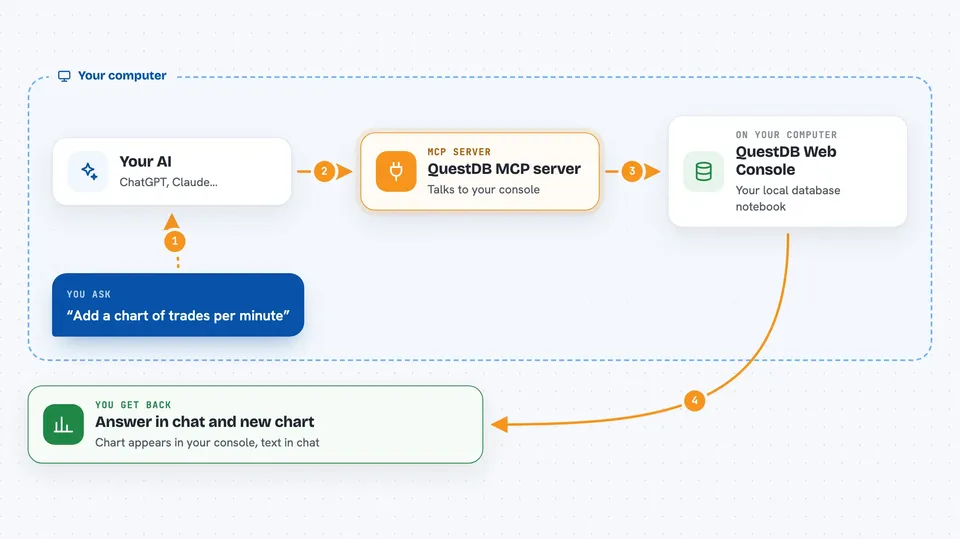
You ask your AI something like "show me the busiest sensors today" or "add a chart of trades per minute". The AI calls this helper, which talks to your QuestDB Web Console through a small local bridge. The console runs the query or creates the cell or chart, and the result comes back into your chat. You can then keep the change in your notebook or ask for a tweak. Nothing happens until you accept a one-time pairing prompt in the browser.
 Click to zoom
What you can do with it
- Create notebook cells in your QuestDB Web Console
- Run SQL queries against your live time-series data
- Build charts from query results
- Update existing notebook cells with new queries
- Read back query results as text in the chat
- Pair the helper with your browser in one click
Try asking your AI
- “Add a notebook cell that counts trades per minute for the last hour”
- “Run a query to show the top 10 symbols by volume today”
- “Make a line chart of CPU usage over the past day”
- “Update the last cell to filter for sensor_id 42”
What it gives back to you
You get answers in the chat, usually as text: query results, row counts, or a short confirmation that a cell or chart was created or updated. Charts and notebook cells appear in your QuestDB Web Console, not in the chat. If something fails, you get a short error message explaining what went wrong.
Before you start
What you need
- A running QuestDB Web Console (usually at http://127.0.0.1:9000)
- Node.js and npx installed on your computer
- A coding agent that supports MCP, such as Claude Code, Codex, Cursor, OpenCode or Gemini CLI
Good to know
It works through your live QuestDB session, so anything you ask it to run or change in your notebook happens for real in the console.
Install it with your AI
Add QuestDB MCP server to your AI, no technical skills needed
You don't install anything by hand. You copy one prompt, paste it into an AI that can work on your computer, and it checks, installs and connects the server for you, asking you when it needs something.
Sign in to get the install prompt
Members get a ready-made prompt that lets the Claude desktop app check QuestDB MCP server, install it and connect it for them, step by step. You don't need any technical skills: you copy, paste and answer a few questions. Your connected AI can also find and install any of the 4,609 MCP servers here for you.
Who it's for
People who already use QuestDB to explore time-series data and want their AI assistant to help write queries, build notebooks and make charts.