MCP server · Browser automation
QuokkaPix MCP server
by quokkapix
Let your AI resize, compress, convert, watermark and clean up images and videos on your own computer.
QuokkaPix MCP server is a small helper that lets your AI work on your image and video files without sending them anywhere. It opens the QuokkaPix editing pages in a browser on your own machine, applies the settings you ask for, and saves the results to a folder you choose. It is handy if you deal with product photos, social media images, or short videos and want to avoid uploading your files to a stranger's server.
What is an MCP server? The 30-second version
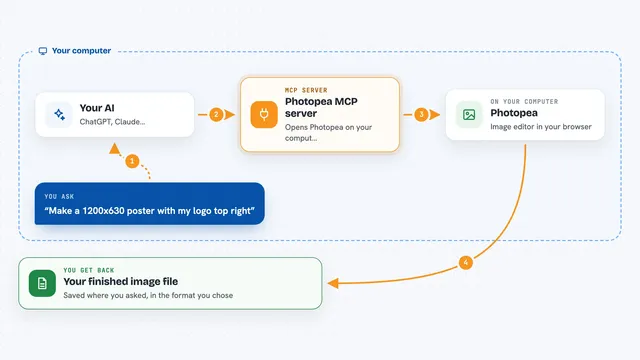
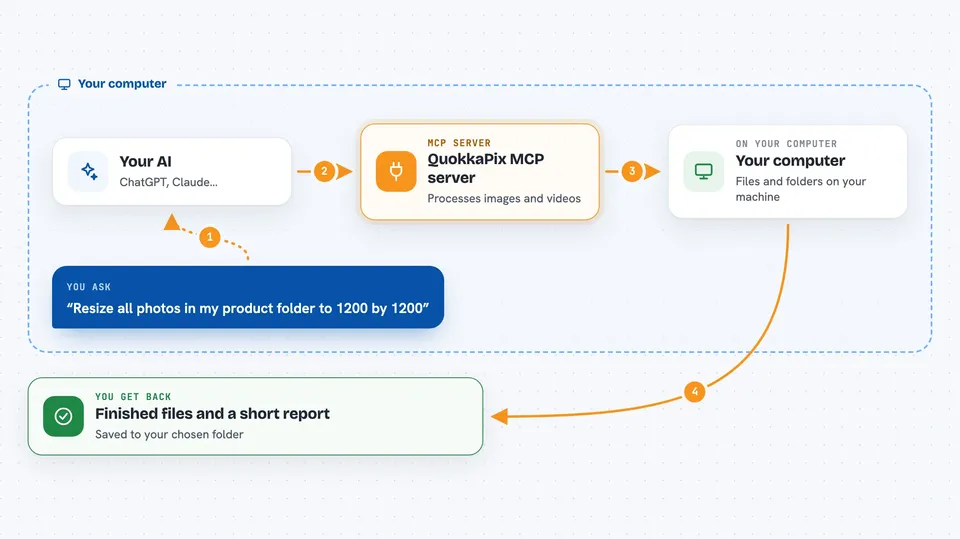
On its own, your AI can only chat. It cannot open a photo, shrink it, or save a new version. An MCP server is a little program that gives your AI a new skill. This one gives it a connection to QuokkaPix, a set of image and video editing tools that run in your browser. When you ask your AI to resize a picture or remove its location data, the AI passes that request to this helper, and the helper does the work locally.
What this MCP server does
You tell your AI what you want done, for example resize these photos to 1200 pixels wide and save them as WebP. The AI picks the right QuokkaPix recipe or settings and hands them to this helper. The helper opens a Chromium browser window on your computer, loads the QuokkaPix page, selects your files, and starts the job. When it finishes, it saves the new files to a folder you picked and writes a small report file with the details. Then it tells your AI what happened, and your AI tells you.
 Click to zoom
What you can do with it
- Resize and crop a batch of product photos for a shop
- Compress images to WebP for a faster website
- Remove EXIF and GPS metadata from photos before sharing
- Add a text or logo watermark to many images at once
- Convert, cut, or compress a local video file
- Generate a transcript file (TXT, SRT, or VTT) from a video
- Check finished images against marketplace rules for Amazon or Shopify
Try asking your AI
- “Resize all the photos in my product folder to 1200 by 1200 and save them as WebP”
- “Remove the location data from these vacation photos and put the cleaned copies in a new folder”
- “Add my logo as a watermark to every image in this folder”
- “Cut this video to the first 30 seconds and save it as an MP4”
What it gives back to you
You get your finished files saved to the output folder you chose, plus a small report file called quokkapix-result.json (or quokkapix-video-result.json for videos). Your AI also gets a short quality check summary, so it can tell you if the images match the rules you asked for. In the chat, you will usually see a plain answer like which files were created and whether anything looked off.
Before you start
What you need
- Node.js version 20 or newer
- The Playwright Chromium browser (installed with one command)
- An internet connection while QuokkaPix loads in the browser
- For bridge mode: an input folder and an output folder you allow it to use
Good to know
It can overwrite or create files in the folders you allow, and some paid QuokkaPix features need a separate unlock token, so check the output folder and any costs before running big batches.
Install it with your AI
Add QuokkaPix MCP server to your AI, no technical skills needed
You don't install anything by hand. You copy one prompt, paste it into an AI that can work on your computer, and it checks, installs and connects the server for you, asking you when it needs something.
Sign in to get the install prompt
Members get a ready-made prompt that lets the Claude desktop app check QuokkaPix MCP server, install it and connect it for them, step by step. You don't need any technical skills: you copy, paste and answer a few questions. Your connected AI can also find and install any of the 4,361 MCP servers here for you.
Who it's for
People who handle lots of images or short videos for shops, social media, or websites and want the work done on their own computer.