MCP server · Developer tools
Kiyas design check MCP server
by saiffmirza
Compare a Figma design or screenshot with your live UI and get a plain list of what looks different.
Kiyas is a helper that checks how close your built web page looks to the design it was supposed to match. You give it a design (a Figma link or a screenshot) and describe the part of your page you care about, and it tells you what is off. It is handy for developers, designers, and anyone who has ever squinted at a screen wondering why the button looks slightly wrong.
What is an MCP server? The 30-second version
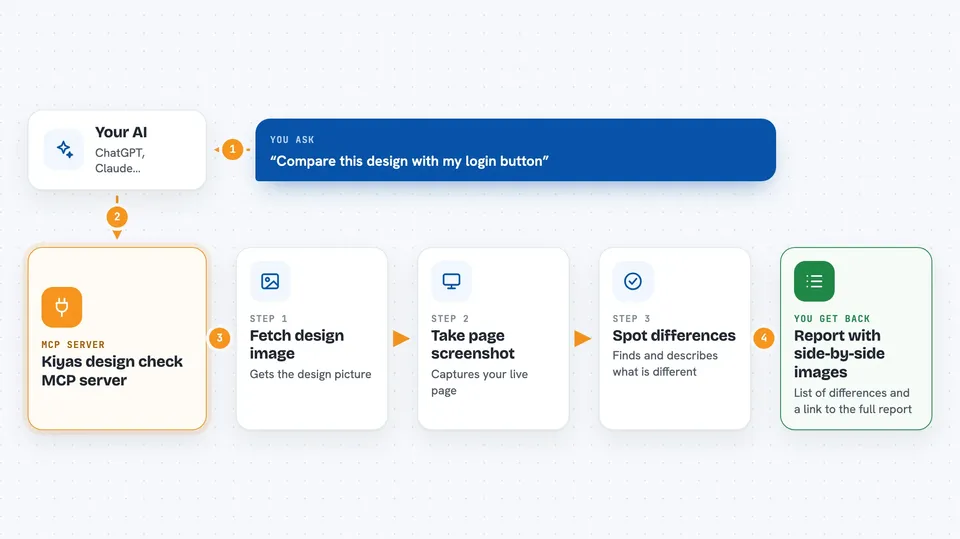
On its own, your AI can only chat with you. An MCP server is a small helper program that gives your AI a new skill or a connection to another tool. This one connects your AI to a design-checking engine that can grab a Figma design, take a picture of your running web page, and compare the two. So when you ask your AI to check a component, it can actually go look and come back with answers.
What this MCP server does
You ask your AI to compare a design with a part of your website. The AI hands the job to kiyas, which fetches the design image and takes a screenshot of your running page. Kiyas then sends both pictures to a vision AI, which spots the differences and describes them in plain words, like a border radius that is 8 pixels instead of 12. You get back a report with the two images side by side and a list of issues sorted by how serious they are.
 Click to zoom
What you can do with it
- Compare a Figma frame against a live component on your dev server
- Compare a design screenshot against your page when you do not have Figma access
- Find a component by name, like the primary button on the login page
- List only the high-severity differences so you can fix the big things first
- Get a saved report you can open in your browser with side-by-side images
- Get the results as structured data you can feed into other tools
Try asking your AI
- “Compare the Figma frame at this link against the primary button on the login page, then list only the high-severity issues.”
- “Check whether the event header on the redemption screen matches the design and show me the report.”
- “Use this design screenshot and compare it against the nav bar on my local site.”
- “Run a design check on the checkout button and tell me what is different.”
What it gives back to you
You get a report with the design image and your page screenshot side by side, plus a list of differences. Each difference names the CSS property involved, the value in the design, the value in your page, and how serious it is (high, medium, or low). In the chat you will see a short summary and a link to the full HTML report you can open in your browser.
Before you start
What you need
- Node.js 20 or newer installed on your computer
- Claude Code or Codex CLI installed and signed in (the AI work goes through your existing subscription, no API key needed)
- A Figma personal access token, only if you want to compare against a Figma link (free to create on the Figma site)
- A running dev server for the page you want to check
Good to know
It takes screenshots of your running web page and reads your Figma designs, so make sure you are comfortable with that before pointing it at private work.
Install it with your AI
Add Kiyas design check MCP server to your AI, no technical skills needed
You don't install anything by hand. You copy one prompt, paste it into an AI that can work on your computer, and it checks, installs and connects the server for you, asking you when it needs something.
Sign in to get the install prompt
Members get a ready-made prompt that lets the Claude desktop app check Kiyas design check MCP server, install it and connect it for them, step by step. You don't need any technical skills: you copy, paste and answer a few questions. Your connected AI can also find and install any of the 4,361 MCP servers here for you.
Who it's for
Front-end developers, designers, and QA folks who want a quick, plain-English check that a built page still matches its design.