MCP server · Customer communication
SendKuy MCP server
by sendkuy
Let your AI send WhatsApp, SMS and email messages, verify OTP codes and check campaigns through your SendKuy account.
This is a small helper that connects your AI assistant to SendKuy, a service for sending WhatsApp, SMS and email messages. Once it is set up, you can ask your AI to send a message, check whether a code a user typed is correct, or look at how a campaign is doing. It is handy for anyone who uses SendKuy to reach customers and wants to do it from the chat instead of clicking around a dashboard.
What is an MCP server? The 30-second version
On its own, your AI can only chat. An MCP server is a small helper program that gives your AI a new skill or a connection to an app. This one connects your AI to SendKuy, so when you ask it to send a message or check a code, the AI can actually do that in your SendKuy account for you.
What this MCP server does
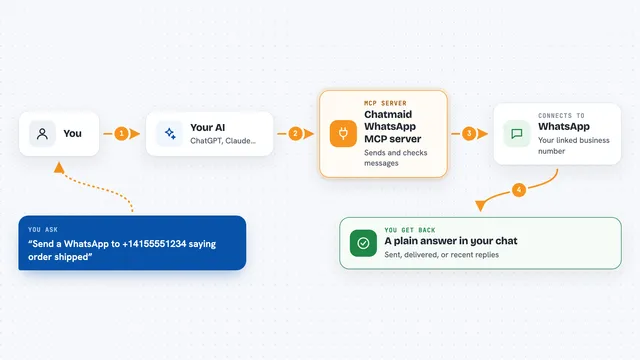
You ask your AI something like send a WhatsApp to this number or check this OTP code. The AI passes your request to this helper. The helper talks to SendKuy using your API key. SendKuy sends the message or checks the code. Then the helper brings the result back to your chat, so you see whether it worked or what the status is.
What you can do with it
- Send one message to up to 100 people on WhatsApp, SMS or email
- Send a batch of up to 500 messages with different content per person
- Send an OTP code and check the code a user typed
- Check which phone numbers are on WhatsApp
- Look up recent messages by channel, status and time
- Start, pause, resume or cancel a campaign
- See your plan, credits and usage for the period
Try asking your AI
- “Send a WhatsApp to +6281234567890 saying your order has shipped”
- “Check if the code 482913 is correct for the verification I just sent”
- “Which WhatsApp messages failed in the last hour and why?”
- “Send each branch manager their own revenue numbers for today”
What it gives back to you
You get back a clear answer in the chat. For a send, it tells you if the message went out and gives you a message id. For a check, it tells you if the code is correct. For a list, it shows you the messages or campaigns with their status and details. If something fails, it tells you the reason.
Before you start
What you need
- A SendKuy account
- An API key from SendKuy (a kind of password for apps; you create one in your SendKuy dashboard)
- Node.js installed on your computer (the helper runs with npx)
Good to know
Tools that send messages really send them and use your SendKuy credits, so double-check the recipient and content before you ask the AI to send.
Install it with your AI
Add SendKuy MCP server to your AI, no technical skills needed
You don't install anything by hand. You copy one prompt, paste it into an AI that can work on your computer, and it checks, installs and connects the server for you, asking you when it needs something.
Sign in to get the install prompt
Members get a ready-made prompt that lets the Claude desktop app check SendKuy MCP server, install it and connect it for them, step by step. You don't need any technical skills: you copy, paste and answer a few questions. Your connected AI can also find and install any of the 4,960 MCP servers here for you.
Who it's for
People who use SendKuy to message customers and want to send messages, check codes or manage campaigns from their AI chat instead of the dashboard.