MCP server · Developer tools
TurboQuant MCP server
Let your AI shrink big language models into smaller files and send them to Hugging Face.
This is a helper that connects your AI assistant to a tool for making AI models smaller. It takes a large model and squeezes it down so it runs on normal computers instead of expensive machines. It is handy for people who work with AI models and want to try them out without a big budget.
What is an MCP server? The 30-second version
On its own, your AI can only chat with you. An MCP server is a small helper program that gives your AI a new skill or a connection to another service. This one connects your AI to a model-shrinking tool, so when you ask it to make a model smaller, it can actually do that for you. You just talk to your AI like normal, and this helper does the heavy work behind the scenes.
What this MCP server does
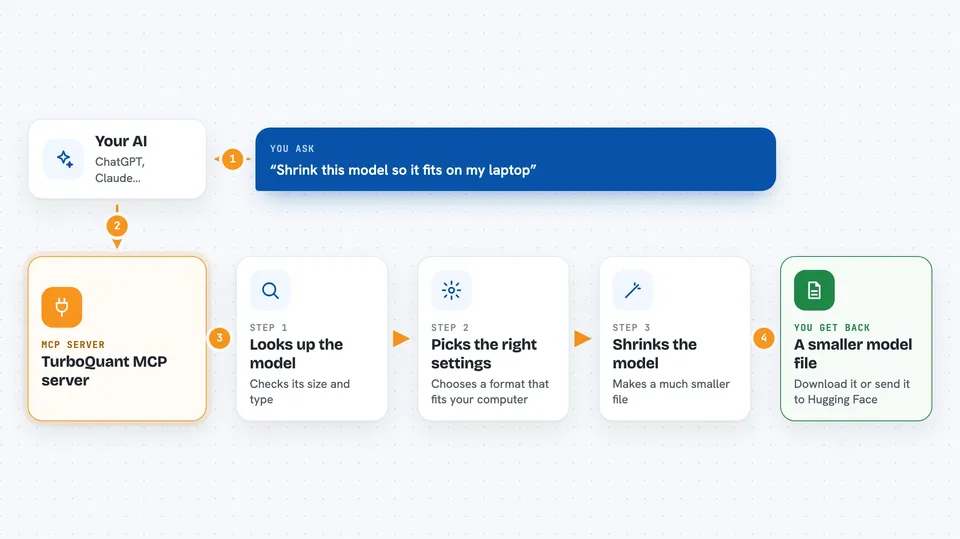
You ask your AI something like shrink this model to a smaller size. Your AI passes that request to this helper program. The helper looks up the model, picks good settings for your computer, and runs the shrinking process. When it is done, you get a smaller model file you can download or send to Hugging Face. It can also check how much quality was lost and tell you what formats your computer can handle.
 Click to zoom
What you can do with it
- Look up details about any model on Hugging Face, like its size and type
- Recommend the best shrinking format and settings for your computer
- Shrink a model into GGUF, GPTQ, or AWQ format
- Check which shrinking tools are already installed on your machine
- Measure how much quality a shrunk model lost
- Send your shrunk model to your Hugging Face account
Try asking your AI
- “Get info on meta-llama/Llama-3.1-8B-Instruct”
- “What quantization format should I use for Mistral-7B on my machine?”
- “Quantize meta-llama/Llama-3.1-8B to 4-bit GGUF”
- “Push my quantized model to myuser/model-GGUF on HuggingFace”
What it gives back to you
You get back plain answers in the chat: model details, a recommended format, a progress note, or a finished file path. For quality checks, you get a number called perplexity that tells you how much the model changed. When you push to Hugging Face, you get a link to your uploaded model.
Before you start
What you need
- Python installed on your computer
- The mcp-turboquant package installed
- Extra packages for the format you want (GGUF, GPTQ, or AWQ)
- A Hugging Face account and token if you want to upload models
Good to know
Shrinking a model can take a long time and use a lot of memory, and pushing to Hugging Face uploads files to your account, so check before you send.
Install it with your AI
Add TurboQuant MCP server to your AI, no technical skills needed
You don't install anything by hand. You copy one prompt, paste it into an AI that can work on your computer, and it checks, installs and connects the server for you, asking you when it needs something.
Sign in to get the install prompt
Members get a ready-made prompt that lets the Claude desktop app check TurboQuant MCP server, install it and connect it for them, step by step. You don't need any technical skills: you copy, paste and answer a few questions. Your connected AI can also find and install any of the 4,361 MCP servers here for you.
Who it's for
People who work with AI models and want to run them on regular computers, like data scientists, ML engineers, and hobbyists.