
MCP server · Developer tools · official
Radar MCP server
by skyhook-io · official
Lets your AI look inside your Kubernetes clusters to check resources, events, logs and Helm state.
Radar is a free tool that shows you what is happening inside a Kubernetes cluster. It runs as a single program on your own computer and connects straight to your cluster. This MCP server is the part that lets your AI assistant ask Radar questions about your cluster for you.
What is an MCP server? The 30-second version
On its own, your AI can only chat with you. An MCP server is a small helper program that gives your AI a new skill or a connection to another tool. This one connects your AI to Radar, which is a visibility tool for Kubernetes clusters. Once it is connected, your AI can look things up in your cluster and report back, instead of you clicking around a dashboard yourself.
What this MCP server does
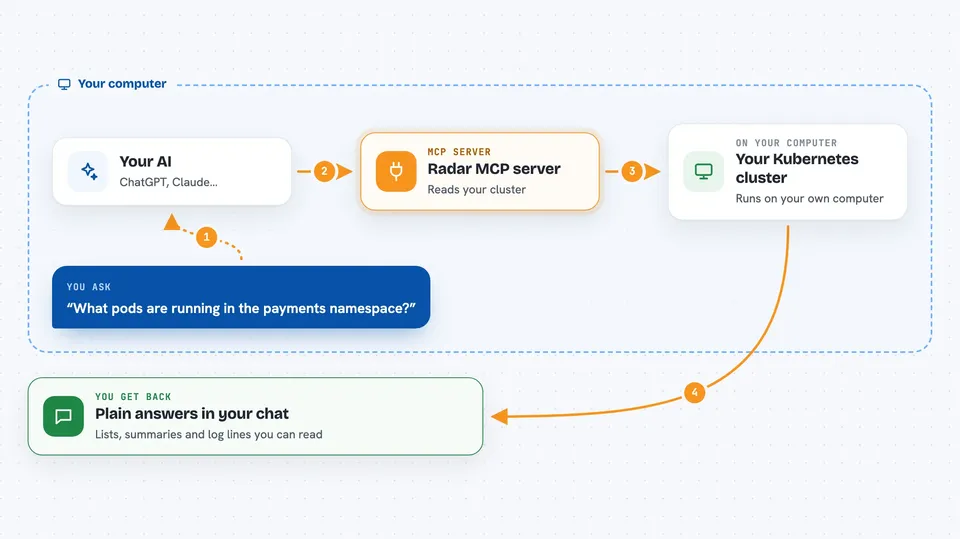
You ask your AI a question about your Kubernetes cluster in plain words. Your AI sends that question to this helper, which talks to Radar. Radar reads the live state of your cluster, such as resources, events, logs, and Helm or GitOps information. Your AI then turns what it found into a normal answer in your chat window.
 Click to zoom
What you can do with it
- Check what is running in your cluster and how things are connected
- Look up events and recent activity for a workload
- Read logs from a pod or container
- Inspect Helm releases and GitOps state
- Find resources by namespace, label, or kind
- Investigate why something looks unhealthy or stuck
Try asking your AI
- “What pods are running in the payments namespace right now?”
- “Why is the checkout deployment failing to start?”
- “Show me the recent events for the api-gateway service.”
- “What Helm releases are installed in this cluster?”
What it gives back to you
You get answers in your chat: lists of resources, short summaries of what is happening, and explanations of problems it found. It can also show you log lines and event details. Everything comes back as text you can read, not as files you have to open elsewhere.
Before you start
What you need
- The Radar tool installed on your computer
- Access to a Kubernetes cluster (a kubeconfig file, usually set up already if you use kubectl)
- The Claude desktop app or another AI tool that supports MCP servers
Good to know
It can read details about your cluster, and some Radar features can change or operate on resources, so be careful about what you ask it to do.
Install it with your AI
Add Radar MCP server to your AI, no technical skills needed
You don't install anything by hand. You copy one prompt, paste it into an AI that can work on your computer, and it checks, installs and connects the server for you, asking you when it needs something.
Sign in to get the install prompt
Members get a ready-made prompt that lets the Claude desktop app check Radar MCP server, install it and connect it for them, step by step. You don't need any technical skills: you copy, paste and answer a few questions. Your connected AI can also find and install any of the 4,361 MCP servers here for you.
Who it's for
Developers, DevOps engineers, and support staff who work with Kubernetes clusters and want to ask questions about them in plain words.



