MCP server · Developer tools
Shell MCP server
by sonirico
Let your AI look at files, folders and git history in a safe workspace, without running wild commands.
This is a small helper program that gives your AI assistant a set of safe, limited tools for working with files and git on your computer. Instead of letting the AI type any command it wants, it can only do specific things like read a file, search for text, or check git history, and only inside a folder you choose. It is handy for developers and anyone who wants AI help with code or files but does not want to hand over full control of their machine.
What is an MCP server? The 30-second version
On its own, your AI can only chat with you. An MCP server is a small helper program that gives your AI a new skill or a connection to something outside the chat. This one connects your AI to a safe workspace on your computer, so it can read files, search folders and look at git history when you ask. You stay in charge: the helper only does the specific things it is allowed to do, inside the folder you set.
What this MCP server does
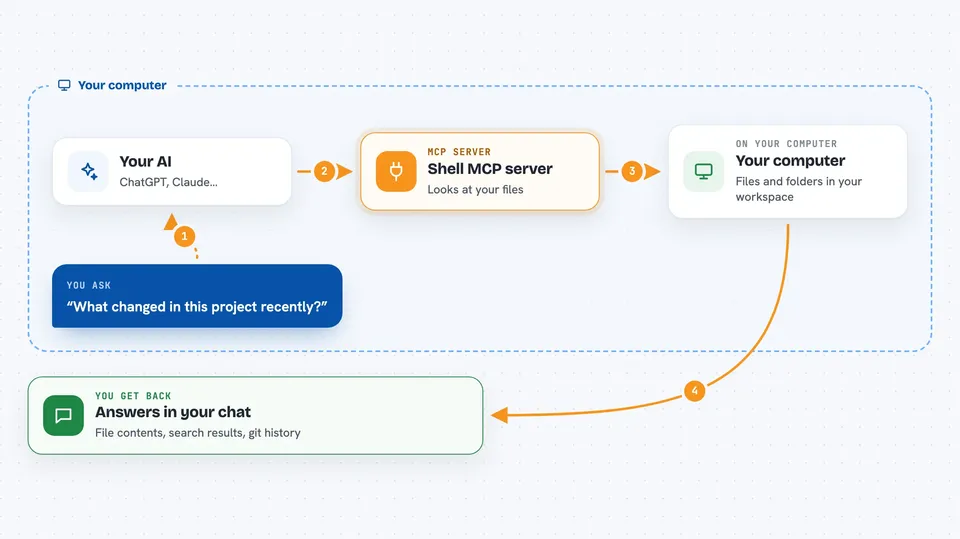
You ask your AI something like "what changed in this project recently?" or "find where this word appears in my files." The AI then uses this helper, which runs the right safe action on your computer, like reading a file or checking git log. The helper only works inside the folder you set as the workspace, and it refuses anything outside it. It then sends the result back to your AI, which explains it to you in the chat. Nothing happens unless you ask, and by default it cannot change or delete anything.
 Click to zoom
What you can do with it
- Read the contents of a file in your workspace
- List files and folders, including hidden ones
- Search for text inside files with grep or glob patterns
- Check git status, log, diff, blame and branches
- See basic system information about the machine
- Optionally write, edit, move or delete files if you turn that on
- Optionally run a small set of scripts you define yourself
Try asking your AI
- “Show me the last 10 commits in this project”
- “Find every file that mentions the word invoice”
- “What is in the README file at the top of this folder?”
- “Which files changed since yesterday?”
What it gives back to you
You get answers in the chat: file contents, lists of files, search results, git history, diffs and short summaries. If you turn on writing, the helper also reports what it changed, like a file it edited or a commit it made. Everything comes back as plain text you can read and copy.
Before you start
What you need
- Docker installed, if you want the easiest setup
- Or Go installed, if you build it from source
- A folder on your computer to use as the workspace
- An AI app that supports MCP servers, like the Claude desktop app
Good to know
By default it can only read and inspect, but if you turn on writes or unsafe mode, the AI can change or delete files or run any command, so only do that in a folder you can afford to lose.
Install it with your AI
Add Shell MCP server to your AI, no technical skills needed
You don't install anything by hand. You copy one prompt, paste it into an AI that can work on your computer, and it checks, installs and connects the server for you, asking you when it needs something.
Sign in to get the install prompt
Members get a ready-made prompt that lets the Claude desktop app check Shell MCP server, install it and connect it for them, step by step. You don't need any technical skills: you copy, paste and answer a few questions. Your connected AI can also find and install any of the 4,609 MCP servers here for you.
Who it's for
Developers and technical office workers who want AI help with code, files or git but want to keep tight control over what the AI can touch.