MCP server · Productivity · official
Timebook MCP server
by squidcode · official
Let your AI track your work hours in Timebook: start timers, log time, and fix entries by just asking.
This is a small helper that connects your AI assistant to your Timebook account, the app where you track hours and bill clients. Once it is set up, you can tell your AI things like "start a timer on the Acme project" and it actually happens in Timebook. It is handy if you already use Timebook and want to stop clicking around to log your day.
What is an MCP server? The 30-second version
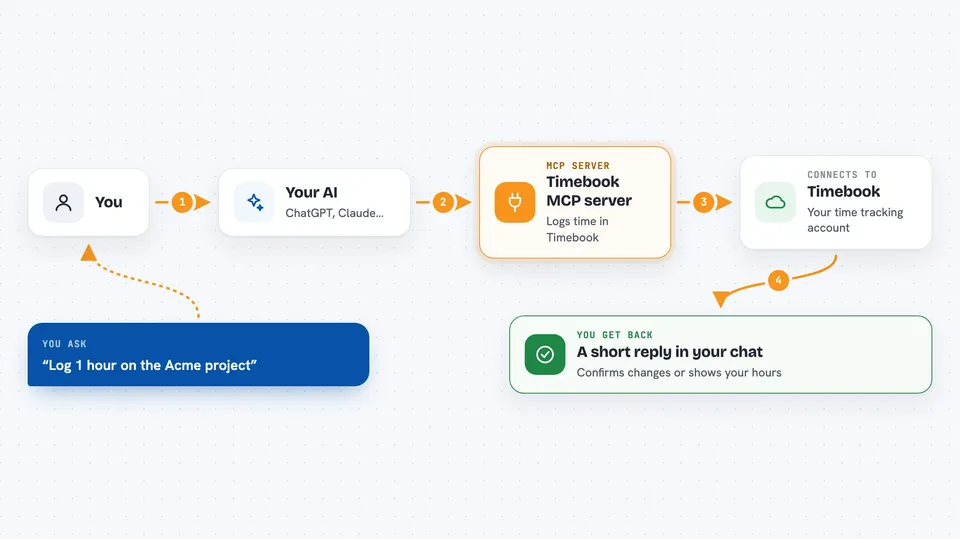
On its own, your AI can only chat. It cannot see your apps or do anything inside them. An MCP server is a small helper program that gives your AI one new skill, in this case a connection to your Timebook account. So when you ask your AI to start a timer or log an hour, it passes that request to this helper, and the helper talks to Timebook for you.
What this MCP server does
You ask your AI in plain English, like "log 1 hour on the Acme project." Your AI looks at the request and picks the right action from this helper, for example logging time or starting a timer. The helper then talks to your Timebook account over the internet and makes the change or fetches the answer. You get a short reply in the chat, such as a confirmation, a list of projects, or the hours you logged last week. You never have to open the Timebook website unless you want to.
 Click to zoom
What you can do with it
- Start and stop a timer on a project
- Log time manually with a duration or a start and end time
- List your projects and clients so your AI knows the names
- Show your recent time entries, filtered by project or date
- Check what timer is currently running
- Edit an entry, for example fixing the hours or description
- Delete an entry you created by mistake
Try asking your AI
- “Start a timer on my Acme website project for landing page wireframes”
- “How much time did I log on the Recycler project last week?”
- “Log 1 hour 30 minutes against ChatNexus from 9am this morning, description code review of the auth refactor”
- “My last entry on Recycler should be 2 hours, not 1h45m. Fix it.”
What it gives back to you
You get short, plain answers in the chat. Sometimes it is a confirmation like "timer started on Acme website." Sometimes it is a list, such as your projects, clients, or the entries you logged last week with their hours and descriptions. If you asked for a change, it tells you what it changed.
Before you start
What you need
- A Timebook account
- Node.js 18.17 or newer installed on your computer (for the local option)
- To run the login command once in a terminal so the helper can use your Timebook account
Good to know
It can change and delete your time entries, so double check before saying yes, and note that entries already invoiced cannot be changed through this connection.
Install it with your AI
Add Timebook MCP server to your AI, no technical skills needed
You don't install anything by hand. You copy one prompt, paste it into an AI that can work on your computer, and it checks, installs and connects the server for you, asking you when it needs something.
Sign in to get the install prompt
Members get a ready-made prompt that lets the Claude desktop app check Timebook MCP server, install it and connect it for them, step by step. You don't need any technical skills: you copy, paste and answer a few questions. Your connected AI can also find and install any of the 4,361 MCP servers here for you.
Who it's for
Freelancers, consultants, and small teams who already track their hours in Timebook and want to log time by chatting instead of clicking.