MCP server · Developer tools
OCI Registry MCP server
by StacklokLabs
Lets your AI look up container image details, tags, manifests and configs from OCI registries.
This is a small helper that connects your AI assistant to OCI registries, the online libraries where container images live. Once it is set up, you can ask your AI about an image and it will go and fetch the facts for you. It is handy for anyone who works with containers and wants quick answers without opening a terminal.
What is an MCP server? The 30-second version
On its own, your AI can only chat with you using what it already knows. An MCP server is a small helper program that gives your AI a new skill or a connection to an outside service. This one connects your AI to OCI registries, the places where container images are stored. So when you ask about an image, your AI can actually go and look it up instead of guessing.
What this MCP server does
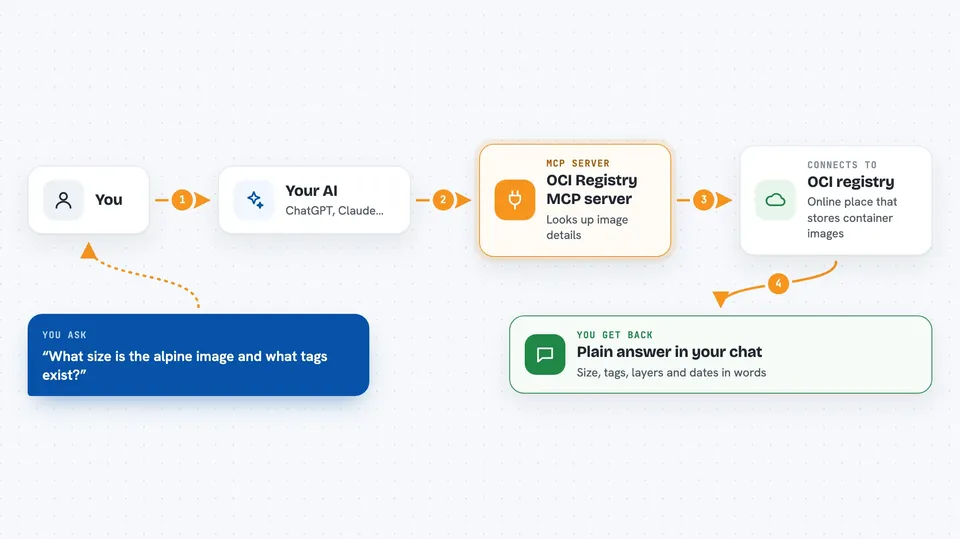
You ask your AI a question about a container image, like what size it is or which tags exist. Your AI passes that request to this helper program. The helper then talks to the OCI registry over the internet and asks for the details. The registry sends back the information, and the helper hands it to your AI. Your AI then shows you the answer in plain words in the chat.
 Click to zoom
What you can do with it
- Look up basic details about a container image, like its digest, size and architecture
- List all the tags available for a repository
- Fetch the manifest of an image
- Fetch the config of an image
- Check when an image was created and how many layers it has
- Query public registries like Docker Hub without leaving the chat
Try asking your AI
- “What can you tell me about the image docker.io/library/alpine:latest?”
- “List all the tags for docker.io/library/alpine”
- “Show me the manifest for docker.io/library/nginx:latest”
- “What is the config of docker.io/library/redis:latest?”
What it gives back to you
You get back plain answers in the chat: details about an image such as its digest, size, architecture, operating system, creation date and number of layers. If you ask for tags, you get a list of tag names. If you ask for a manifest or config, you get that content shown to you. Everything appears as text you can read right in the conversation.
Before you start
What you need
- An MCP-compatible AI client, like the Claude desktop app or another tool that supports MCP servers
- ToolHive installed if you want the easy containerized setup (the README recommends this)
- Login details for a private registry only if you need to access one (a token, or a username and password)
Good to know
If you give it login details for a private registry, it can read private images, so only connect it to registries you are allowed to access.
Install it with your AI
Add OCI Registry MCP server to your AI, no technical skills needed
You don't install anything by hand. You copy one prompt, paste it into an AI that can work on your computer, and it checks, installs and connects the server for you, asking you when it needs something.
Sign in to get the install prompt
Members get a ready-made prompt that lets the Claude desktop app check OCI Registry MCP server, install it and connect it for them, step by step. You don't need any technical skills: you copy, paste and answer a few questions. Your connected AI can also find and install any of the 4,609 MCP servers here for you.
Who it's for
Developers, DevOps engineers and IT staff who work with container images and want quick answers about them without leaving their AI chat.