MCP server · Analytics
Stape MCP server
by stape-io
Let your AI check containers, domains, billing and stats in your Stape account just by asking.
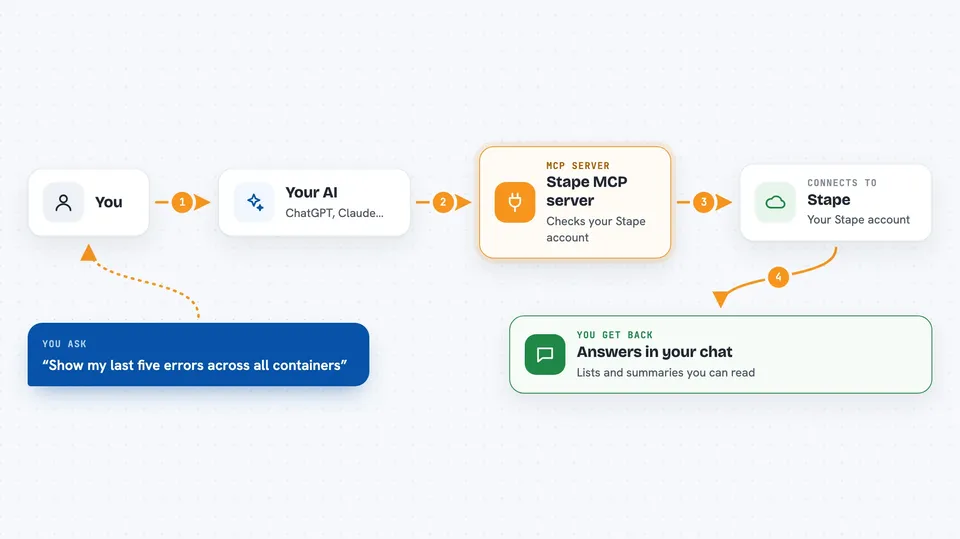
This connects your AI assistant to your Stape account. Once it is added, you can ask questions in normal words and let the AI pull the details straight from Stape. It is useful if you manage server-side tagging setups and want quick answers without clicking around the dashboard.
What is an MCP server? The 30-second version
On its own, your AI can only chat based on what it already knows. An MCP server is a small helper that gives your AI a live link to something outside the conversation. This particular helper links your AI to Stape, so when you ask about a container or an invoice, the AI goes and gets real info from your Stape account instead of guessing.
What this MCP server does
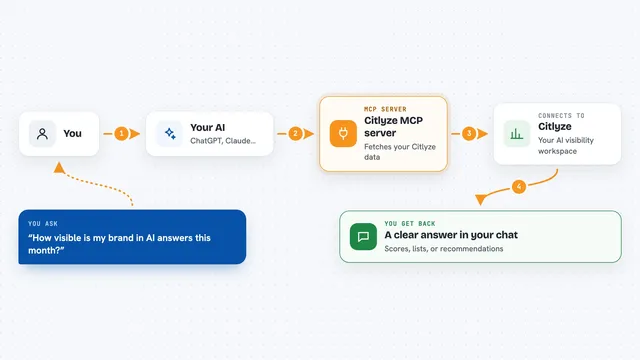
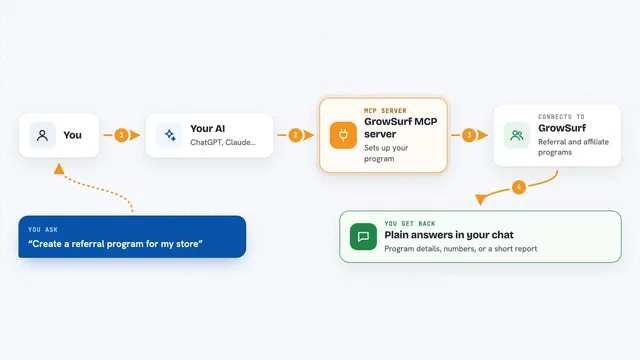
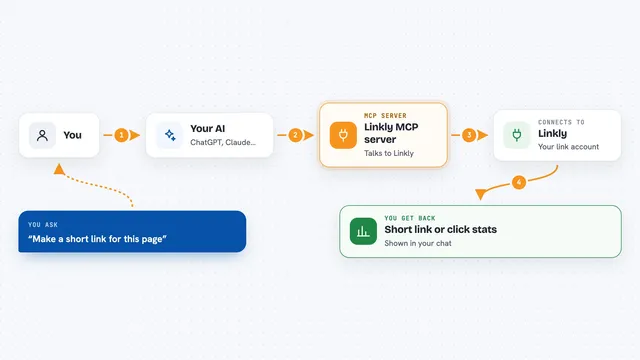
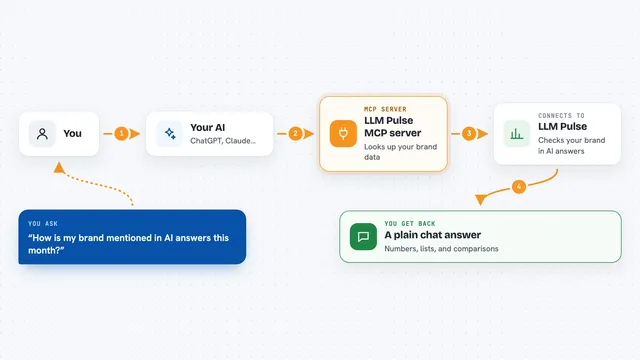
When you ask your AI something about Stape, the AI sends the request to this helper behind the scenes. The helper passes it along to Stape's system using your personal Stape login key. Then whatever comes back lands right in your chat window as readable text. You never touch any code yourself; you just keep talking normally.
 Click to zoom
What you can do with it
- Look up your containers and see their current state
- Check monitoring alerts and recent log entries for a container
- Read statistics and analytics figures for a period
- See invoices, payment links and subscription status
- Review users, company details and shared access
- Run a Stape Score report on a website's tracking setup
- Create or update certain items, such as schedules or proxy files
Try asking your AI
- “Show me my last five errors across all containers”
- “What did traffic volume look like yesterday compared to last week?”
- “How much am I being billed this month and where is that coming from?”
- “Give me the latest score report for mystore.com”
What it gives back to you
Mostly you get clean lists and summaries written in the chat: container states, error counts, spending totals, team members and similar facts. Some actions return single records in detail rather than long tables. When you create or change something, the reply confirms whether it worked. Nothing appears anywhere else except your chat thread.
Before you start
What you need
- A Stape account
- Your Stape API key (found in your Stape profile)
- For most desktop apps: Node.js version 18 or newer installed on your computer
Good to know
Certain commands can modify or remove parts of your Stape setup permanently, though those steps always demand explicit confirmation first.
Install it with your AI
Add Stape MCP server to your AI, no technical skills needed
You don't install anything by hand. You copy one prompt, paste it into an AI that can work on your computer, and it checks, installs and connects the server for you, asking you when it needs something.
Sign in to get the install prompt
Members get a ready-made prompt that lets the Claude desktop app check Stape MCP server, install it and connect it for them, step by step. You don't need any technical skills: you copy, paste and answer a few questions. Your connected AI can also find and install any of the 4,066 MCP servers here for you.
Who it's for
People running server-side tag setups, marketers managing several websites' tracking infrastructure, agency staff handling multiple client accounts day to day.