MCP server · Music
REAPER MCP server
Lets your AI control REAPER for mixing, mastering, MIDI and music production.

This is a helper that connects your AI assistant to REAPER, the music production program. Once it is set up, you can ask your AI in plain words to do things in your REAPER project, like adding tracks, setting up a compressor, or writing MIDI notes. It is handy for anyone who makes music in REAPER and wants to save time on repetitive studio tasks.
What is an MCP server? The 30-second version
On its own, your AI can only chat. An MCP server is a small helper program that gives your AI a new skill or a connection to an app. This one connects your AI to REAPER, so when you ask for something in your project, the AI can actually look at your tracks and make changes there for you. You do not need to be technical to use it; you just talk to your AI like you would to a studio assistant.
What this MCP server does
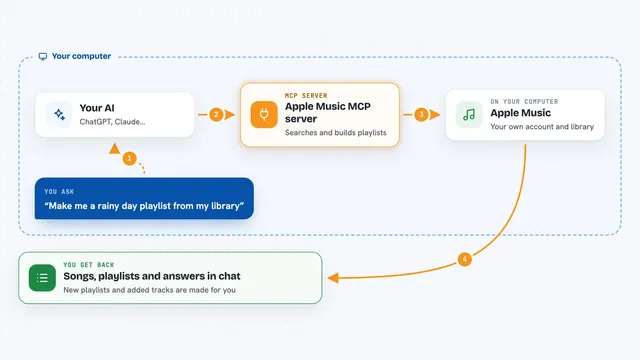
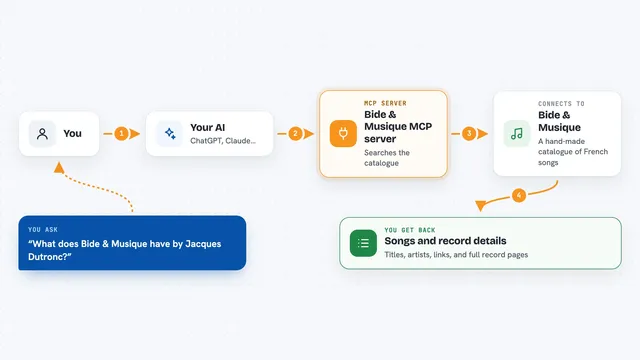
You ask your AI something like "add a compressor to the bass track" or "what plugins are on track 0?". The AI sends that request through this helper. The helper talks to a small script running inside REAPER, which does the work in your project. Then the answer or the change comes back to you in the chat. Every change is one undo step in REAPER, so you can press Ctrl+Z to reverse it.
 Click to zoom
What you can do with it
- Create, rename, mute, solo, and set volume or pan on tracks
- Add plugins like ReaComp or ReaEQ and change their settings
- Set up sidechain compression, buses, and a mastering chain
- Create MIDI items and add or edit notes, velocities, and timing
- Measure loudness, true peak, and stereo width on your master or a track
- Add markers and regions, move the cursor, play or stop the project
- Save the project or render it to a file
Try asking your AI
- “How many tracks are in my project?”
- “Add ReaComp to the bass track and set the threshold to -20dB”
- “Create a 4-bar MIDI item on track 0 and add a C major chord at the start”
- “Set up sidechain compression from the kick to the bass”
What it gives back to you
You get answers in plain words in your chat, like a track count, a list of plugins, or a summary of your project. When you ask for a change, the AI tells you what it did, such as renaming a track or adding a plugin. For measurements, you get numbers like loudness in LUFS or true peak in dB. If you ask for a render, it saves an audio file where you said.
Before you start
What you need
- REAPER installed on your computer
- Python 3.10 or newer
- An MCP-compatible AI assistant like Claude Desktop or VS Code with an AI extension
- The bridge script loaded and running inside REAPER (the setup guide walks you through it)
Good to know
It can change or delete things in your REAPER project, so save your work first and remember that every AI change is one undo step you can reverse with Ctrl+Z.
Install it with your AI
Add REAPER MCP server to your AI, no technical skills needed
You don't install anything by hand. You copy one prompt, paste it into an AI that can work on your computer, and it checks, installs and connects the server for you, asking you when it needs something.
Sign in to get the install prompt
Members get a ready-made prompt that lets the Claude desktop app check REAPER MCP server, install it and connect it for them, step by step. You don't need any technical skills: you copy, paste and answer a few questions. Your connected AI can also find and install any of the 4,361 MCP servers here for you.
Who it's for
Music producers, mixing and mastering engineers, and hobbyist musicians who use REAPER and want their AI to help with studio work.