MCP server · Generative video
VicSee MCP server
by vicseeai
Let your AI make and upscale videos and images using VicSee models like Seedance, Veo, Kling and FLUX.

This is a small helper that connects your AI assistant to VicSee, a service that creates AI videos and images. Once it is set up, you can just ask your AI in plain words to make a video or a picture, and it will do the work for you. It is handy for anyone who needs quick visuals or short clips without learning a new app.
What is an MCP server? The 30-second version
On its own, your AI can only chat. An MCP server is a small helper program that gives your AI a new skill or a connection to another service. This one connects your AI to VicSee, so when you ask for a video or an image, your AI can actually send that request to VicSee and bring the result back to you. You do not need to understand how it works under the hood. You just talk to your AI like normal.
What this MCP server does
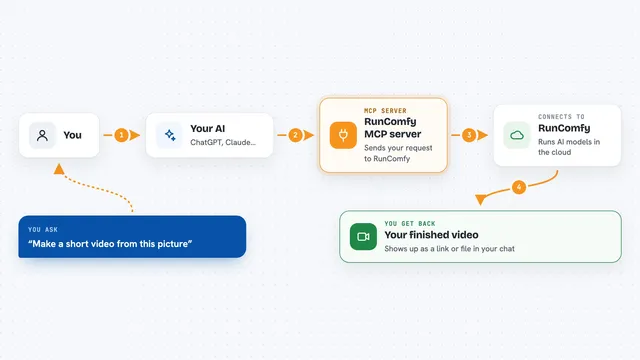
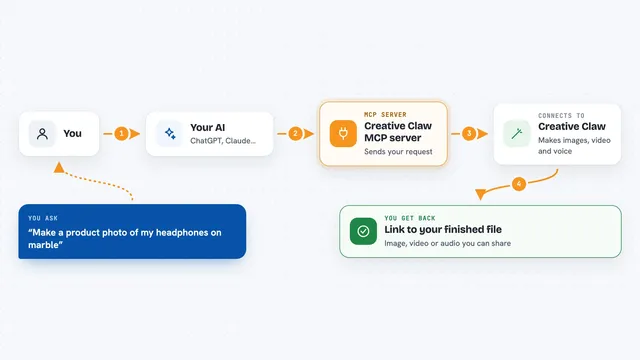
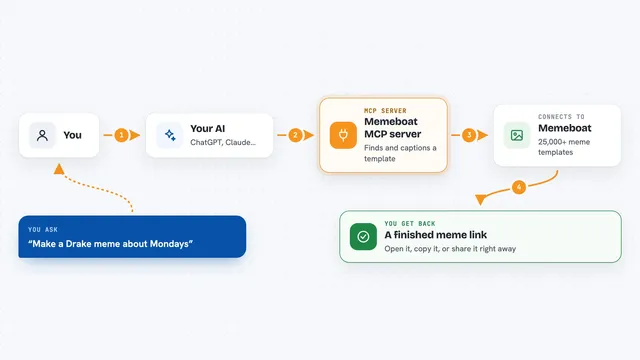
You ask your AI for something, like a short video of a kitten or a picture of a mountain at sunrise. Your AI uses this helper to talk to VicSee, which runs the actual generation with a model you pick. VicSee starts the job and hands back a task number right away, because making video takes time. Your AI then checks on that task again and again until it is finished. When it is done, your AI shows you the link to the finished video or image.
 Click to zoom
What you can do with it
- List the available models and how many credits each one costs
- Check the exact credit cost of a request before you run it
- Generate a video or image from a text description
- Generate a video or image starting from a picture you provide
- Upscale an image to a higher quality
- Upscale a video to a higher quality
- Check how many credits you have left
Try asking your AI
- “Make me a 5 second video of a kitten chasing a laser.”
- “Create a picture of a quiet mountain lake at sunrise, in a soft painting style.”
- “Upscale this image and make it sharper.”
- “How many credits do I have left, and what would a 10 second video cost?”
What it gives back to you
You get back a link to the finished video or image, hosted on VicSee's own storage. Your AI will usually show you that link in the chat, and you can click it to view or download the file. If you ask about credits, you get a simple number. The links only stay available for 7 days, so download anything you want to keep.
Before you start
What you need
- A VicSee account with a paid plan or a credit pack
- An API key from VicSee (Settings, then API; it starts with sk-)
- The Claude desktop app, Cursor, or another MCP-compatible client
- Node.js installed on your computer, so the npx command can run
Good to know
Every generation and upscale costs credits, which are real money, so check the cost first with the estimate tool before you run something big.
Install it with your AI
Add VicSee MCP server to your AI, no technical skills needed
You don't install anything by hand. You copy one prompt, paste it into an AI that can work on your computer, and it checks, installs and connects the server for you, asking you when it needs something.
Sign in to get the install prompt
Members get a ready-made prompt that lets the Claude desktop app check VicSee MCP server, install it and connect it for them, step by step. You don't need any technical skills: you copy, paste and answer a few questions. Your connected AI can also find and install any of the 4,361 MCP servers here for you.
Who it's for
People who need quick videos or images for work, like marketers, social media managers, designers and small business owners, without wanting to learn a separate editing tool.