MCP server · Analytics
Visual Sentinel MCP server
Lets your AI check DNS, SSL, speed and uptime for any website, and manage your Visual Sentinel monitors.
This is a small helper that connects your AI assistant to Visual Sentinel, a website monitoring service. Once it is set up, you can ask your AI to check whether a site is healthy, look at its certificate, or list your monitors and incidents. It is handy for anyone who looks after websites, even if you are not technical.
What is an MCP server? The 30-second version
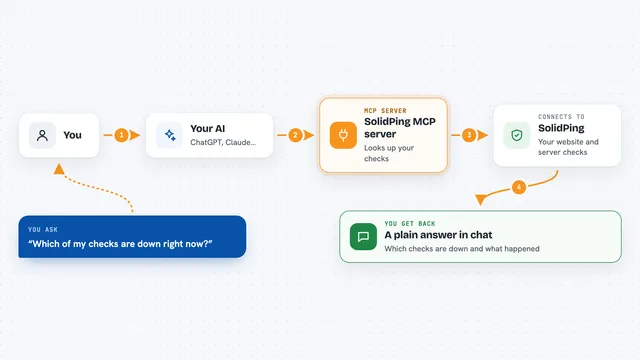
On its own, your AI can only chat with you. An MCP server is a small helper program that gives your AI a new skill or a connection to another service. This one connects your AI to Visual Sentinel, so the AI can run checks and look things up there for you. You just ask in plain words, and the helper does the talking behind the scenes.
What this MCP server does
You ask your AI something like what is wrong with this website. The AI picks the right tool from this helper, and the helper sends the request to Visual Sentinel. Visual Sentinel runs the check, such as a DNS lookup, an SSL inspection or a speed test, and sends the result back. The AI then explains it to you in normal language. If you have an account and an API key, the helper can also list your monitors, show incidents and acknowledge alerts.
What you can do with it
- Check the DNS records for any domain
- Inspect an SSL certificate and see when it expires
- Run a speed test on a page
- Do a quick health check on a website
- List your monitors and see which ones are down
- Create a new monitor for a site
- List incidents and acknowledge alerts
Try asking your AI
- “What is the SSL certificate situation on visualsentinel.com and when does it expire?”
- “List my Visual Sentinel monitors that are currently down.”
- “Add a new HTTPS monitor for https://shop.example.com checking every minute.”
- “Run a speed test on https://example.com/checkout.”
What it gives back to you
You get answers in the chat, written out by your AI. That can be a list of DNS records, certificate details like the issuer and expiry date, speed numbers such as load time, or a list of your monitors and incidents. When you ask it to create a monitor or acknowledge an alert, it tells you what it changed.
Before you start
What you need
- The Claude desktop app or another app that supports MCP
- Node.js installed on your computer (the setup uses a tool called npx)
- A Visual Sentinel API key for the account tools (Business and Agency plans). The public checks work without one.
Good to know
Some tools can change things in your Visual Sentinel account, like creating a monitor or acknowledging an alert, so check before you let your AI do that.
Install it with your AI
Add Visual Sentinel MCP server to your AI, no technical skills needed
You don't install anything by hand. You copy one prompt, paste it into an AI that can work on your computer, and it checks, installs and connects the server for you, asking you when it needs something.
Sign in to get the install prompt
Members get a ready-made prompt that lets the Claude desktop app check Visual Sentinel MCP server, install it and connect it for them, step by step. You don't need any technical skills: you copy, paste and answer a few questions. Your connected AI can also find and install any of the 4,361 MCP servers here for you.
Who it's for
Anyone who looks after websites, such as webmasters, small business owners, support teams and developers who want quick checks without leaving their chat.