MCP server · Coding
Desktop Commander MCP server
by wonderwhy-er
Lets your AI read, search, and edit files on your computer and run terminal commands for you.

Desktop Commander is a helper that connects your AI assistant to your own computer. Once it is set up, your AI can open files, search through folders, edit text and code, and run commands on your machine when you ask. It is handy for people who work with lots of files or code and want the AI to actually do the work, not just talk about it.
What is an MCP server? The 30-second version
On its own, your AI can only chat. It cannot see your files or touch your computer. An MCP server is a small helper program that gives your AI a new skill or a connection to something outside the chat. This one, Desktop Commander, connects your AI to your own computer, so it can look at your files and run commands when you ask it to.
What this MCP server does
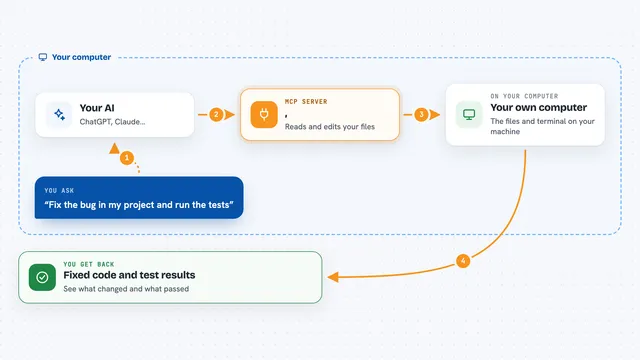
You ask your AI something in plain words, like to find a file or fix a line of text. The AI sends that request to Desktop Commander, which is running quietly on your computer. Desktop Commander then looks at your files or runs a command in your terminal, exactly as you asked. It sends the result back to the AI, and the AI shows you the answer or tells you what it changed. You stay in the chat the whole time and never have to open a terminal yourself.
 Click to zoom
What you can do with it
- Read and search files and folders on your computer
- Edit text and code files, from small tweaks to full rewrites
- Run terminal commands and see the output
- Start, list, and stop running programs
- Read and write Excel, PDF, and Word files
- Run small Python, Node.js, or R snippets without saving files
- Keep a local history of what the AI did
Try asking your AI
- “Find every file in my Documents folder that mentions the word invoice”
- “Open my notes.txt and fix the typos in the first paragraph”
- “Run the tests in my project folder and tell me what failed”
- “Read this Excel file and summarize the totals by month”
What it gives back to you
You get answers in the chat: lists of files, snippets of text, command output, or a short summary of what changed. If the AI edited a file, it tells you which file and what it changed. For Excel, PDF, or Word files, it can show you the content it read or confirm the edits it made. Everything appears as normal chat messages, so you do not need to open anything else.
Before you start
What you need
- The Claude desktop app (or another AI app that supports MCP)
- Node.js installed (the setup command can help with this)
- Permission for the AI to access the folders you want it to work in
Good to know
This helper can change, move, or delete files and run commands on your computer, so only use it with folders you are comfortable letting the AI touch, and read what it plans to do before saying yes.
Install it with your AI
Add Desktop Commander MCP server to your AI, no technical skills needed
You don't install anything by hand. You copy one prompt, paste it into an AI that can work on your computer, and it checks, installs and connects the server for you, asking you when it needs something.
Sign in to get the install prompt
Members get a ready-made prompt that lets the Claude desktop app check Desktop Commander MCP server, install it and connect it for them, step by step. You don't need any technical skills: you copy, paste and answer a few questions. Your connected AI can also find and install any of the 4,609 MCP servers here for you.
Who it's for
People who work with lots of files or code and want their AI to actually open, edit, and run things on their computer, not just chat about them.